

Setup GTM Events
What Are GTM Events?
In the context of websites and applications, Google Tag Manager (GTM) events are specific user interactions or system actions that we want to track. These interactions help us understand user behavior, engagement, and system performance.
Common Examples of Events:
- add_to_cart
- view_item
- puchase
- login
- Form interactions (e.g., focus, blur, input)
- etc.
Basically, anything users do on a page or anything significant that happens in the system can be tracked as an event.
How to setup GTM Events ?
To make our event tracking clean and maintainable, we follow a standardized approach. we install an event tracking package called zadigetvoltaire/nuxt-gtm and use it to track events.
install the package in your project:
npm install --save-dev @zadigetvoltaire/nuxt-gtm
add the package to your nuxt.config.ts file:
// we can access the env variables from the .env file

export default defineNuxtConfig({
  modules: ["zadigetvoltaire/nuxt-gtm"],
  runtimeConfig: {
    public: {
      gtm: {
        id: NUXT_PUBLIC_GTM_ID, // GTM Container ID
        defer: NUXT_PUBLIC_GTM_DEFER, // default false
        compatibility: NUXT_PUBLIC_GTM_COMPATIBILITY,
        enabled: NUXT_PUBLIC_GTM_ENABLED, // e.g. based on cookie consent
        debug: NUXT_PUBLIC_GTM_DEBUG, // default false
        devtools: NUXT_PUBLIC_GTM_DEVTOOLS, // default false
      },
    },
  },
});
for more configuration options please visit the official docs here
now create a reusable utility OR composable according to your requirements. for example we have created a utility method called event-logger.utils.ts
now you can use the utility method in your project like this:
import { eventLogger } from "~/utils/event-logger";

function handleFormSubmit() {
  eventLogger("form_submit", {
    form_id: "form-1",
    form_name: "contact-form",
  });
}
to know more how to use the utility method please click here file.
Note: The
eventLoggermethod is a wrapper around thegtagfunction provided by the package.
Setup Google Tag Manager (GTM)
Most marketing teams handle container setup, but as a developer you’ll want to know how:
- Prerequisites
- Create a new GTM container
- Go to tagmanager.google.com
- Click Create Container, name it, choose Web, then Submit.

Creating an Event Tag in GTM
Step 1: Add the GA4 Event Tag
- In your GTM container, go to Tags → New.
- Select Google Analytics: GA4 Event.
- Name it (e.g., “GA4 Event – newsletter_subscribe”).
- Set Measurement ID via a variable (e.g.,
measurement_id = G-XXXXXXXXXX). - Enter Event Name (e.g.,
newsletter_subscribe).
See Google’s GA4 Event guide for details:
https://developers.google.com/analytics/devguides/collection/ga4/events?client_type=gtm
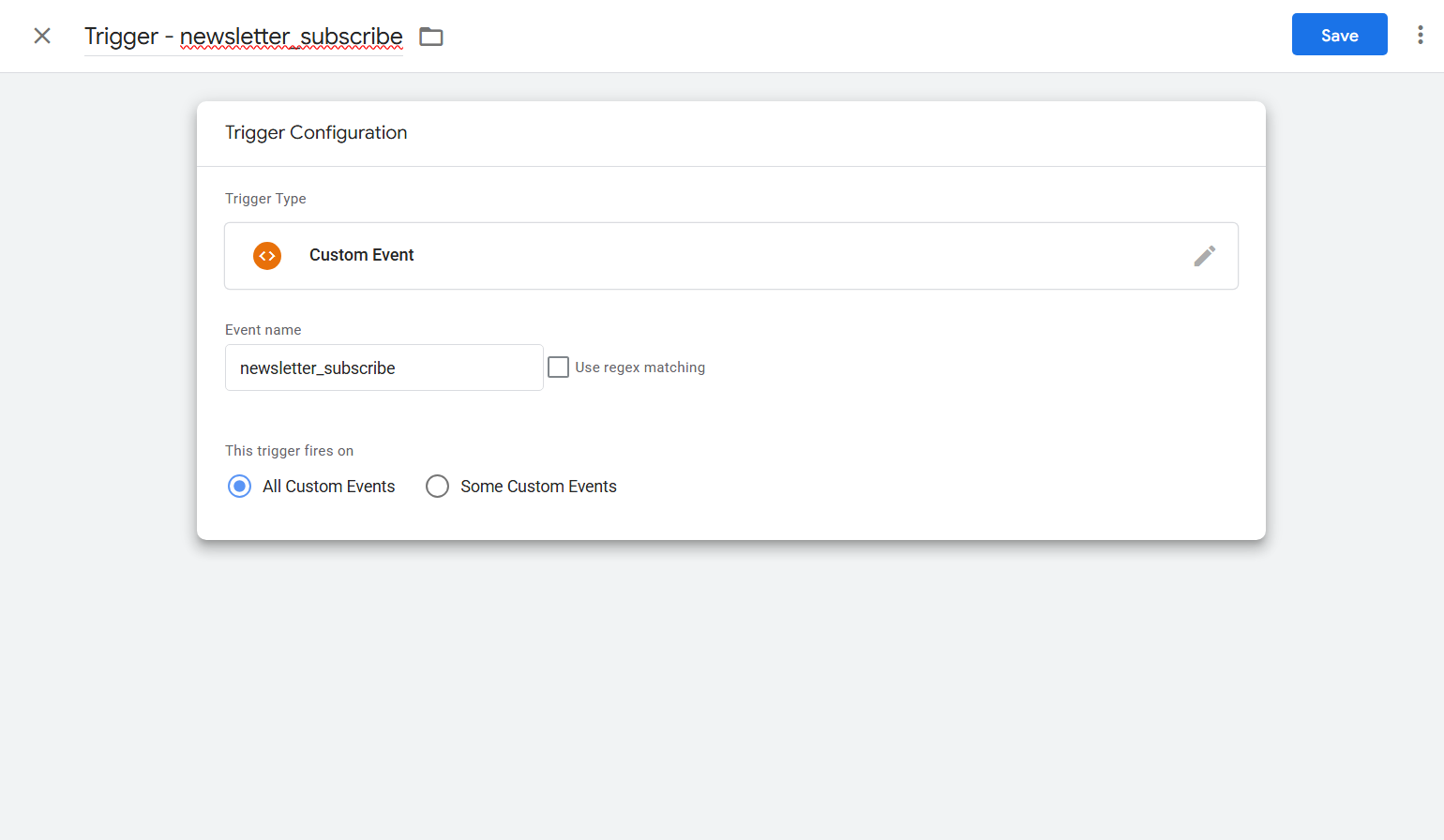
Step 2: Create a Trigger
- Go to Triggers → New.
- Name it (e.g., “Trigger – newsletter_subscribe”).
- Choose Custom Event.
- Set Event Name to
newsletter_subscribe. - Select when to fire (All Custom Events, specific page views, etc.).
- Attach this trigger to your “GA4 Event – newsletter_subscribe” tag.
Step 3: Preview & Publish
- Click Preview to test your changes.
- Once verified, click Publish.
- Your events will now appear in Google Analytics.
Learn how to test events in GTM Here.