

Section Models
Products Listing
Products listing section model is used to display the banner on the products listing as well as on the search results page.
Products Listing
Products listing section model is used to display the banner on the products listing as well as on the search results page.
Opening the entry on builder
To open the entry on builder, select the section model on the left side bar & select the productsListing section model.
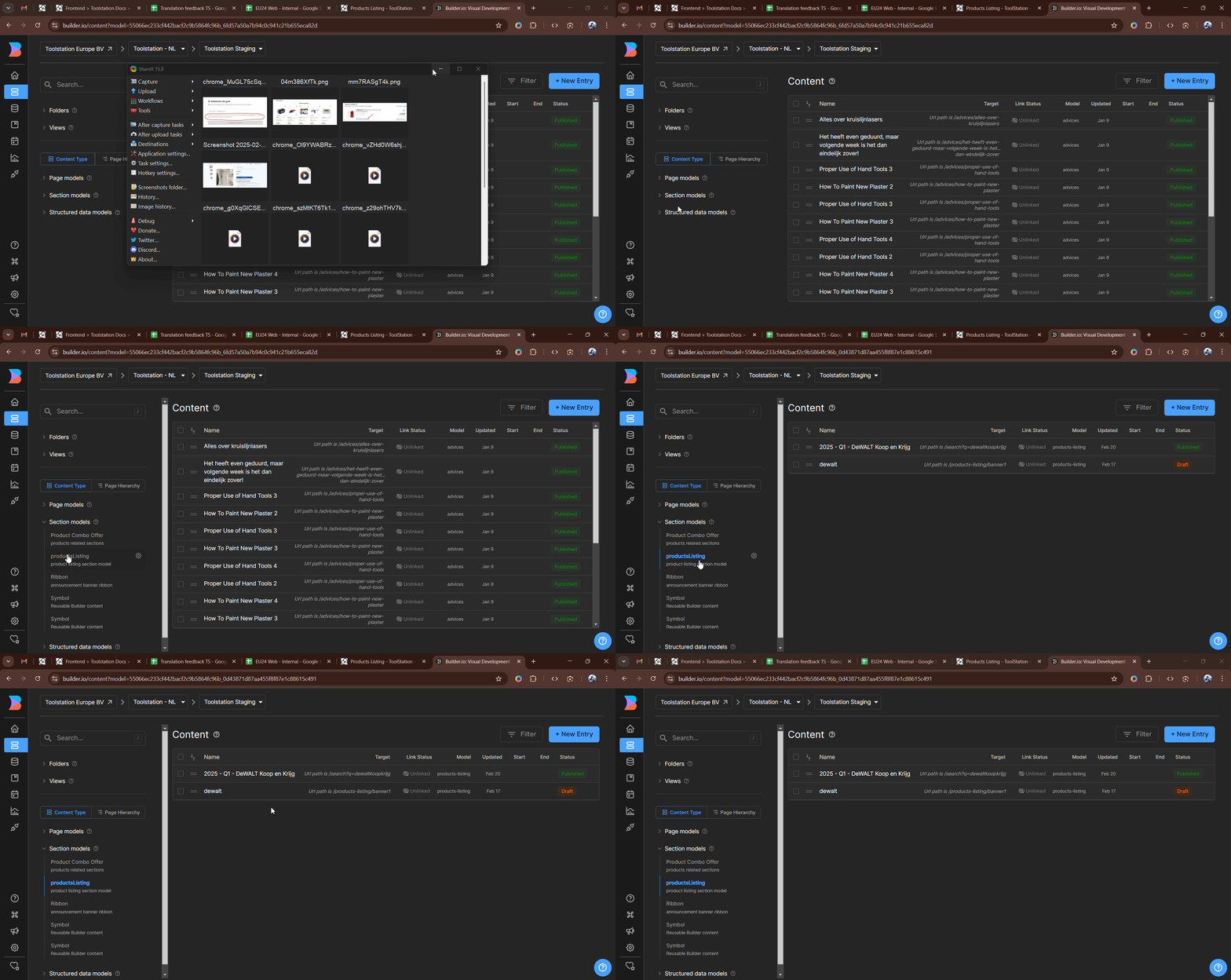
Banner on PLP
To create the new PLP banner entry,
- Click on the
+ New Entrybutton on the right top corner of the section model. - Select the
productsListingmodel from the list of models. - Set the targeting url
/products-listing/name, wherenameis the unique value. - On the right side bar, we have
categoriesprop to add the categories id comma separated wherever we want to show the banner. For example, 152,740,175. - Add the banner component to display the banner on the PLP.
- Click Save.
Banner on Search Results
To create the new search results banner entry,
- Click on the
+ New Entrybutton on the right top corner of the section model. - Select the
productsListingmodel from the list of models. - Set the targeting url
/search. - On the right side bar, we have
queryprop to add the query value. - Add the banner component to display the banner on the search results page.
- Click Save.
Note: you'll get the query value from the search url, q={query}.
Fetching the data
const isSearchPage = route.path.startsWith('/search')
const categoryId = route.params.id

const { data: bannerData } = await useAsyncData('banner data', async () => {
  return categoryId || isSearchPage ? await builderObject.getItem('products-listing', { urlPath: route.path }, {},
  categoryId ? {'data.categories.$regex': categoryId} : {'data.query.$regex': route?.query?.q?.replace(/\s+/g, ' ')}) : null;
},
{
  watch: [i18n.global.locale, route],
}
)