

Procard
PRO Card Feature
Description
The ProCard feature allows users to apply for a special card with two application types:
- ProCard with Credit: Grants users a balance to make purchases as a Pro Card user.
- ProCard without Credit: Grants users a limited version Pro Card Zero with no purchase option.
FEATURE GOALS
- Allow customers to apply for a ProCard via a simple and guided process.
- Support two application types:
With Credit: Grants purchasing power via ProCard balance.Without Credit: Marks user as ProCard holder without purchase permissions.
- Provide real-time feedback on application status.
- Support company data lookup during the application process.
- Ensure secure and authenticated access to the application flow.
- Enable users to save draft applications and resume later.
- Integrate
GTMevent tracking for analytics.
FEATURE EXPECTATIONS
- Only logged-in users can access the ProCard application process.
- The application form should:
- Dynamically adjust based on application type.
- Validate user/company input.
- Be saved as draft if not completed.
- Once submitted:
- Redirect to a
thank-you/confirmationpage. - Application status updates accordingly.
- Redirect to a
- Application progress should be trackable via status codes (
ok,pending,failed, etc.). - Users with an existing ProCard account or prior application should not see the form again.
- All data interactions are handled securely via dedicated APIs.
DEV STRATEGIES
1. Pinia Store Setup
- Implement or update three key pages:
- Application form logic based on type.
- Final confirmation screen.
- Application progress tracking.
- Ensure middleware is applied to all pages.
export default defineNuxtRouteMiddleware(async (to, from) => {
  const authStore = useAuthStore();

  if (!authStore.is_authenticated) {
    const localePath = useLocalePath();
    const rootStore = useRootStore();
    rootStore.after_auth_intended_route = to.fullPath;
    return await navigateTo(localePath("/login"));
  }
});
2. State Management
- Use authStore to access current user details (account_type, id).
- Use procardStore to:
- Track application status
- Store form data
- Reset state on navigation/unmount
3. Component Integration
- Leverage and import required components dynamically:
TsMultiStepFormProCard– Main form wizard.TsLoadingCircularSpinner,TsThankyou,TsButton, etc.
- Use useTranslation composable for multilingual text support.
4. Application Logic
- Detect application type (WITH_CREDIT or WITHOUT_CREDIT) from route params.
- Fetch and check application_status on page mount.
- Show/hide form or thank-you message based on:
- Status value (active)
- User account type (Pro Card, Pro Card Zero)
5. API Integration
- Use ProCardService methods to handle backend communication:
- Fetch company data:
getCompaniesDataByName,getCompaniesDataByNumber,getCompanyDetail. Submit/saveapplication:postProCardInfo,saveData- Status handling:
getApplicationStatus,getDraftData - Validate form inputs:
validateUserInput - Agreement flow:
redirectToTweeky
- Fetch company data:
API SERVICES
| Method | Endpoint | Purpose |
|---|---|---|
GET | /procard/company-search | Fetch company data by name/number/ISO code |
GET | /procard/company-data/:duns | Fetch detailed company data |
POST | /procard/application | Submit the final ProCard application |
POST | /procard/agreement | Redirect for agreement (Tweeky flow) |
PUT | /procard/application/save | Save draft form data |
GET | /procard/application/draft | Retrieve saved draft data |
GET | /procard/banks | Fetch list of banks (consumer-based) |
GET | /procard/application/is-active | Check if user has an active application |
POST | /procard/match-principle | Validate user's input/principle details |
FLOW SUMMARY
Different Ways User Can Visit Procard page
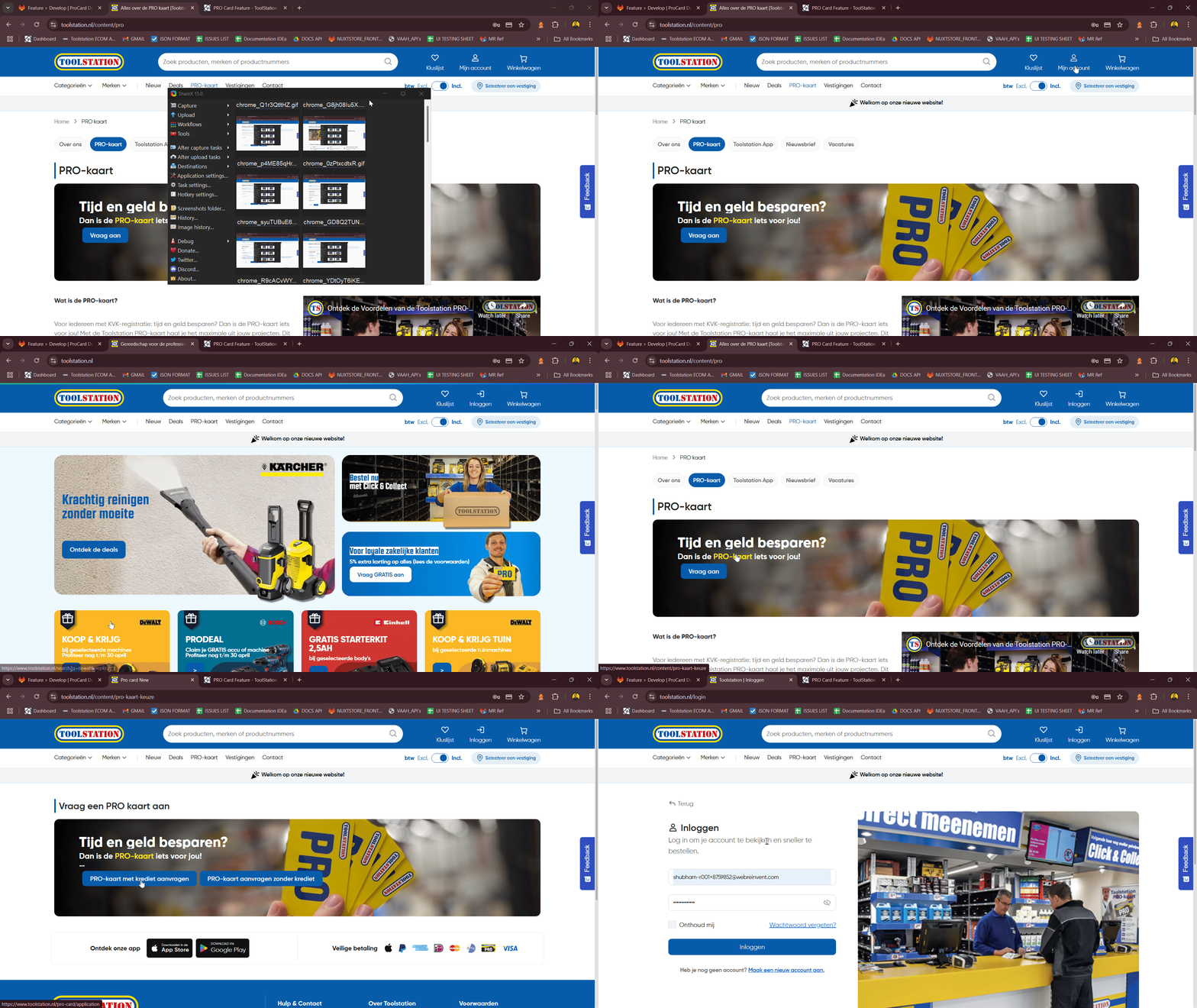
- User visits the ProCard application route
content/prothrough different ways:- Navigating from Footer Section Links Procard.
- Navigating from Menu Section.

Checking User Authenticated or not
- A middleware ensures the user is authenticated before accessing the application.
- If not logged in:
- User is redirected to the login page.
- The intended route is saved for redirect after successful login.
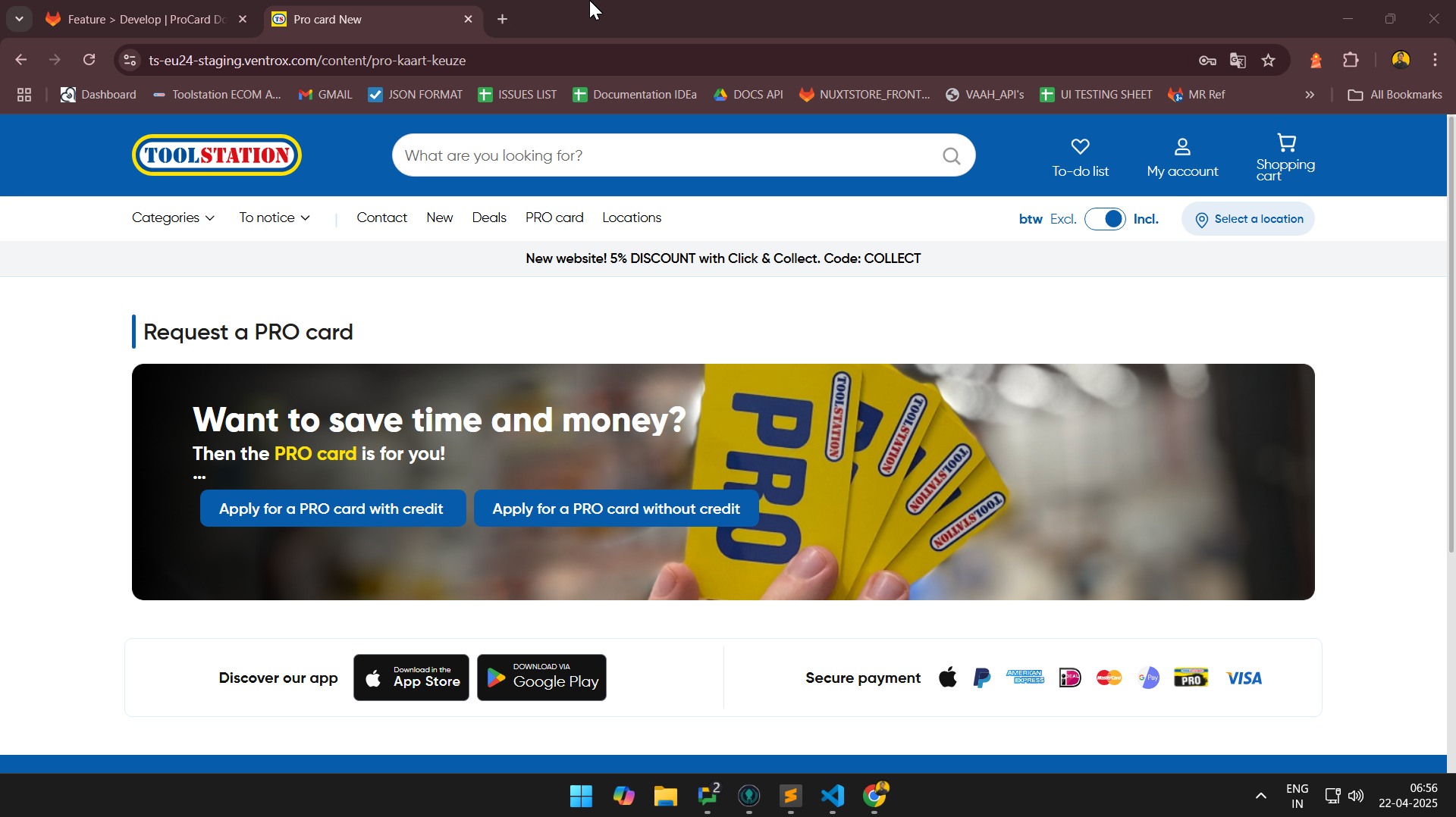
Customer Equiped With two ProCard Options
- Users are allowed to choose either procard with credit & procard without credit options.
Without Credit
- On Page mount, an API call
/procard/application/is-activeto verify if the user:- Already completed Procard Application.
- Has a saved draft in progress.
- Based on result:
- If active or completed, the thank-you/confirmation message is shown to user.
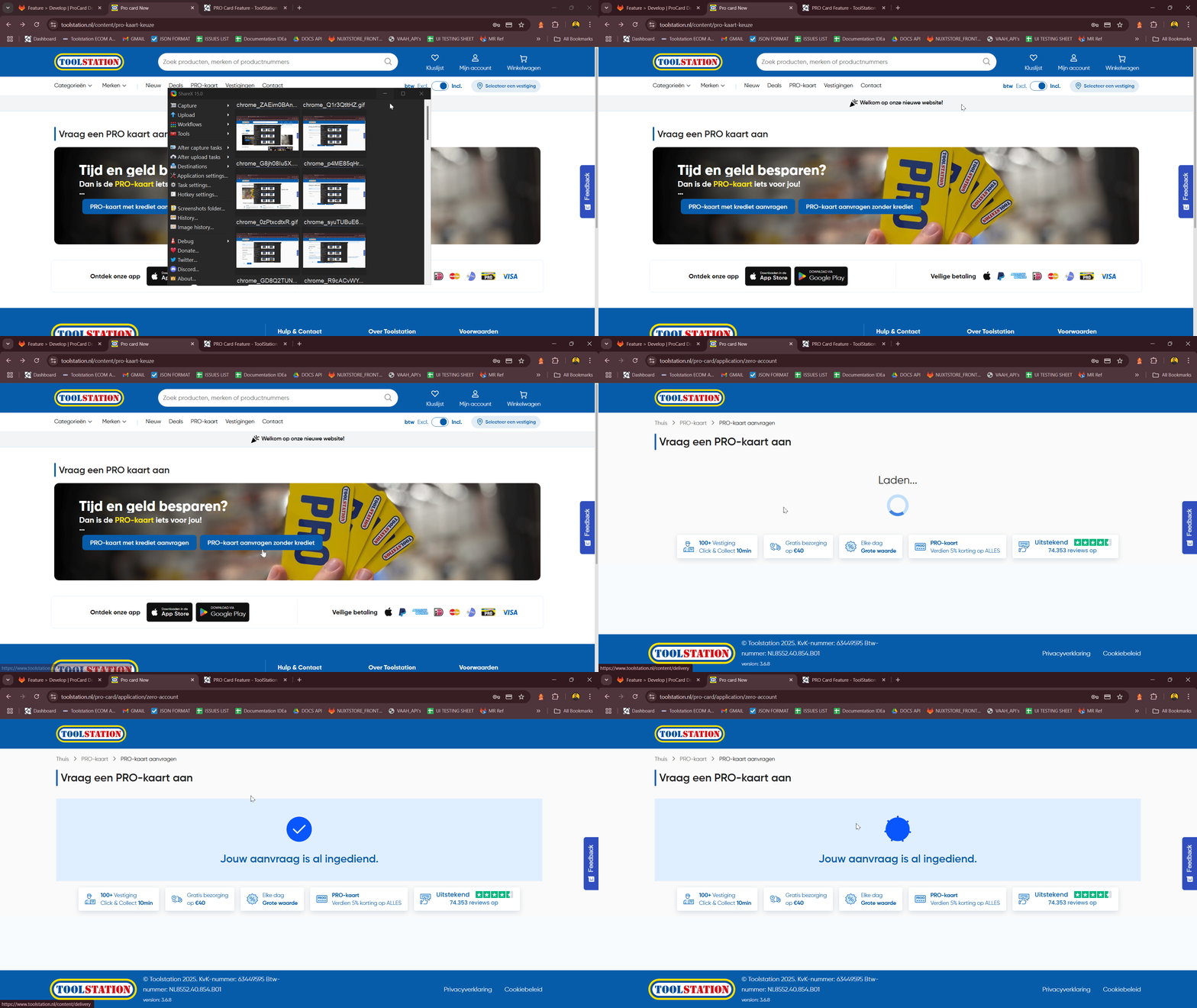
- If draft exists, the form is pre-populated and resumed.
- For new user, a fresh form is displayed.
- If active or completed, the thank-you/confirmation message is shown to user.
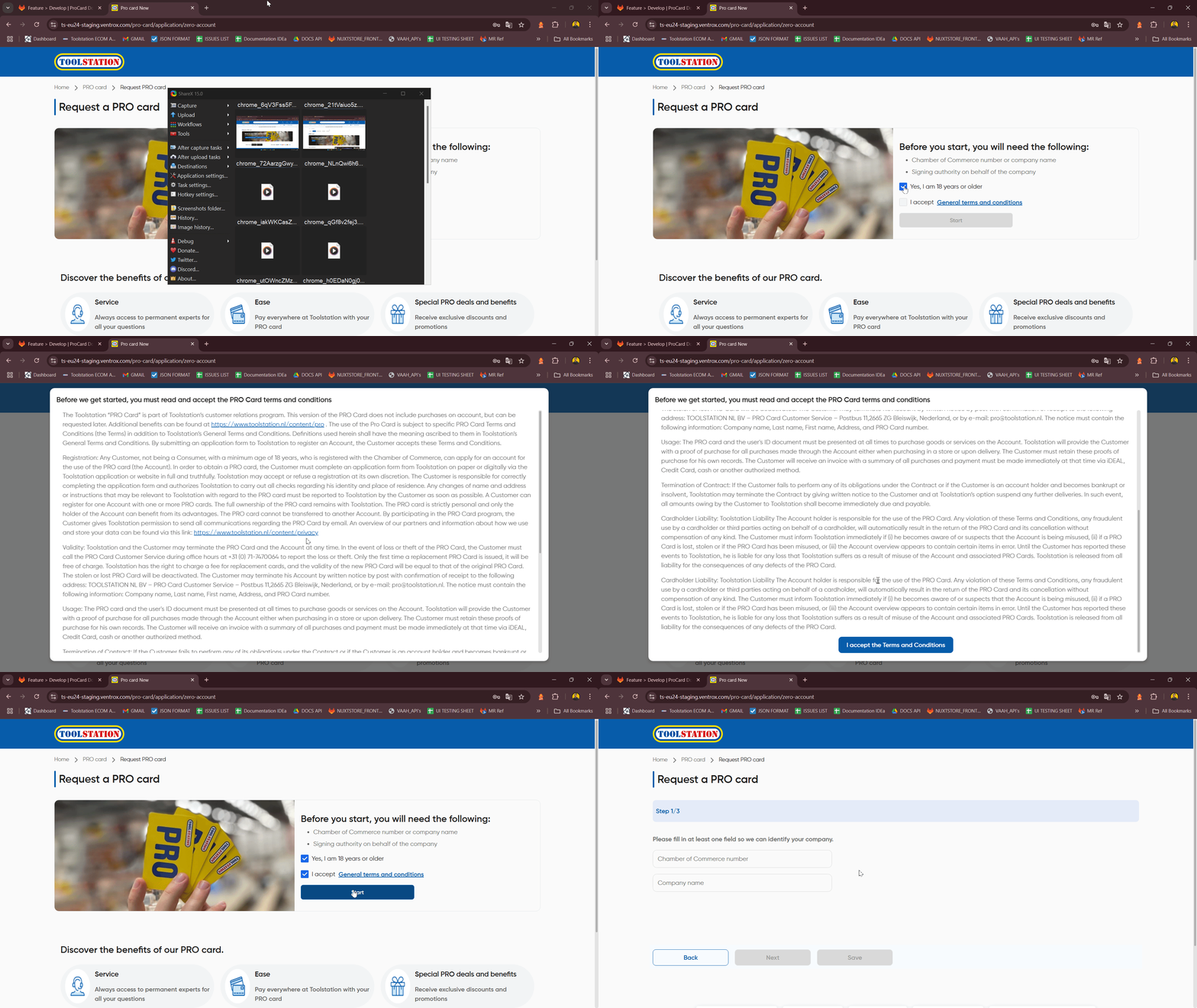
- Note : When User doesn't save progress
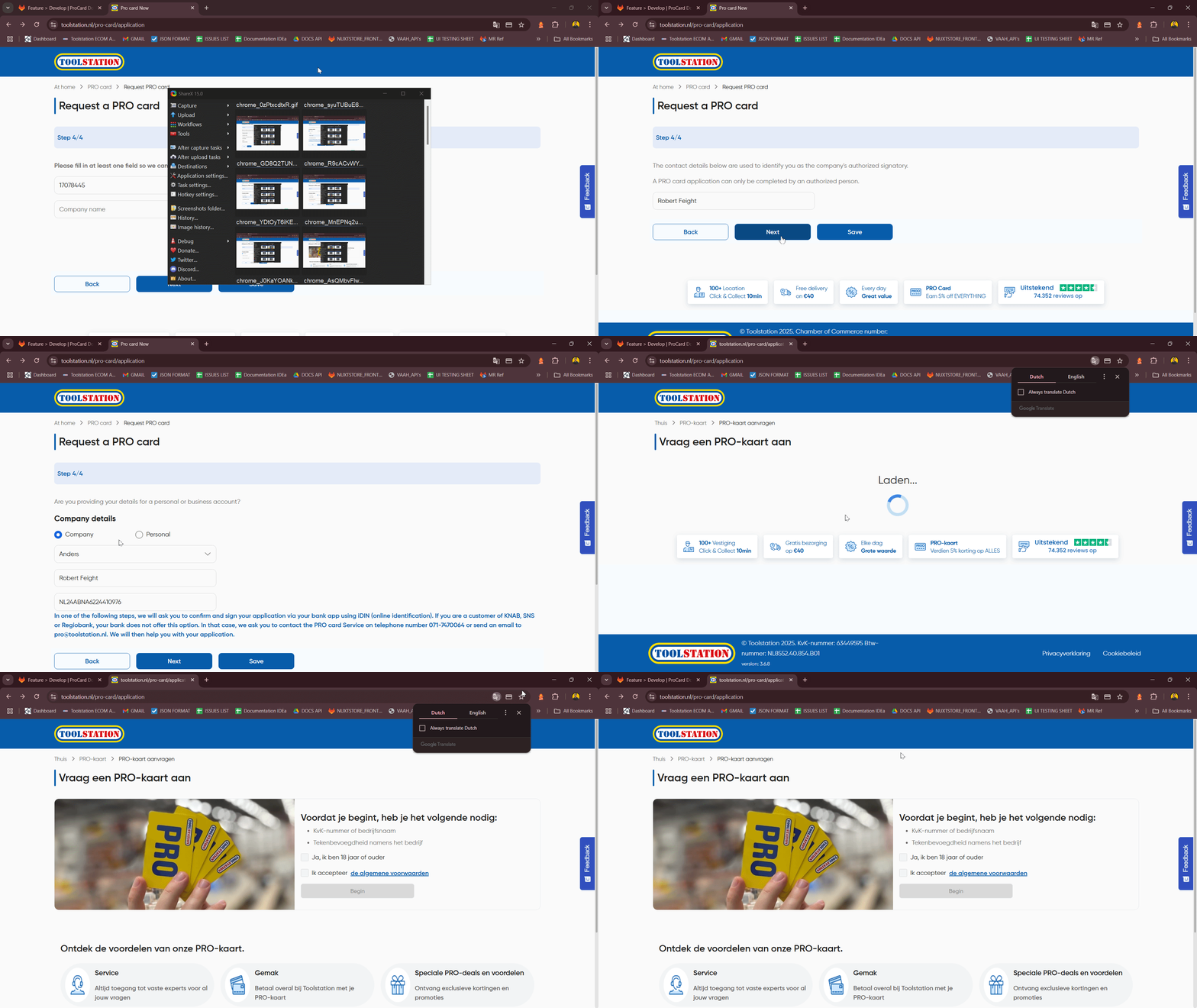
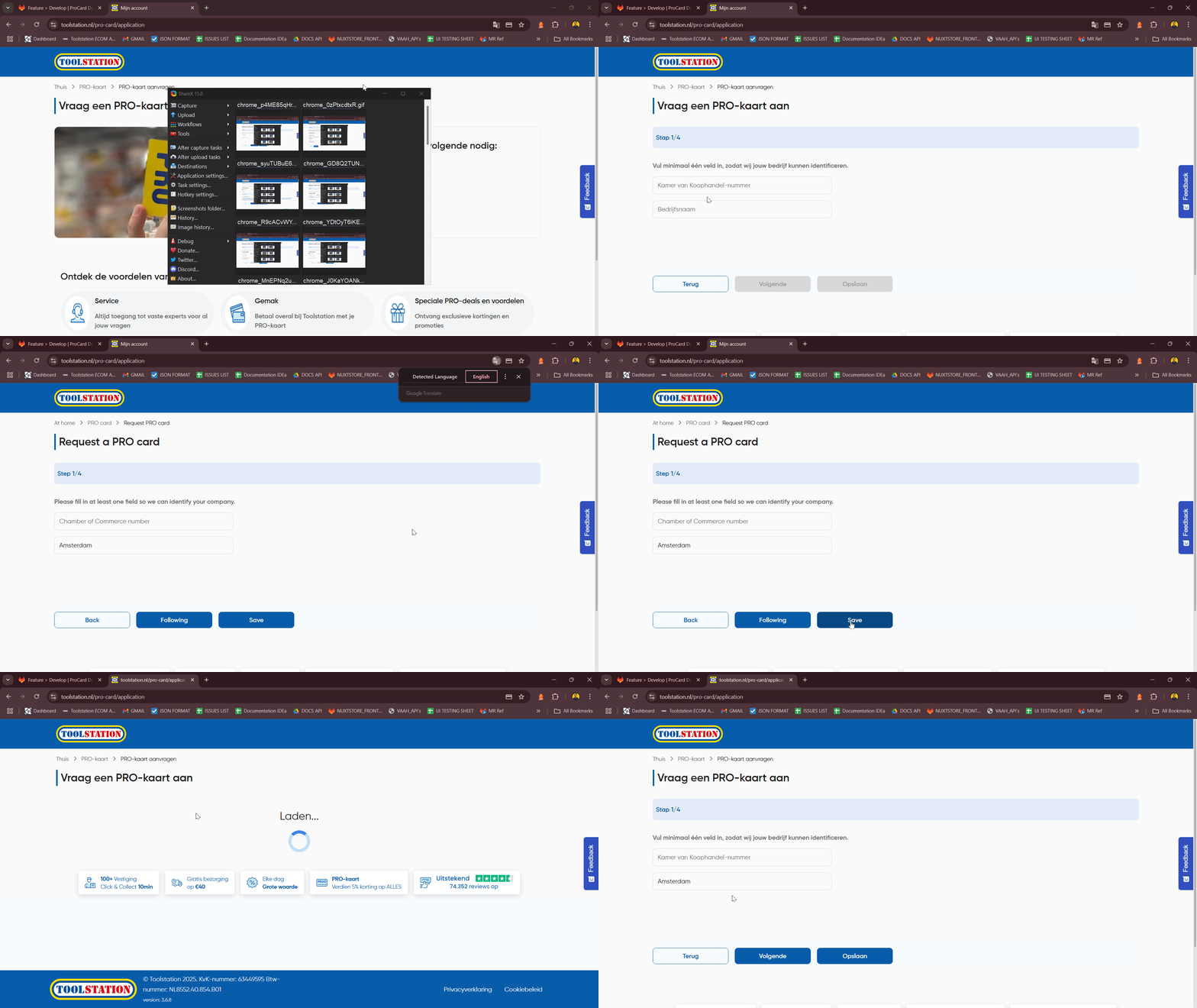
- Note : When user save progress by clicking save button
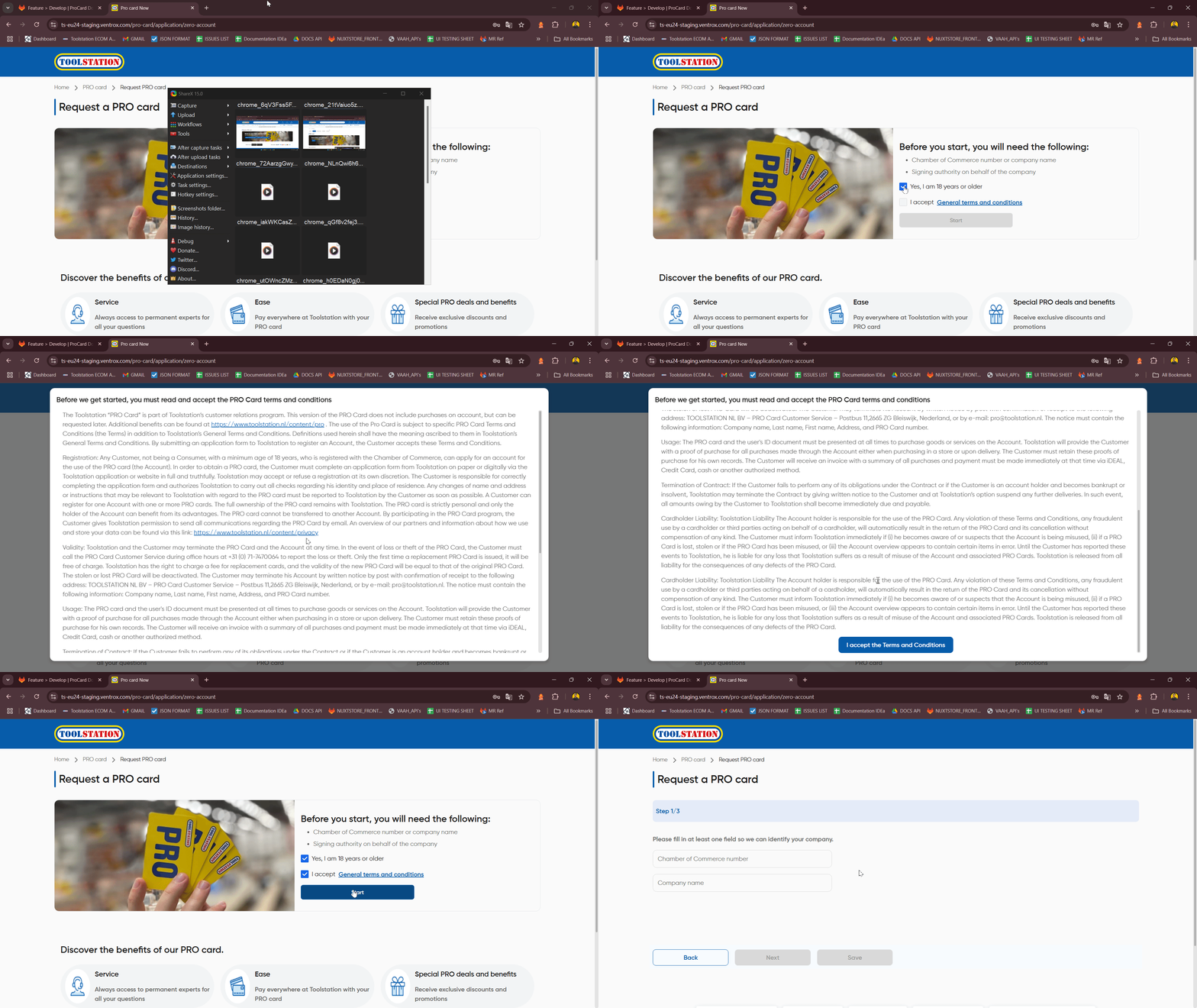
- Based on the route param and/or user account type, a form displayed using
useSteppercomposable with following steps:Form Stepper:1 → Fetch company based on name or company kvk- As user proceed further by clicking on Start Button, Multi-step form guides the user through a structured application process
- Users can search for their company by company name or company kvk using the following API:
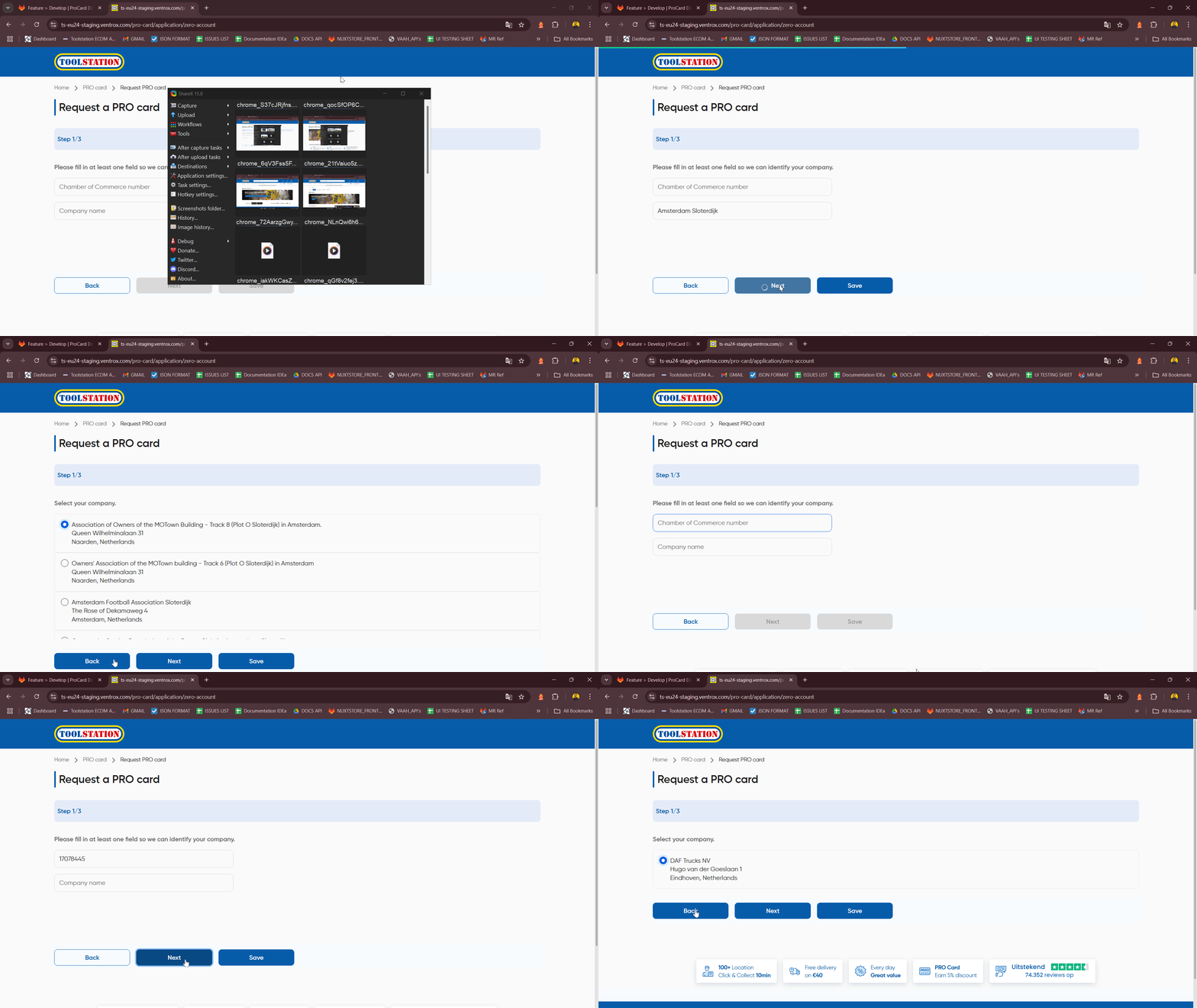
Method Endpoint Company Kvk /procard/company-search?countryISOAlpha2Code=${code}®istrationNumber=${number}Company Name /procard/company-search?countryISOAlpha2Code=${code}&name=${name}kvk,name /procard/company-search?countryISOAlpha2Code=${code}®istrationNumber=${number}&name=${name}- Validation implemented to handle user given input.
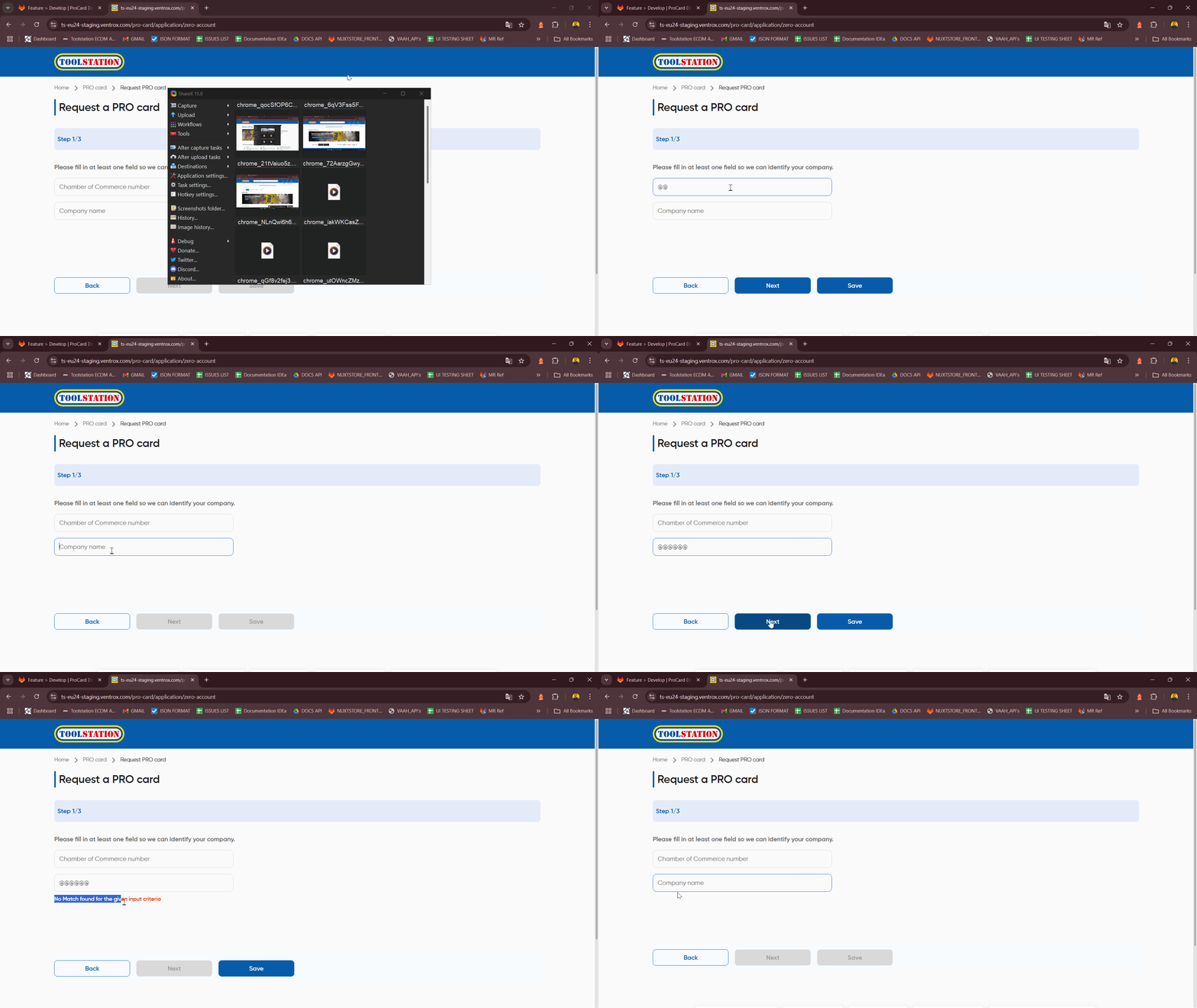
Form Stepper:2 → Select Company among Companies- Detailed company data is fetched using the
/procard/company-data/:dunsendpoint. - User now have to select the company based on the company name or company kvk he/she provided.
- handle Button validation.
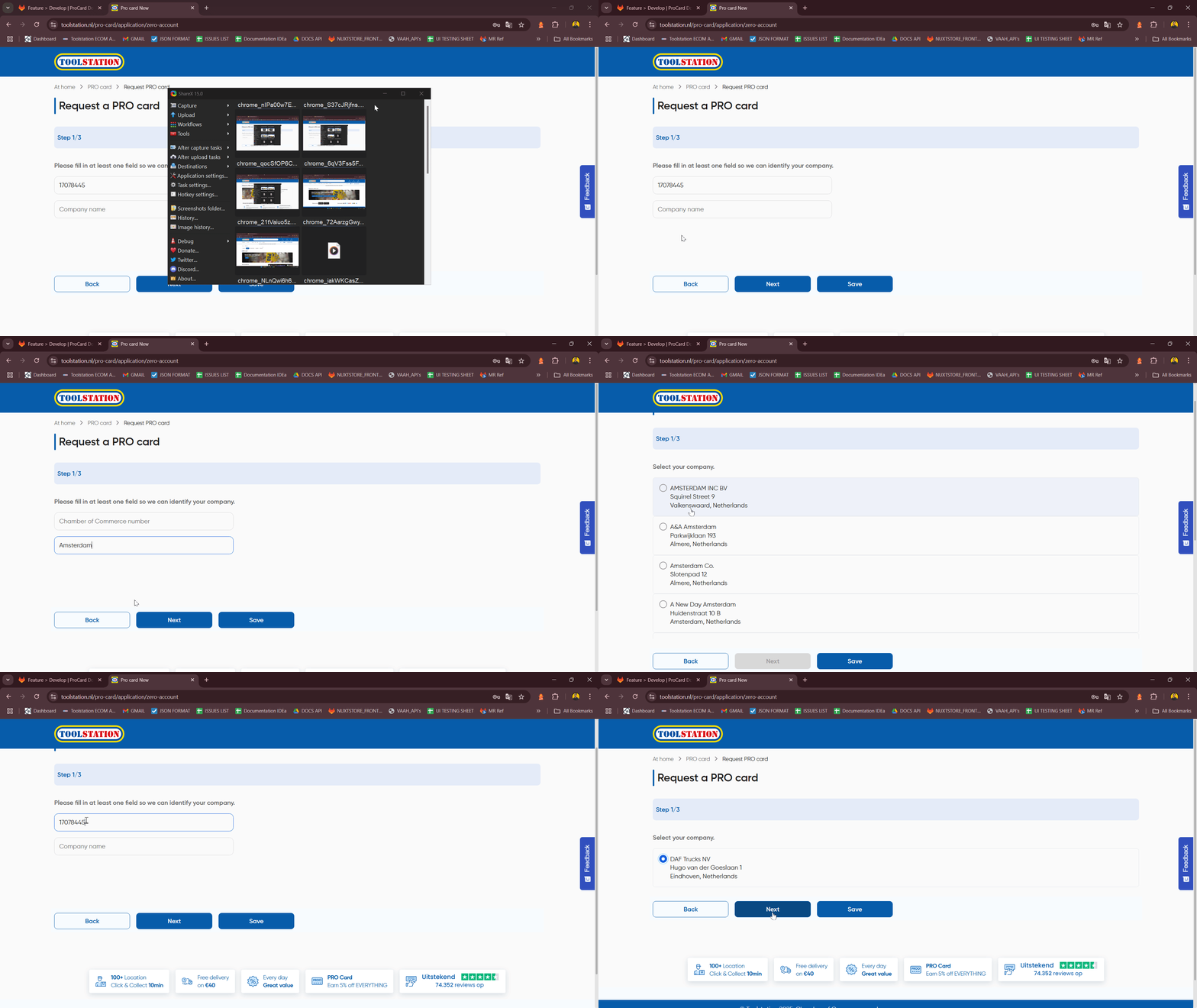
Form Stepper:3 → Account Holder Name Detail- Upon Company Selection, user must enter Account holder name before proceeding to next step.
- Account holder name must be correct as validation is applied which ensure correct holder authority is addressing the form.
- handle Button validation.
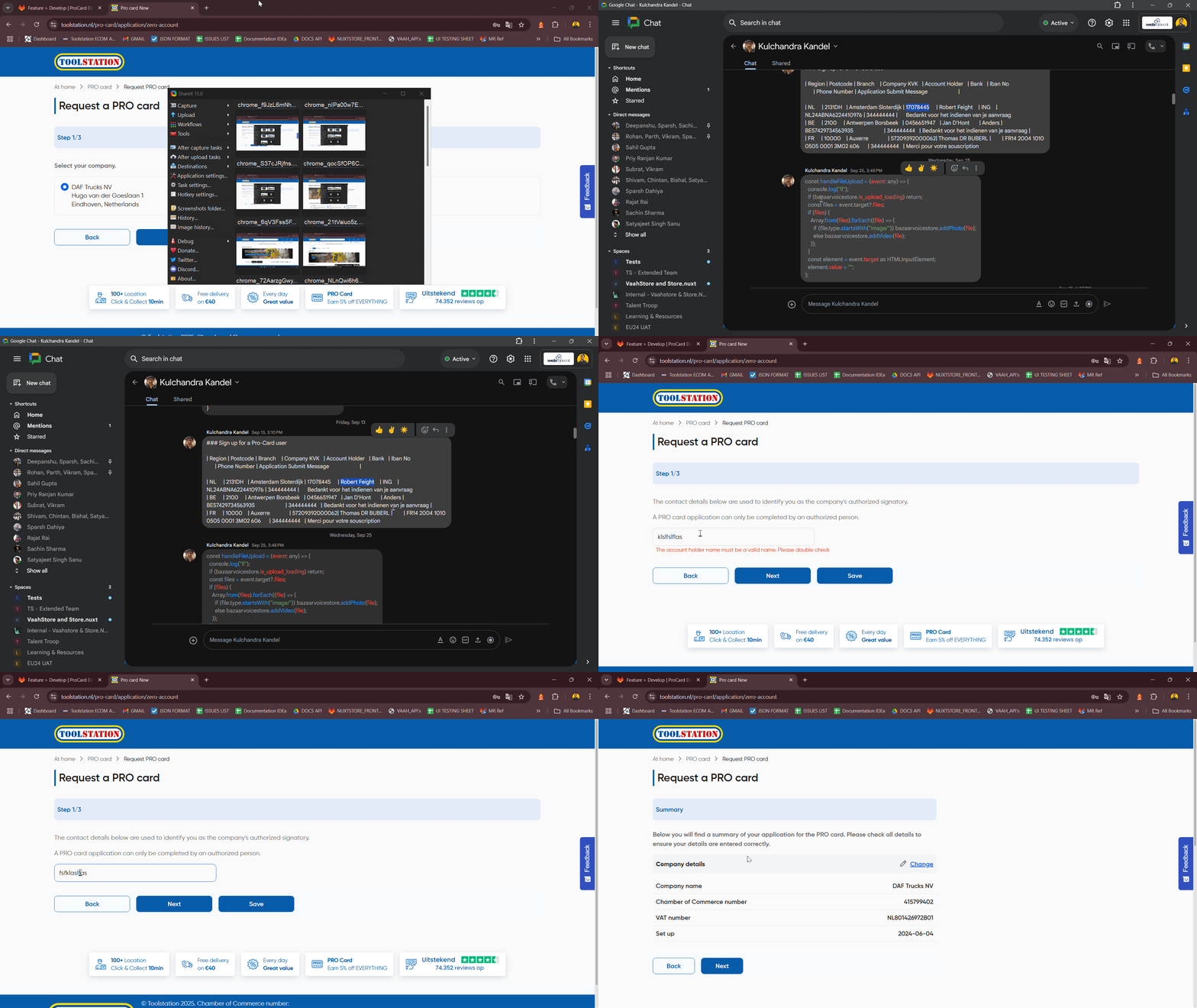
Form Stepper:4 → Summary- User can still edit application details by clicking on edit button
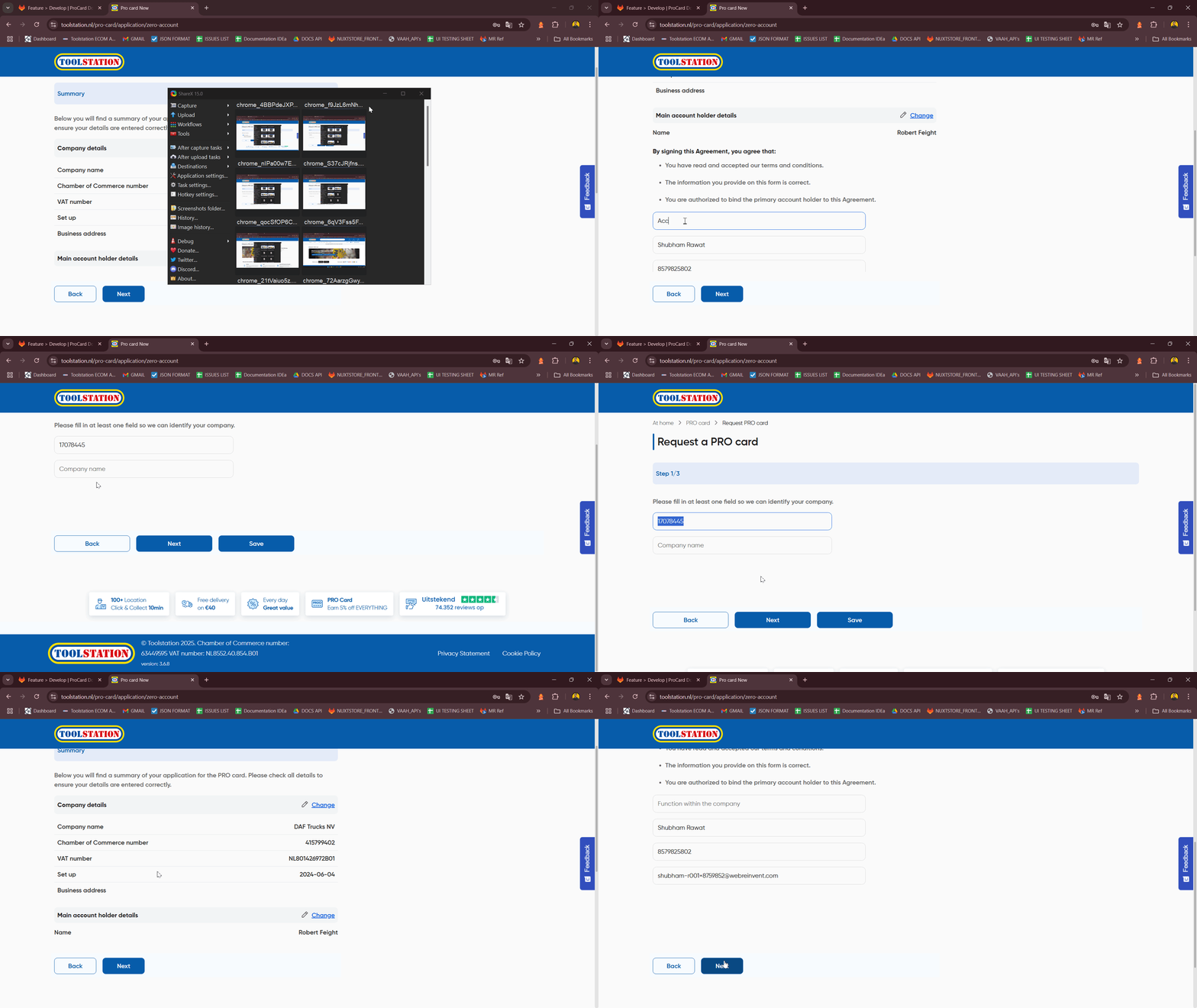
- if
:type=WITHOUT_CREDIT:- User doesn't have to fill in bank details as after typing correct Account holder name user navigate to summary section directly.
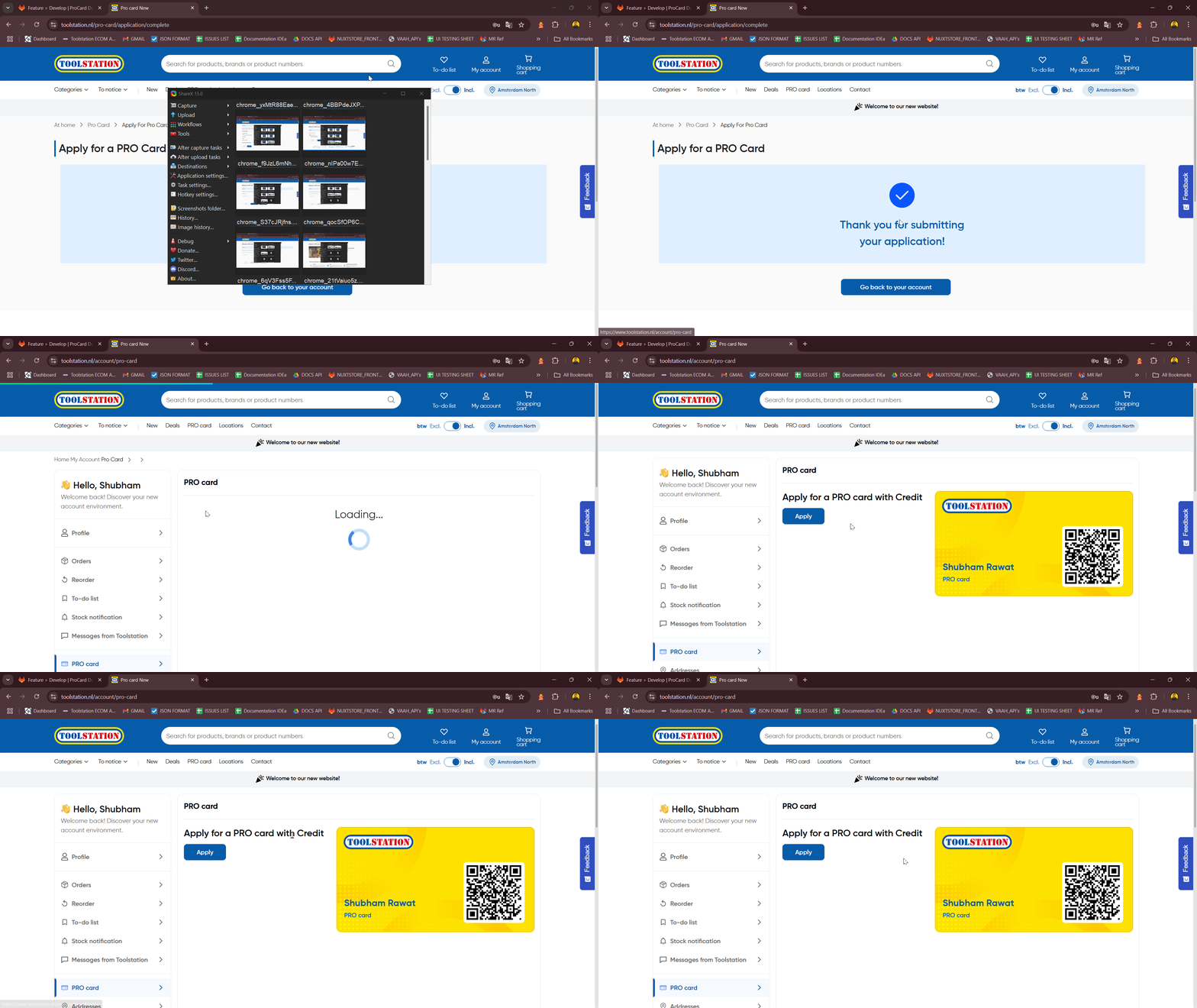
- After final submission or when user click submit button:
- Application is sent to the backend via
/procard/application. - Submission triggers an update in application status.
- User is immediately redirected to a confirmation or thank-you page.
- Application is sent to the backend via
- As user proceed further by clicking on Start Button, Multi-step form guides the user through a structured application process
With Credit
- On Page mount, an API call
/procard/application/is-activeto verify if the user:- Already completed Procard Application.
- Has a saved draft in progress.
- Based on result:
- If active or completed, the thank-you/confirmation message is shown to user.
- If draft exists, the form is pre-populated and resumed.
- For new user, a fresh form is displayed.
- If active or completed, the thank-you/confirmation message is shown to user.
- Based on the route param and/or user account type, a form displayed using
useSteppercomposable with following steps:Form Stepper:1 → Fetch company based on name or company kvk- As user proceed further by clicking on Start Button, Multi-step form guides the user through a structured application process
- Users can search for their company by company name or company kvk using the following API:
Method Endpoint Company Kvk /procard/company-search?countryISOAlpha2Code=${code}®istrationNumber=${number}Company Name /procard/company-search?countryISOAlpha2Code=${code}&name=${name}kvk,name /procard/company-search?countryISOAlpha2Code=${code}®istrationNumber=${number}&name=${name}- Validation implemented to handle user given input.
Form Stepper:2 → Select Company among Companies- Detailed company data is fetched using the
/procard/company-data/:dunsendpoint. - User now have to select the company based on the company name or company kvk he/she provided.
- handle Button validation.
Form Stepper:3 → Account Holder Name Detail- Upon Company Selection, user must enter Account holder name before proceeding to next step.
- Account holder name must be correct as validation is applied which ensure correct holder authority is addressing the form.
- handle Button validation.
Form Stepper:4 → Bank Details- if
:type=WITH_CREDIT, user have to fill in bank details as well including :- User equipped with two options based on company types:
- if
company_type = Company, user need to selectbank,name&IBAN Number. - if
company_type = Personal, onlyname&IBAN Numberis required.
- if
- If credentials not correct, user cannot proceed further with a proper validation message.
- After user typing correct bank credentials based on
company_type, user navigate to summary section.

- User equipped with two options based on company types:
Form Stepper:5 → Summary- User can still edit application details by clicking on edit button
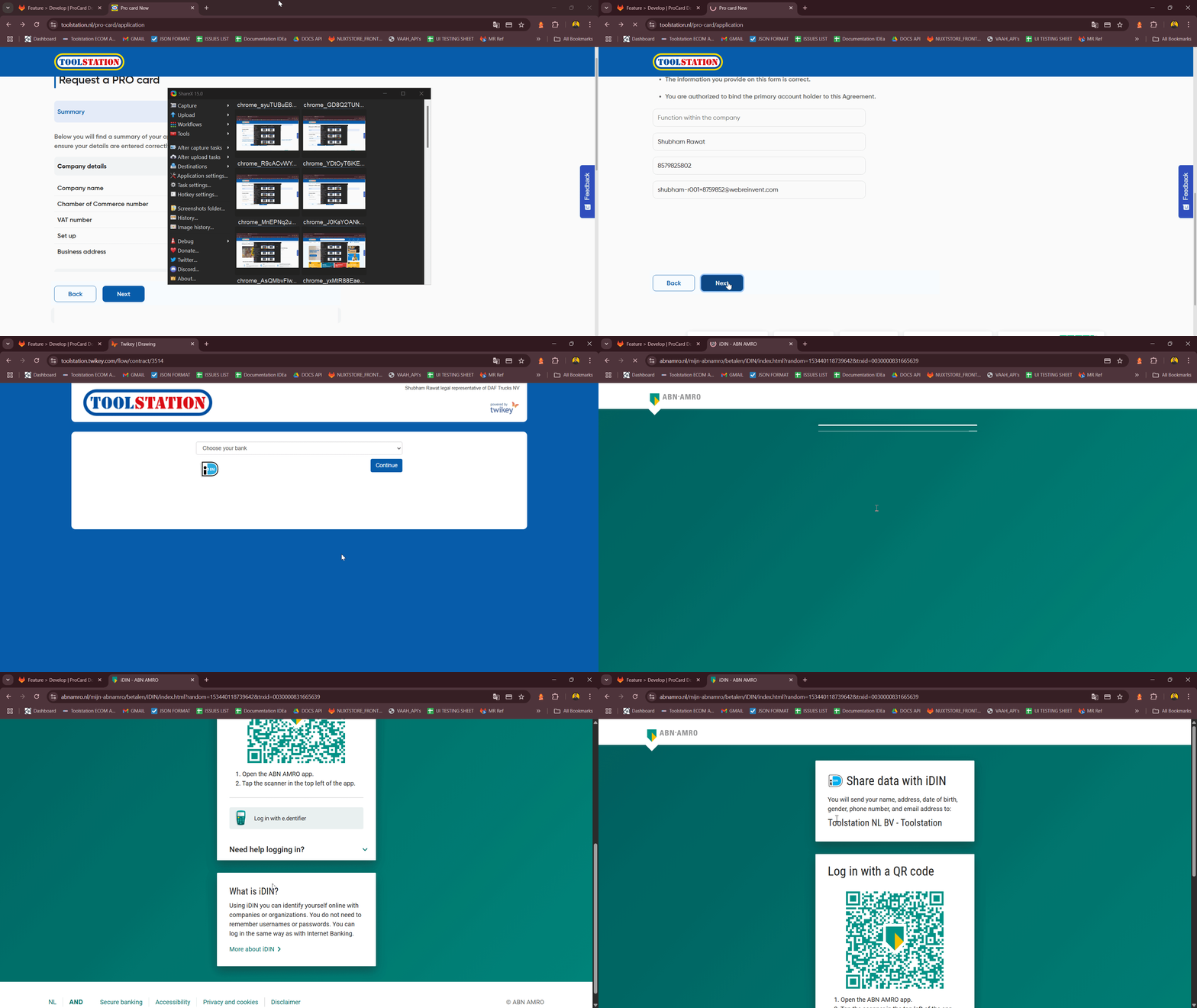
- Before final submission or when user click submit button, users are redirected to a 3rd-party agreement flow
/procard/agreementvia Tweeky.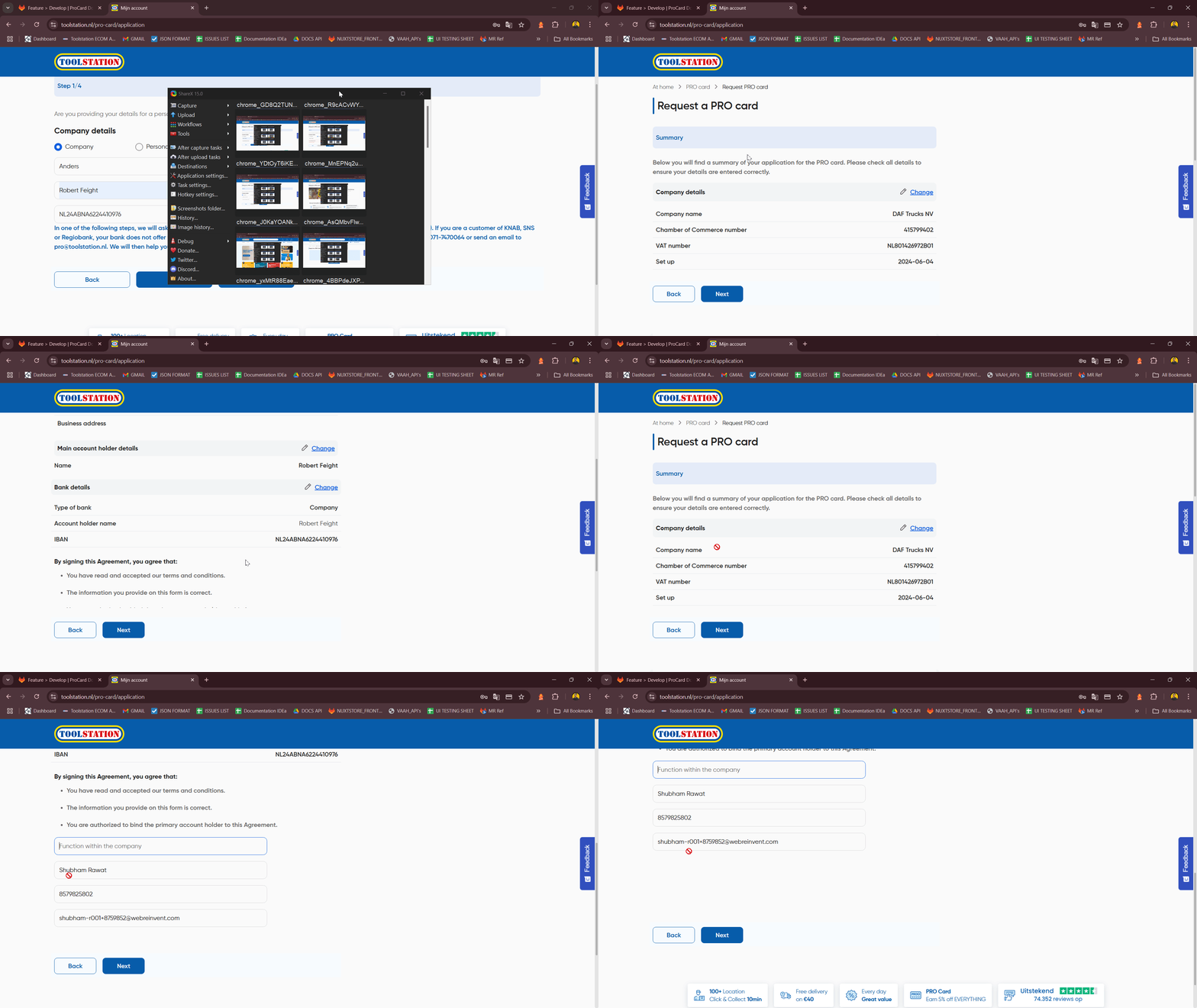
- Upon successful consent, user is redirected back to toolstation after which application is sent to the backend via
/procard/application. If success then, thankyou page with a message Thank You! It will take 4-5 days for approving application .
- As user proceed further by clicking on Start Button, Multi-step form guides the user through a structured application process