

Cookie Consent
Script Debugging and Upgrading Steps
How to debug cookie consent script features and how to check version of the script
Debugging Script Load
- Onetrust script is domain specific so if the cookie banner is not visible, make sure to verify the domain in the onetrust dashboard. Detailed Article
data-domain-scriptshould be the correct public key for that domain- In development or testing environment, It is recommended to use "-test" suffix at the end of the public key
for as
data-domain-scriptattribute. But we have observed the script to sometimes misbehave with this suffix.
So, if you see the popup reappear even after choosing cookies and closing it, remove this suffix and retest again.
- Always check browser console for any warnings or errors
Upgrade Script Version
Consent related issues could exist in older versions of the onetrust script so it's always recommended to use the latest script
Onetrust team make regular updates to the script to stay compliant with the privacy regulations and optimize performance.
Check Release Notes regularly
Steps to Check and Upgrade
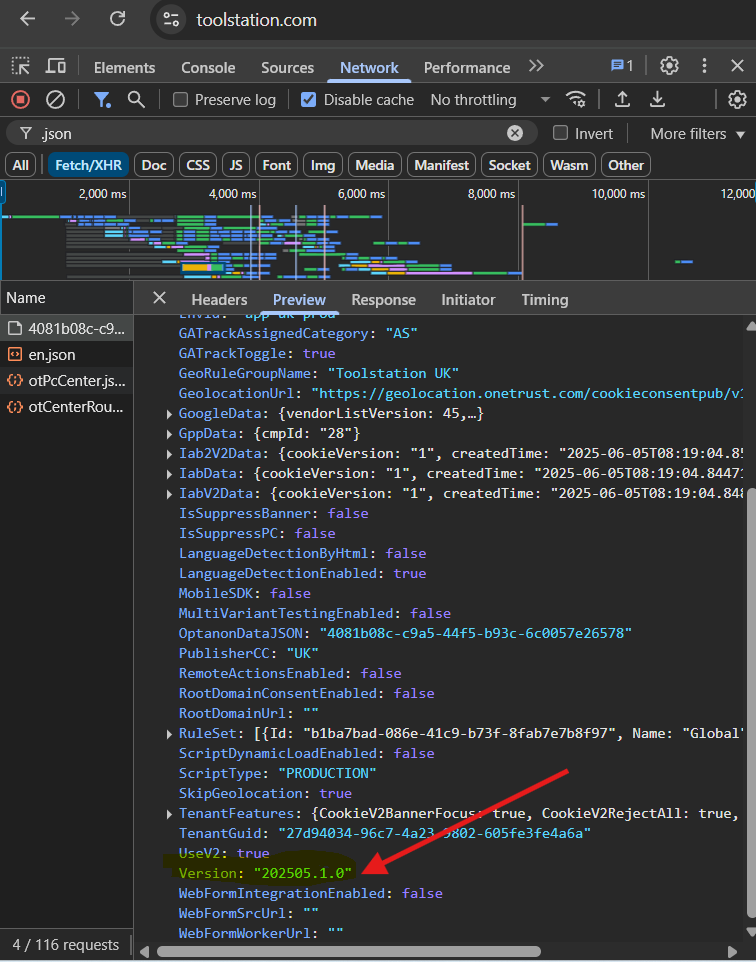
- Open network tab in your browser and check the version of the script in the first HTTP request to onetrust for script config
Headers > https://cdn-ukwest.onetrust.com/consent/{publicKey}.json
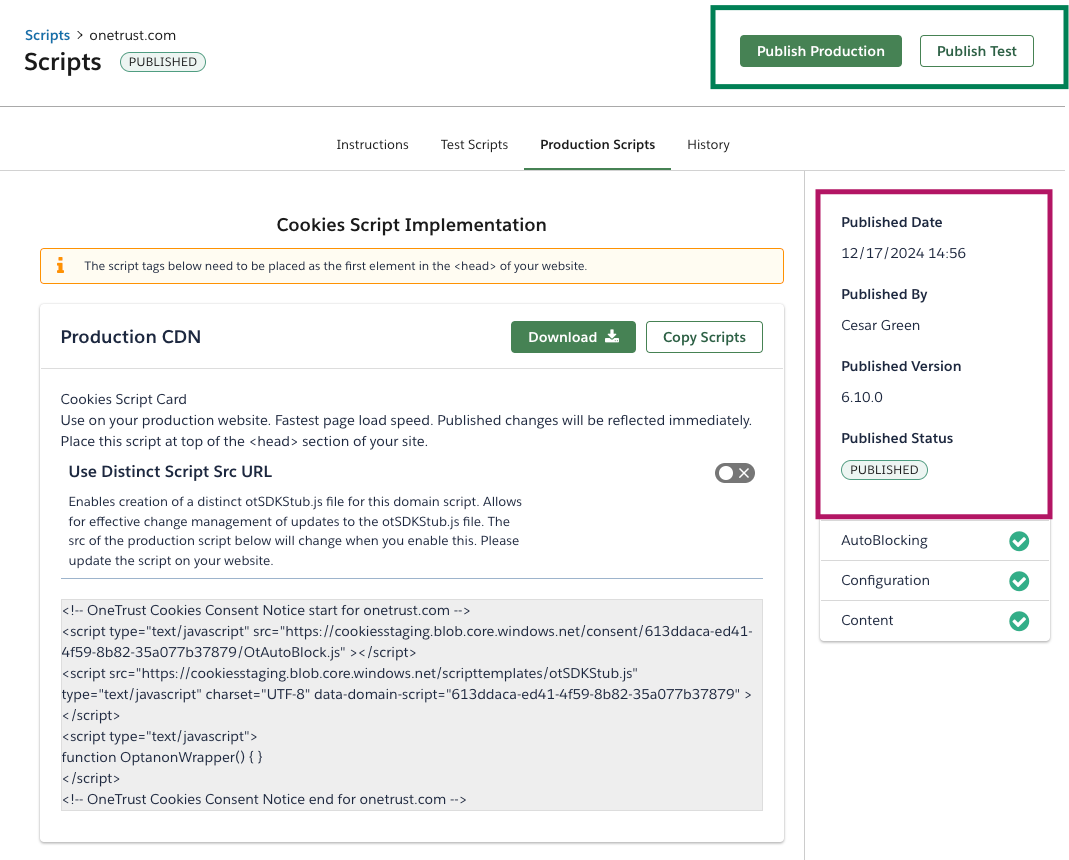
- Go to onetrust dashboard > click on the "publish production" CTA on the top right
under
products > cookie consent > scriptswhich should ideally republish the script with the latest version
Article: Script Upgrade Knowledge
- Check on the frontend and tag assistant if consent issues are resolved
Note: If in doubt, compare with the UK site (https://www.toolstation.com) version and consider republishing the script from dashboard