

Testing Protocol
Testing Protocol : Process to be followed
Test Process
- Download the APK or build mentioned by the developer in the task from the email, the designated Firebase-app-Distribution, or TestFlight for the physical device.
- If the branch is mentioned in the comment for testing, then checkout the branch from GitKraken and run the Emulator/Simulator by selecting the appropriate environment. Alternatively, connect a physical device and download the build for the specified branch.
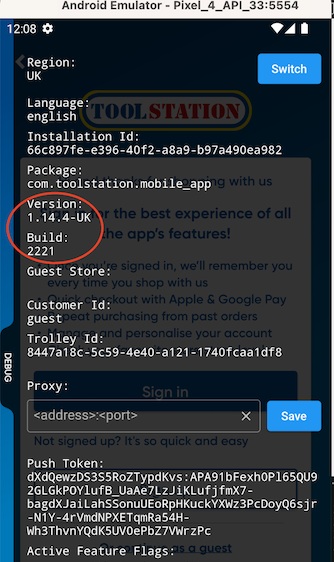
- Check the version & Build from the Debug-Panel.
- Verify the testing environment based on the information provided in the comment. If the required information is not present in the comment, consult the developer to confirm the appropriate testing environment.
- Test based on the release notes, if passed write a comment and attach screenshots.
- Write about the other sections it can impact (Impacted-Functionalities), and test them accordingly.
- Conduct tests on the key functionalities.
- Compose a detailed and comprehensive response to the ticket (Test-case-as-a-Comment), addressing all relevant issues and providing appropriate solutions or instructions in comments.
Debug-Panel
Note
A 'debug panel' in mobile app builds is a developer-specific feature that provides valuable tools and information to aid in the debugging and testing of the app during its development phase.
It includes features like feature flags, version ,Build, Customer uuid, console output, debugging information, performance metrics, network inspection, user interface inspection, and sometimes remote debugging.
It is usually disabled or removed in production releases to prevent end-users from accessing sensitive information or debugging tools.
Bug ticket template
Description
In the description section please provide as much information as possible in regards to the behavior of the app, and how this bug affects the end-user.
Example:
When a user would enter a phone number with the symbol ‘+’ in the ‘My details’ section of the app, an error message is shown. This results in an error in the backend and disrupts the system. If you already had a conversation with a developer, and the developer might have an idea where the problem is please point that out in this section if someone else will take the ticket. After consulting with the developer X, the issue lies in the Braintree plugin. It shows an error PlatformException(pay-with-local-payment-failed, Parsing error response failed, null, null).
Preconditions
In this section please provide any information about the Operating System, Locale settings, or any other.
Example:
OS: Android 11

Region: Belgium

Language: Dutch

Logged in: Yes/No

Account: Personal/paris@paris.fr

Build: EU Alpha v1.10.100-ALPHA[2029]
Steps to reproduce:
Please provide as much information as possible in the steps to reproduce. Do not assume that the person that is testing the application knows every step how to reach the specific area of the application.
Example:
1. Open the application
2. Click on Search
3. Click on any category (for example Automotive)
4. Click on any subcategory (for example Car)
5. On the product listing page click on a product
6. The product details page is displayed
Actual Results
Here we put in any information both in text and in screenshots/video that would explain the Bug. If you can, please use tools like Paint, Screenpresso to point to the section such as arrows/pointers, to mark the issue, so that it would be absolutely clear for anyone that is viewing the ticket.
Example:
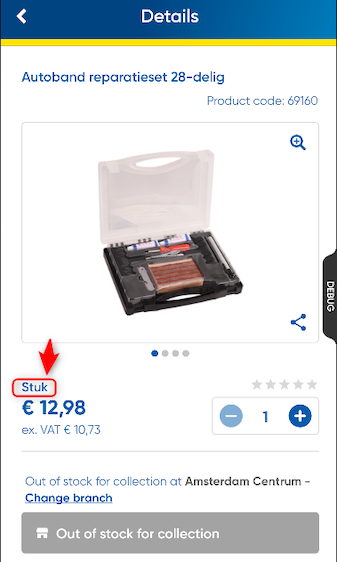
On the product details page, the word Item is presented with the Dutch word Stuk for the English language support.
Expected Result
Short summary on the correct state of the application.
Example:
The translation for ‘Stuk’ should be as it is on the GB version of the app.
Impacted Functionalities
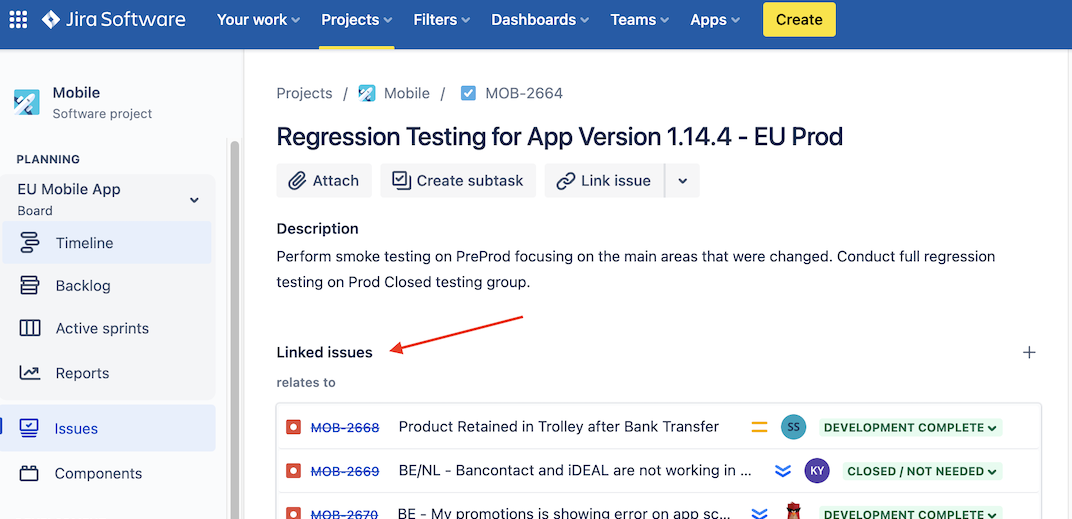
Ticket id - Link (Link the ticket ID related to the issue.)
Test Cases as a comment
1. Login is tested - Pass
2. Login without password, Validation is working - Pass
3. Login without email, Validation is working - Fail,   etc..
TODO: Update the flow
Jira Workflow for Managing and Resolving Issues
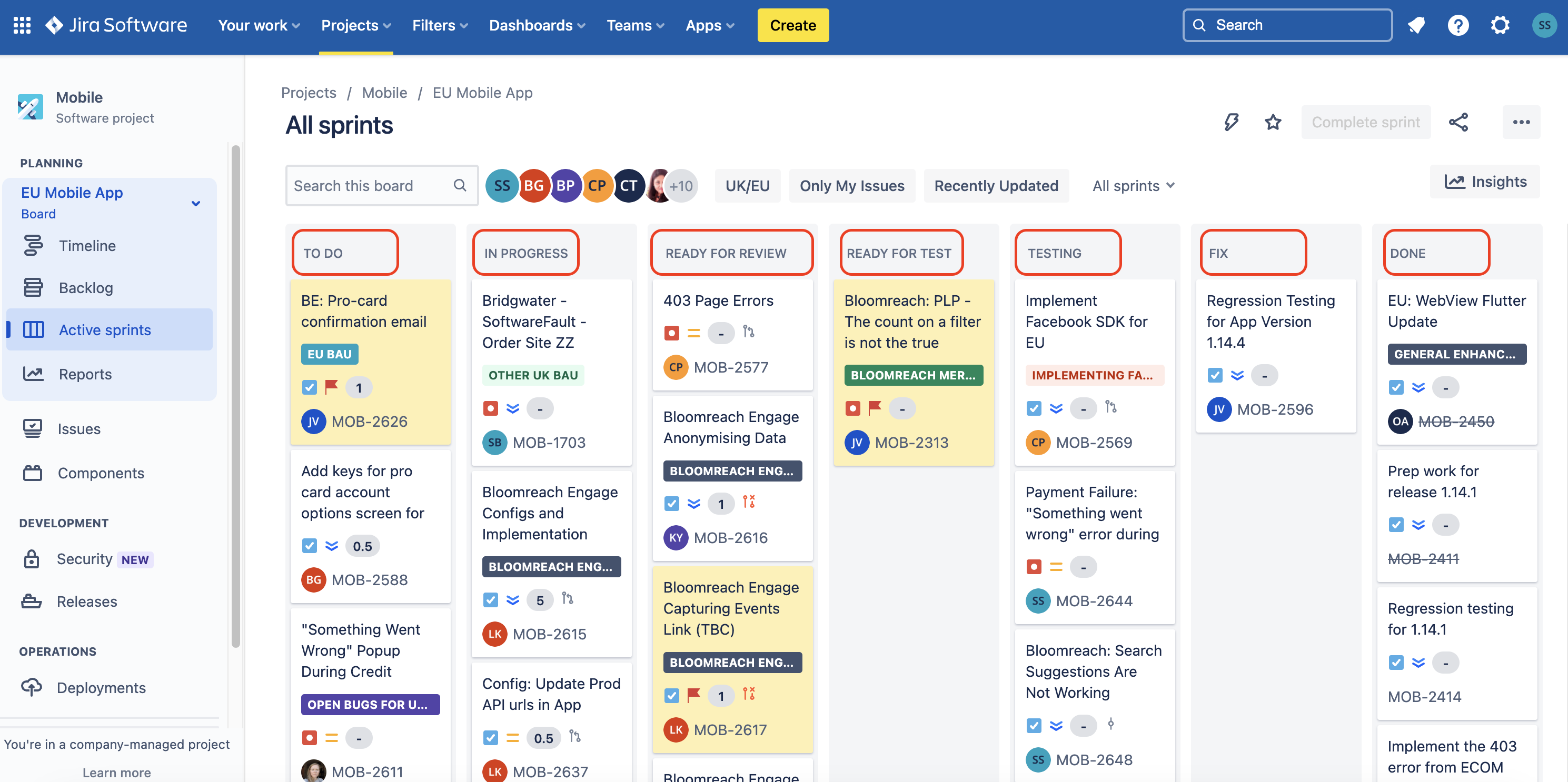
| Status | Description |
|---|---|
| To-Do | If a bug or issue is found, create a ticket with the status set as To-Do. |
| In Progress | Once the ticket is picked up by the developer and they start working on it, the status should be changed to In Progress. |
| Code Review | After the developer fixes the issue, it will move to the Code Review status. |
| Ready for Test | After the code review, if the issue has been successfully fixed, the ticket's status will change to Ready for Test. |
| Testing | Testers will then pick up the ticket for testing and update its status to Testing. |
| Fix | After testing, if the issue is not fixed, it will move to the Fix column or status for further action. |
| Done | If the issue is resolved, the status will be changed to Done. In the Done section, there are two options: Development complete and Closed/Not needed. It is always preferable to select Development complete. |