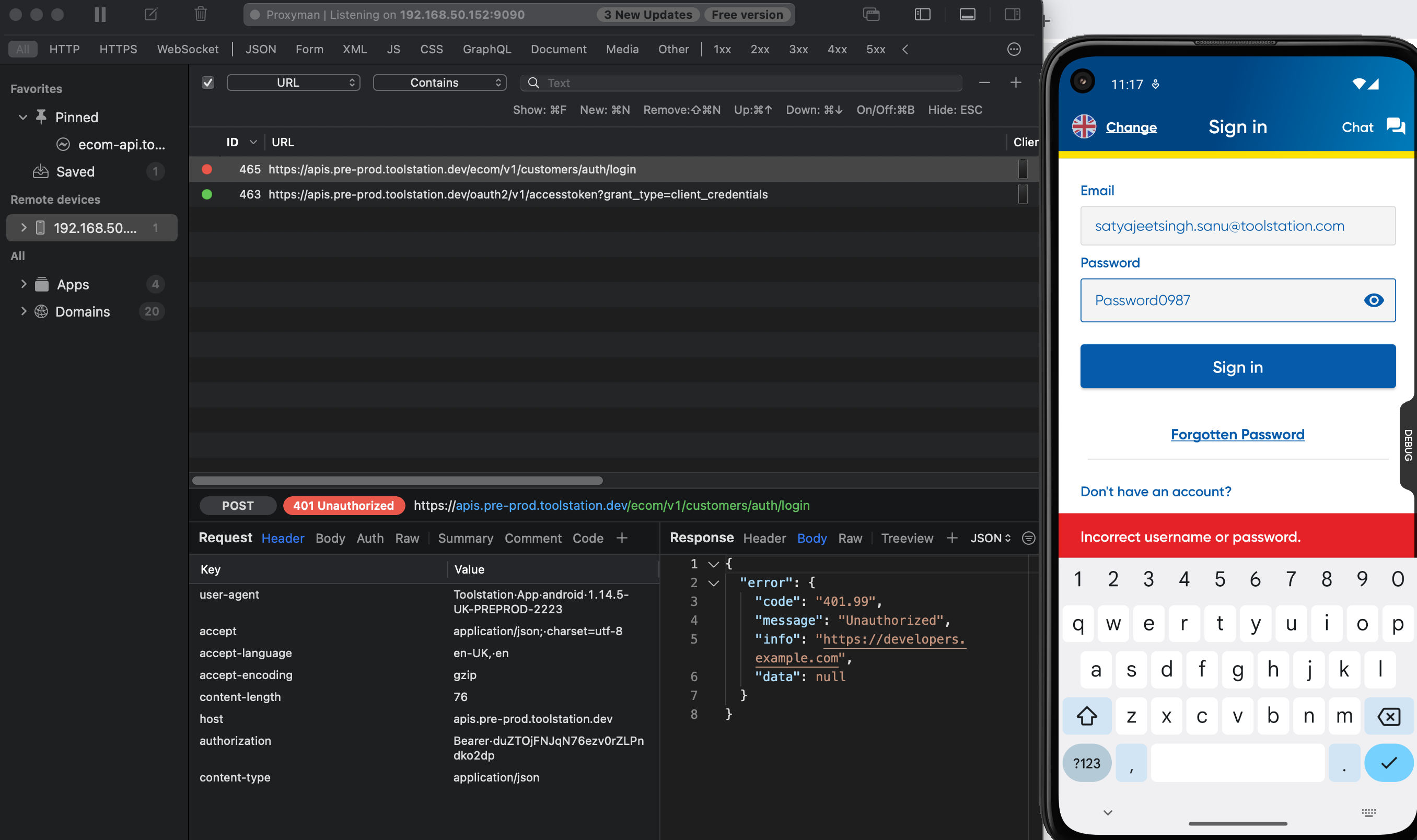
Qa Testing
API Debugging Using Proxyman
Quick Steps
Step 1
Ensure Proxyman is Set Up
- Make sure we have Proxyman installed on our macOS system.
- We can Download and install Proxyman from the official website (https://proxyman.io/).
Step 2
Connect the Emulator or Mobile Device to the Same Network
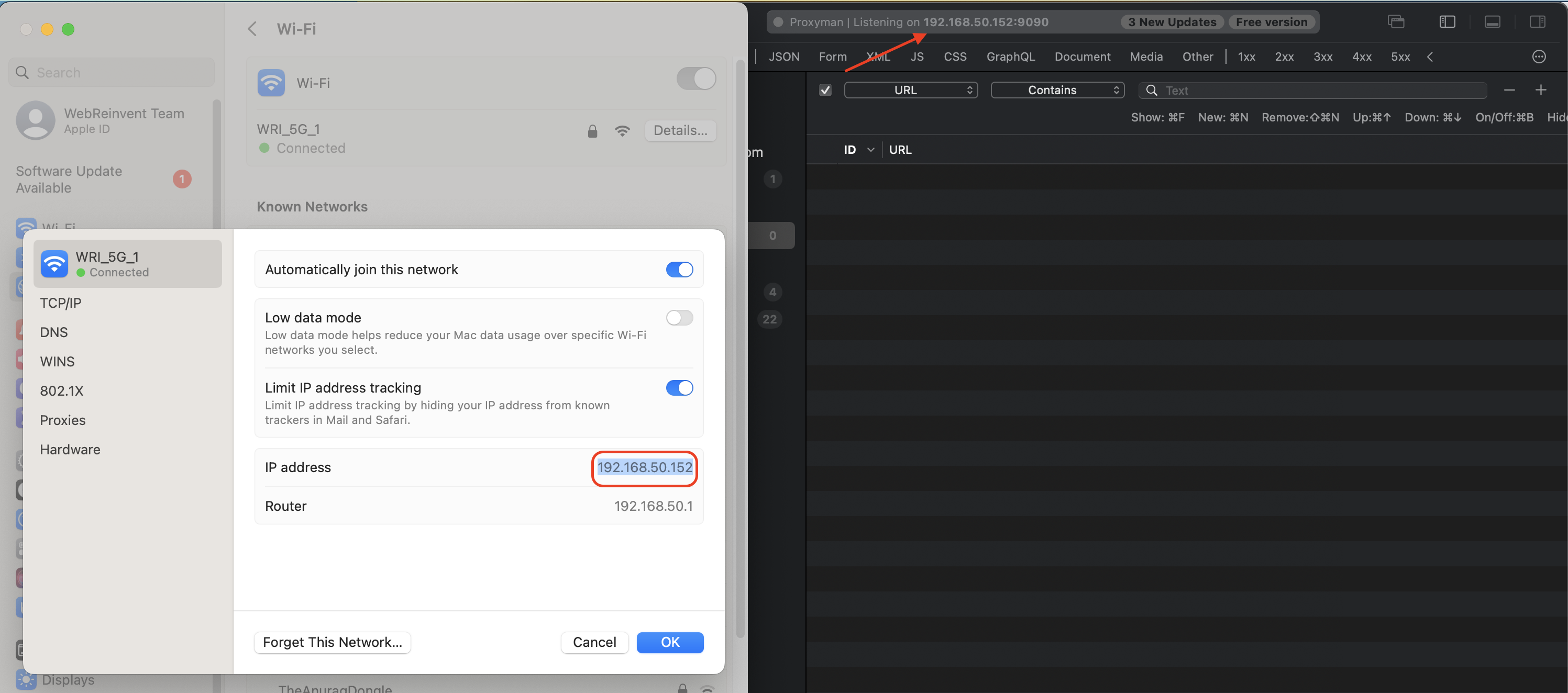
- We'll need the IP address of your macOS system to configure the emulator or mobile device's proxy settings. We can find the IP address by going to System Preferences > Network > Wi-Fi (or the connected network interface) and checking the IP address listed
- Or, we can verify the ip address in the proxyman as well.
- Make sure, the mobile device and the system on which the proxyman is opened are on the same network.
Step 3
Configure Proxy Settings on the Emulator or Mobile Device
- For Emulator/Simulator:
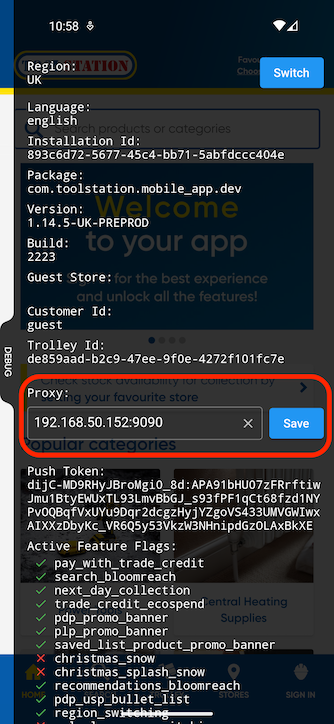
- Launch the Emulator/Simulator with the TS app.
- Open the Debug Panel.
- Enter the IP address and port (usually 9090) in the "Proxy" field.
- Click on Save.
- For Physical Android or iOS Device:
- Launch the TS app.
- Open the Debug Panel.
- Enter the IP address and port (usually 9090) in the "Proxy" field.
- Click on Save.
Step 4
Start Intercepting Traffic in Proxyman
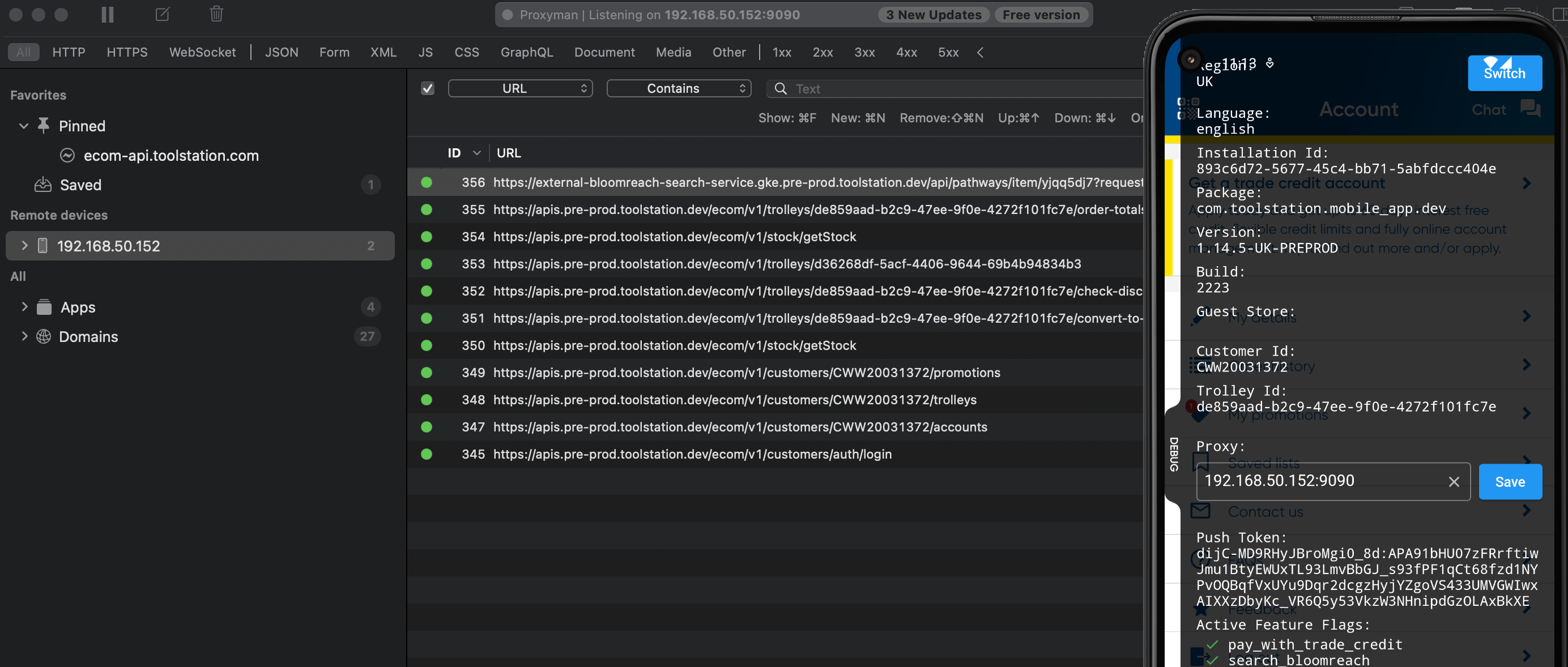
- Open Proxyman on our macOS system and start intercepting network traffic.
- We should now see requests from your emulator or mobile device in Proxyman's interface.
Step 5
Inspect API Requests and Responses
- Click on an API request in Proxyman to inspect its details, including headers, body, and the server's response.