

Releases
Tip
Developers should visit this page when they are working on CI/CD part, otherwise for getting started this should not be referred to!
Git hooks
- Git hooks are shell scripts found in the hidden .git/hooks directory of a Git repository. These scripts trigger actions in response to specific events, so they can help you automate your development lifecycle.
Enable git hooks
- run
git config core.hookpath .githooks - Duplicate .env-example and rename to .env
.env export won't work for Windows
GitHub Actions
We use GitHub Actions as our CI/CD service which runs all of our workflows. We try to use as minimum GitHub Actions-specific configuration as possible so that we are not tightly coupled with the service and to be able to migrate to other solutions in the future if required. To achieve this we use Fastlane scripts that can run on CI/CD and our local machines.
GitHub Actions secrets are used to store sensitive information like signing keys in a secure format. We only use three secrets which hold the following information:
GCS_CREDENTIALS_JSON- contents of the Google Cloud Storage credentials json file. This is used when we want to upload the build artifacts to GCS.ENV_FILE_CONTENT_IOS- this file contains all the necessary secrets to build and deploy the iOS app.APPLE_ISSUER_ID="some long id" APPLE_KEY_CONTENT="-----BEGIN PRIVATE KEY----- secret private key -----END PRIVATE KEY-----" APPLE_KEY_ID="the key id" FASTLANE_APPLE_ID="apple id" FASTLANE_APPLE_APPLICATION_SPECIFIC_PASSWORD="app specific pass" MATCH_PASSWORD="password used to encrypt/decrypt the fastlane match repo" TEMP_KEYCHAIN_PASSWORD="any random string" TEMP_KEYCHAIN_USER="any random string" GIT_AUTHORIZATION="user_id:token" FIREBASE_CLI_TOKEN="client token from firebase" BROWSERSTACK_USERNAME="user name from browserstack" BROWSERSTACK_ACCESS_KEY="access key"ENV_FILE_CONTENT_ANDROID- this file contains all the necessary secrets to build and deploy the Android app.FIREBASE_CLI_TOKEN="firebase client token similar to iOS" KEY_PROPERTIES_CONTENT="storePassword=some pass keyPassword=some pass keyAlias=alias storeFile=../upload_key.jks" UPLOAD_KEY_BASE64="upload key in base 64 format" ANDROID_SERVICE_ACCOUNT_JSON='service account json to upload the app to the Play Store' GIT_AUTHORIZATION="user_id:token" BROWSERSTACK_USERNAME="user name from browserstack" BROWSERSTACK_ACCESS_KEY="access key"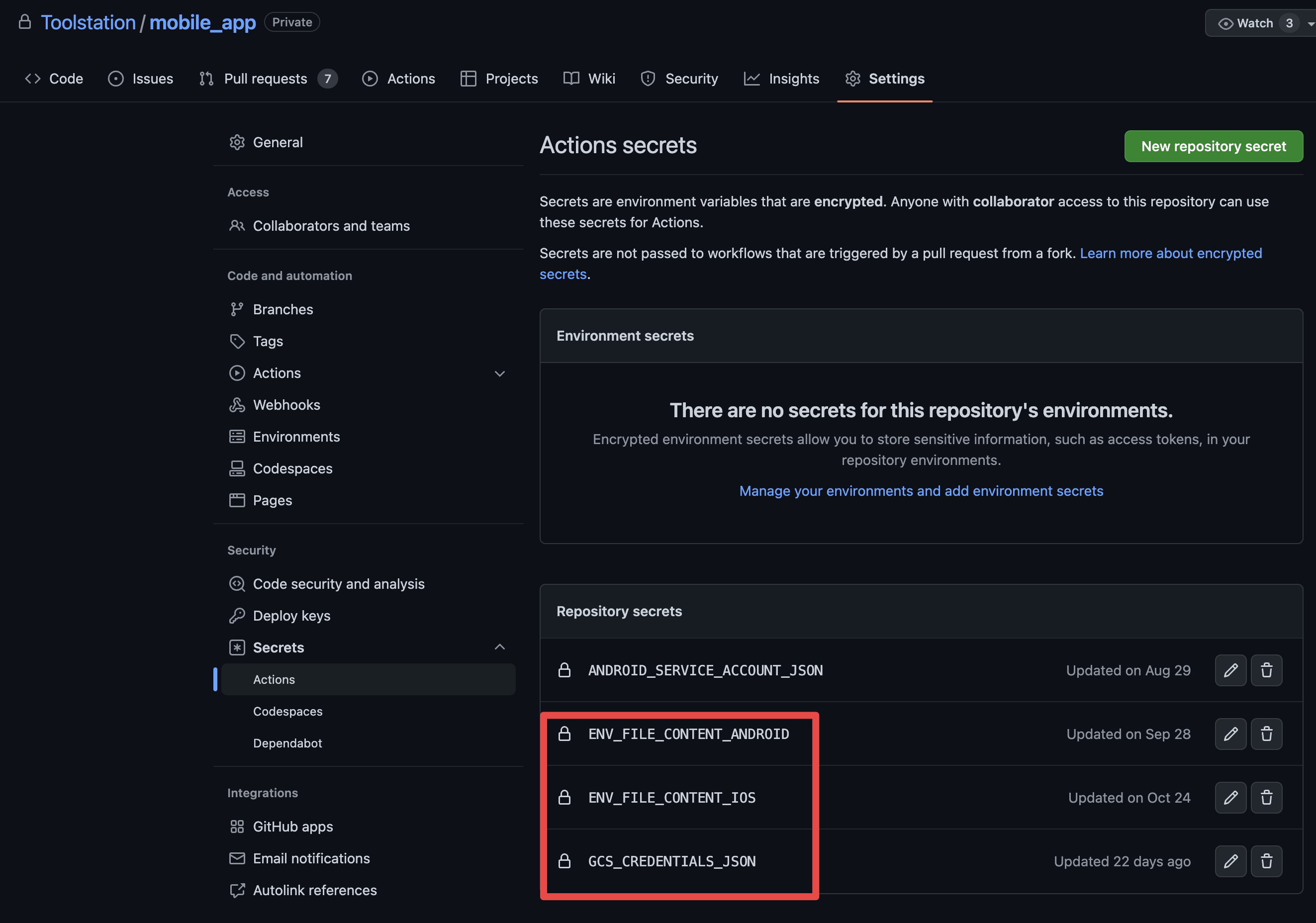
There are a few GitHub Actions-specific configurations that we had to set up to achieve what we need it to do, they are all detailed below.
iOS
The Build & deploy iOS workflow is reusable and is used by other workflows for example EU Prod Builds. It specifies a specific set of parameters that need to be passed to the workflow for it to run, these parameters are specified at the top of the workflow file. This workflow can only run on macOS machines and will fail on any other machine.
Because we use flavors in the app and fastlane custom script there is one important step that needs to run on self-hosted runners, the Self-hosted flutter build pre fastlane step. This will configure the iOS project correctly for a specific flavor.
flutter build ios -t ${main_file} --flavor ${flavor} --config-only
This command will also need to be run locally if you want to use Fastlane commands to build the iOS app locally.
At the end of the build, this workflow will upload the artifacts to GCS (Google Cloud Storage) and to TestFlight if the build was running with deploy_testflight set to true.
Android
The Build & deploy Android workflow is reusable and is used by other workflows for example EU Prod Builds. It specifies a specific set of parameters that need to be passed to the workflow for it to run, these parameters are specified at the top of the workflow file. This workflow can run on Linux or macOS machines and may fail on Windows machines.
We are using Linux machines on GitHub Actions to build the Android apps and it is important to remember that Linux is case sensitive and every file and folder must be named correctly. Also, there is a special step that will install bundle tool on the CI so that we can set up plugins for Fastlane and be able to execute the commands, this is not needed when running fastlane commands locally.
Integration test builds
A separate workflow has been added for the special integration builds that build either a profile version of the iOS app or debug version of the Android app and upload it to BrowserStack. There is also an ability to run the tests on BrowserStack but this will have to keep the runner alive for it to work. We use self-hosted runners on GitHub Actions because the integration test build takes more time to complete and if you want to run the tests on BrowserStack this will consume a lot of GitHub Actions minutes.
On GitHub Actions we can use a manual workflow trigger to start an integration build. You must pass the flavor, region, and whenever you want to run the test to the manual trigger for it to successfully work.
Creating integration test builds locally is also supported. To create an integration build app for running the test, we need to run the following command.
Android:
fastlane testBuild flavor:nlPreProd deploy_browser_stack:true run_tests:true
iOS - inside the ios/ folder run:
./test_build.sh nlPreProd true true
This is because we must run the Flutter build command to configure the iOS project before building the app. The script inside the ./test_build.sh file takes 3 parameters. The first is for the flavor, the second is true|false if you want to deploy the app to the BrowserStack, and the third true|false if you want to run the tests or not.
Workflows
GitHub Actions is the only service we use to build and deploy all the apps for every region. We use a combination of GitHub-hosted runners (paid) and self-hosted runners (free).
Analyze and check PR
Analyze and check PR workflow runs every time a new PR is created or updated. This workflow is used to make sure that current tests pass and is run on GitHub hosted runners. PR cannot be merged if this workflow fails.
PreProd Builds
PreProd builds are used by testers to test each PR before it is merged into the develop branch. PreProd builds run on self-hosted runners and it does not cost Toolstation anything to use our machines or a dedicated machine to run the workflows. This workflow is optional at the moment and a PR can be merged without this needing to succeed. PreProd workflow is also used to create a PreProd build of the app for businesses to test. The build can be triggered manually and gives you the flexibility to build a specific region or platform.
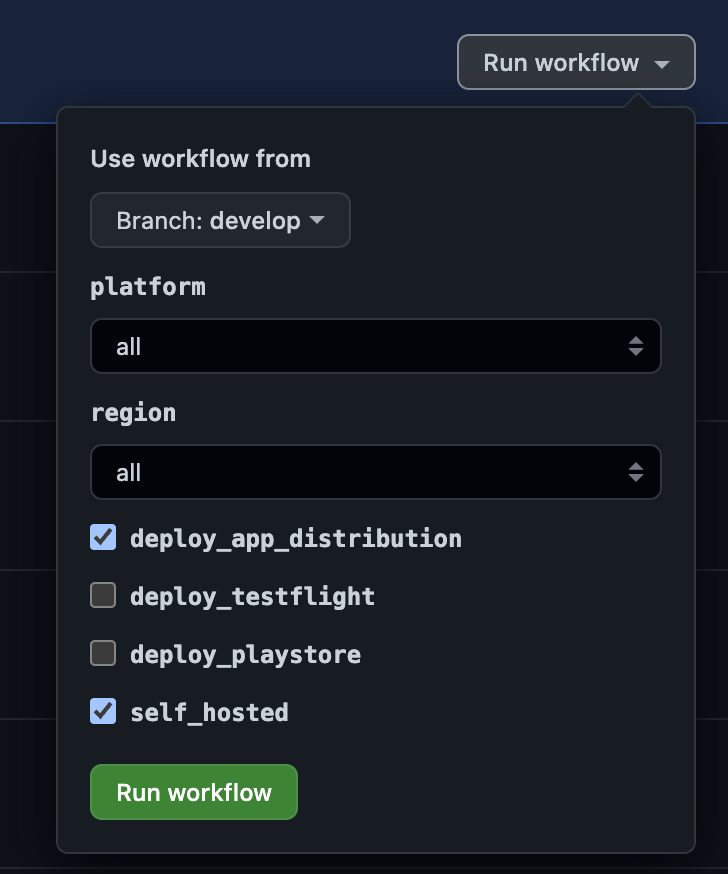
Once the build succeeds it automatically uploads the Android APK and iOS IPA files to Firebase App Distribution (must be visited from a mobile device) for easy installation by testers and business. The first time a tester is invited to the testing group on App Distribution they may need to follow a few steps to be able to install the apps on their devices. On Android, it should not be very hard to do, depending on the Android version. But on iOS if the mobile device is not yet registered with the Apple Developer account then Firebase will send an email to larsson.kabukoba@toolstation.com with the new device ID that will need to be registered on the Apple Developer account. How to add a new iOS device for testing includes a step-by-step guide on how to do exactly that.
PR builds workflow:
graph LR;
    A[PR Created]
    B(Analyze and check PR)
    C{Succeess}
    D[PR Updated]
    E{PR Status}
    F(PreProd Build Started)
    G(Build ready for testing)
    H[Rerun build]

    A-->B;
    B-->C;
    C-->|Yes|E;
    E-->|Change Requested|D
    C-->|No|D;
    D-->B;
    E-->|Approved|F
    F-->|Succeeded|G
    F-->|Failed|H
    H-->|Rerun|F
EU Prod builds
This workflow is responsible for building the Android and iOS apps for all the EU regions. Please see the diagram below for the flow of this build. Keymap:
- Square - manual task
- Round - automated
graph LR;
    A[Tag created]
    B(EU Prod builds)
    C(NL)
    D(BE)
    E(FR)
    F(PlayStore)
    G(AppStore)
    H(GCS)
    NLAndroid(Android)
    NLiOS(iOS)
    BEAndroid(Android)
    BEiOS(iOS)
    FRAndroid(Android)
    FRiOS(iOS)

    A-->|workflow started|B;
    B-->|region|C;
    B-->|region|D;
    B-->|region|E;
    C-->|platform|NLAndroid
    C-->|platform|NLiOS
    D-->|platform|BEAndroid
    D-->|platform|BEiOS
    E-->|platform|FRAndroid
    E-->|platform|FRiOS
    NLAndroid-->|deploy|F
    BEAndroid-->|deploy|F
    FRAndroid-->|deploy|F
    NLiOS-->|deploy|G
    BEiOS-->|deploy|G
    FRiOS-->|deploy|G
    NLAndroid-->|upload|H
    BEAndroid-->|upload|H
    FRAndroid-->|upload|H
    NLiOS-->|upload|H
    BEiOS-->|upload|H
    FRiOS-->|upload|H
Tag created - This is done manually and once the tag is pushed to the repo, the EU Prod builds workflow is triggered. The format of the tags is as follows:
{major}.{minor}.{bugfix}+{build_number}-prod-{region}{major}.{minor}.{bugfix}+{build_number}-prod-{region}-{platform}
Examples:
1.9.0+2175-prod-eu- this will build all the EU regions and for both platforms1.9.0+2175-prod-nl- this will build only NL region apps1.9.0+2175-prod-be- this will build only BE region apps1.9.0+2175-prod-fr- this will build only FR region apps1.9.0+2175-prod-nl-ios- this will build only the NL iOS app1.9.0+2175-prod-nl-android- this will build only the NL Android app
To build the Android and iOS apps we use a combination of GitHub Actions third-party actions and fastlane scripts. For more information see the GitHub Actions and fastlane sections.
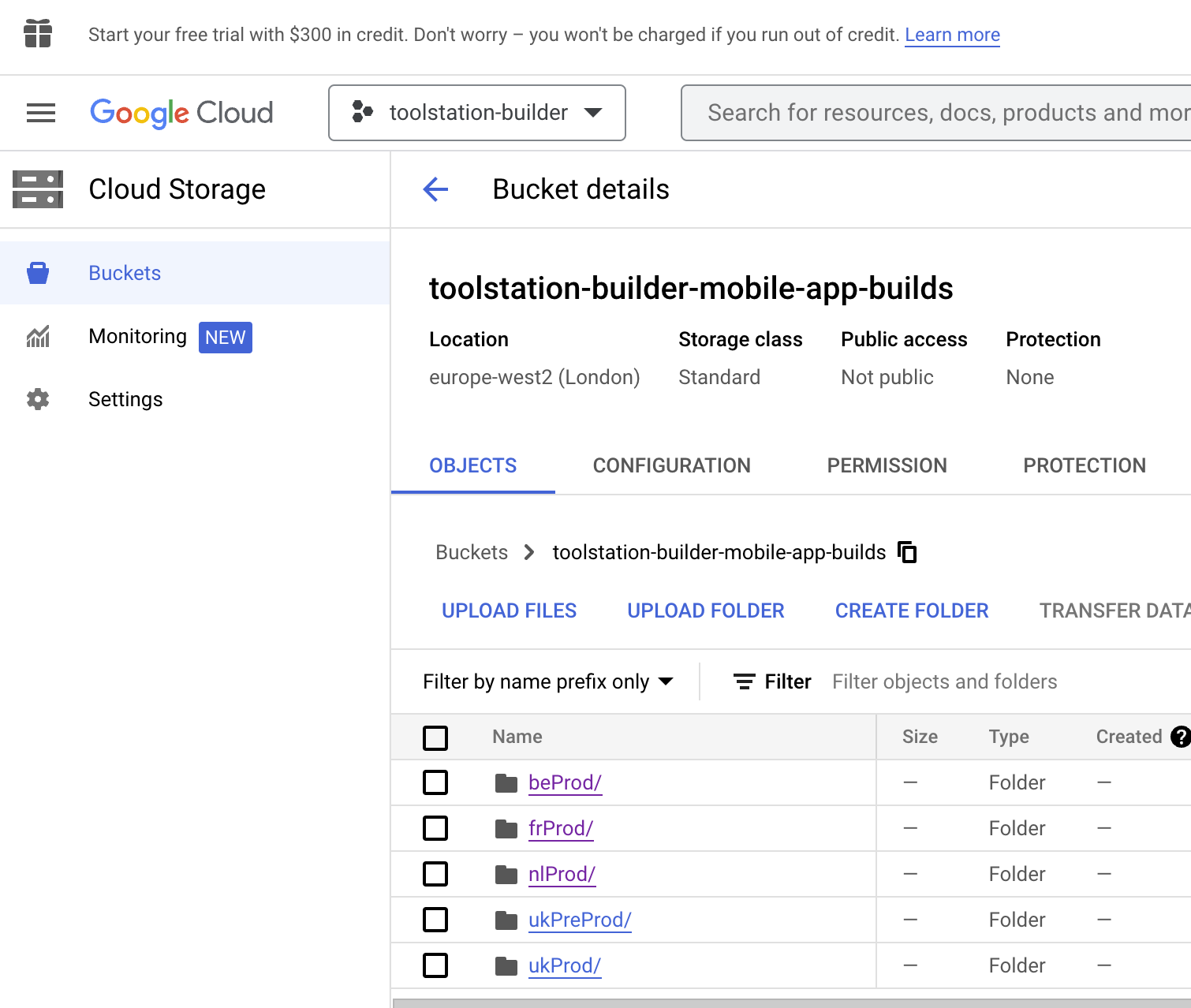
At the end of the build, the artifacts are uploaded to the PlayStore, AppStore, Firebase(iOS dsym), and our GCS (Google Cloud Storage). This allows us to go back and find a specific build and all it's resources.
Local builds
Fastlane
You need to install the Fastlane tool on your machine to be able to execute the commands. Please follow the official guide on the fastlane website.
After installing Fastlane you need to make sure that the plugins that we use are also installed on your machine, run the following command: fastlane install_plugins.
Now you can execute the Fastlane commands that you need. Please see the Fastlane readme file for each platform iOS and Android.
NOTE:
- All the build artifacts will be placed in the
${platform}/output/folder. - Please make sure that you have the
.envfiles in the right place. See above for more details about the.envfiles, the files should be located in thefastlane/folder in each platform folder.
App Distribution
We use Firebase App Distribution to be able to share the PreProd builds with the testers, developers, and businesses. It allows us to easily share the build without the need for Google Play Store or Apple TestFlight which may take some time to make the build available for testing.
By default, every time a PreProd build is pushed to App Distribution, a team named Mobile app devs will get access to the app automatically. To make a build available to other testers and businesses you must add a new group or tester to the list. This has to be done for each region and platform.
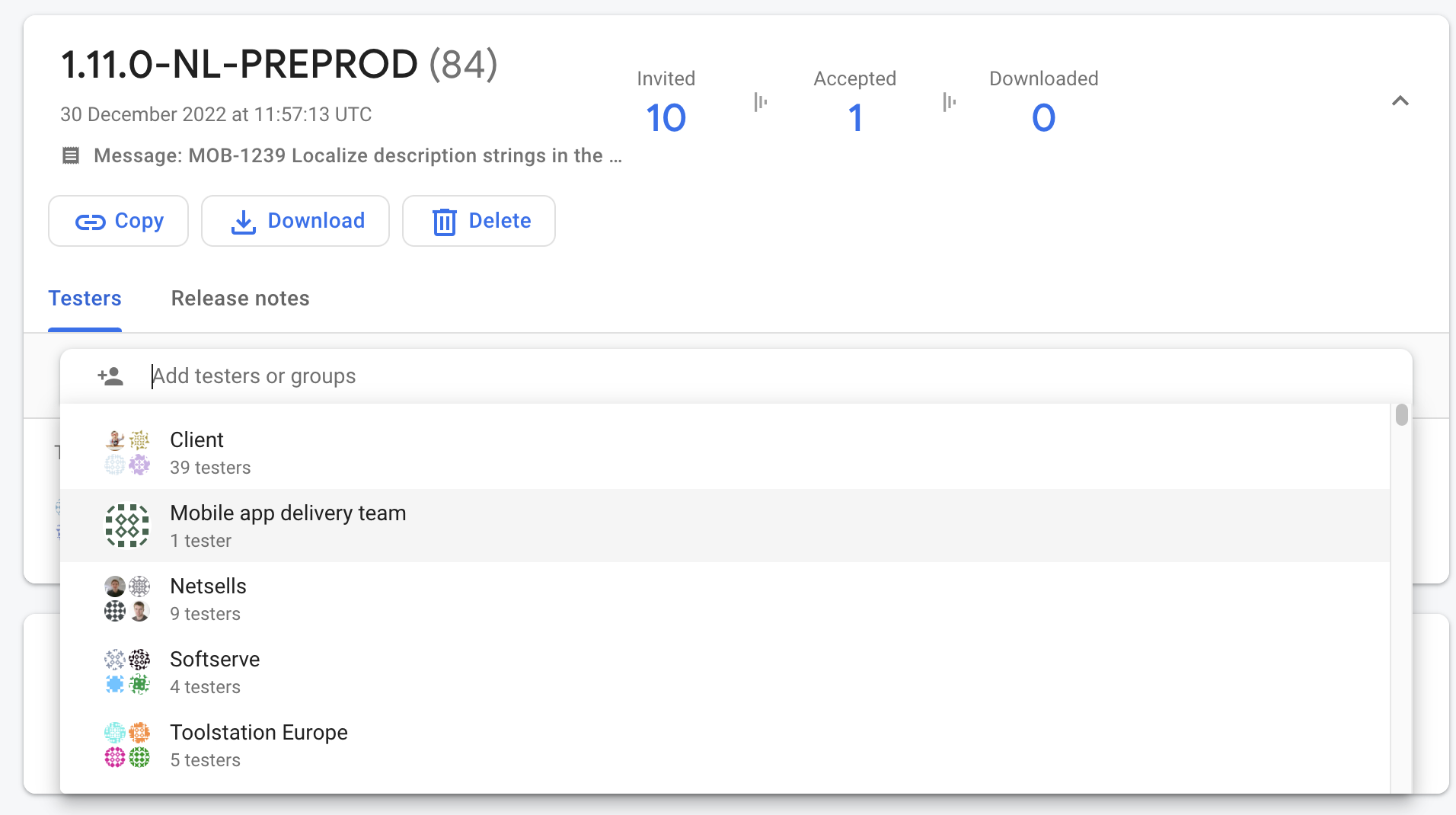
For iOS we use our development account for signing and the iOS app that needs to be installed on a device that is registered with our Apple Developer account.
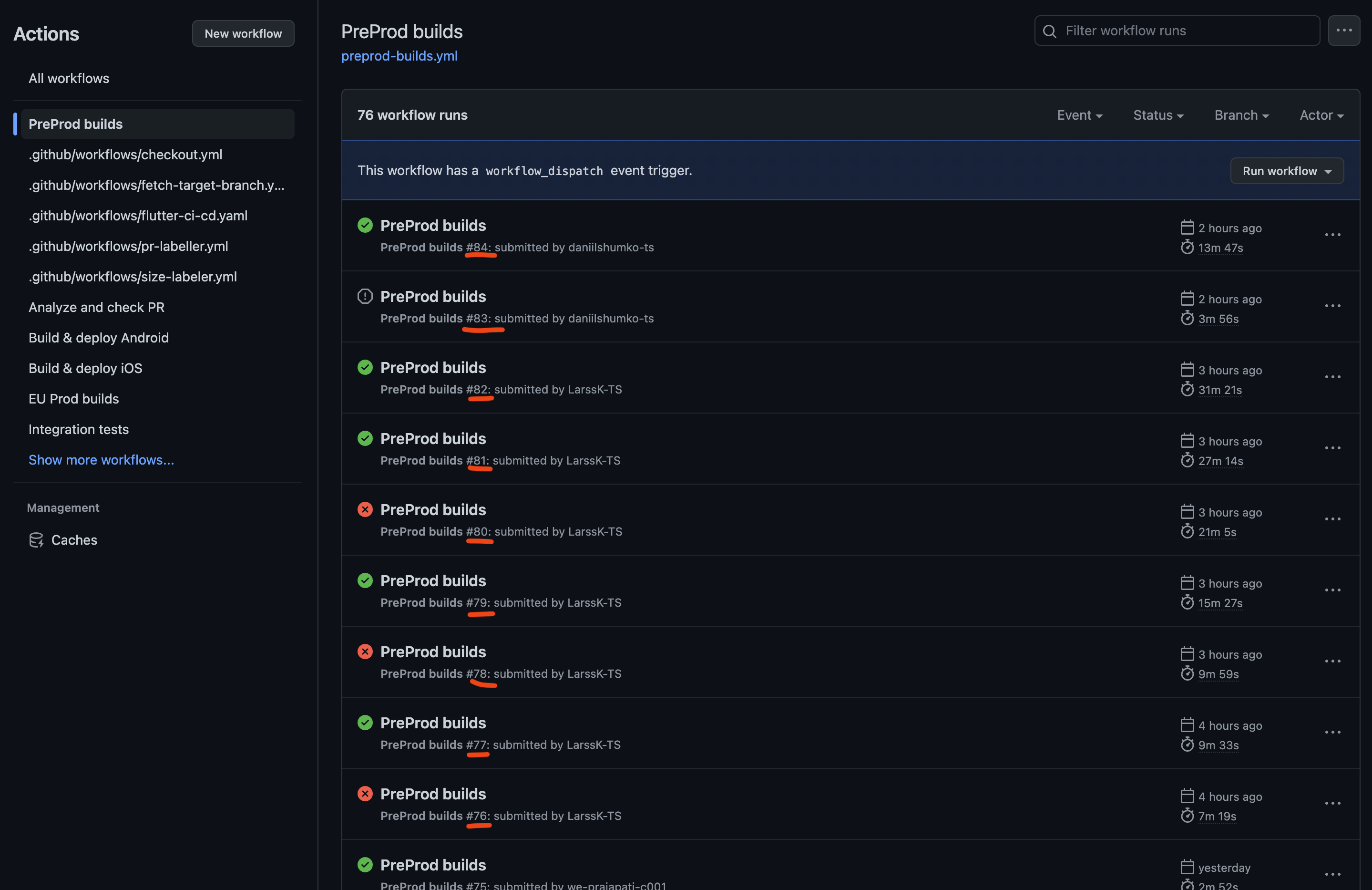
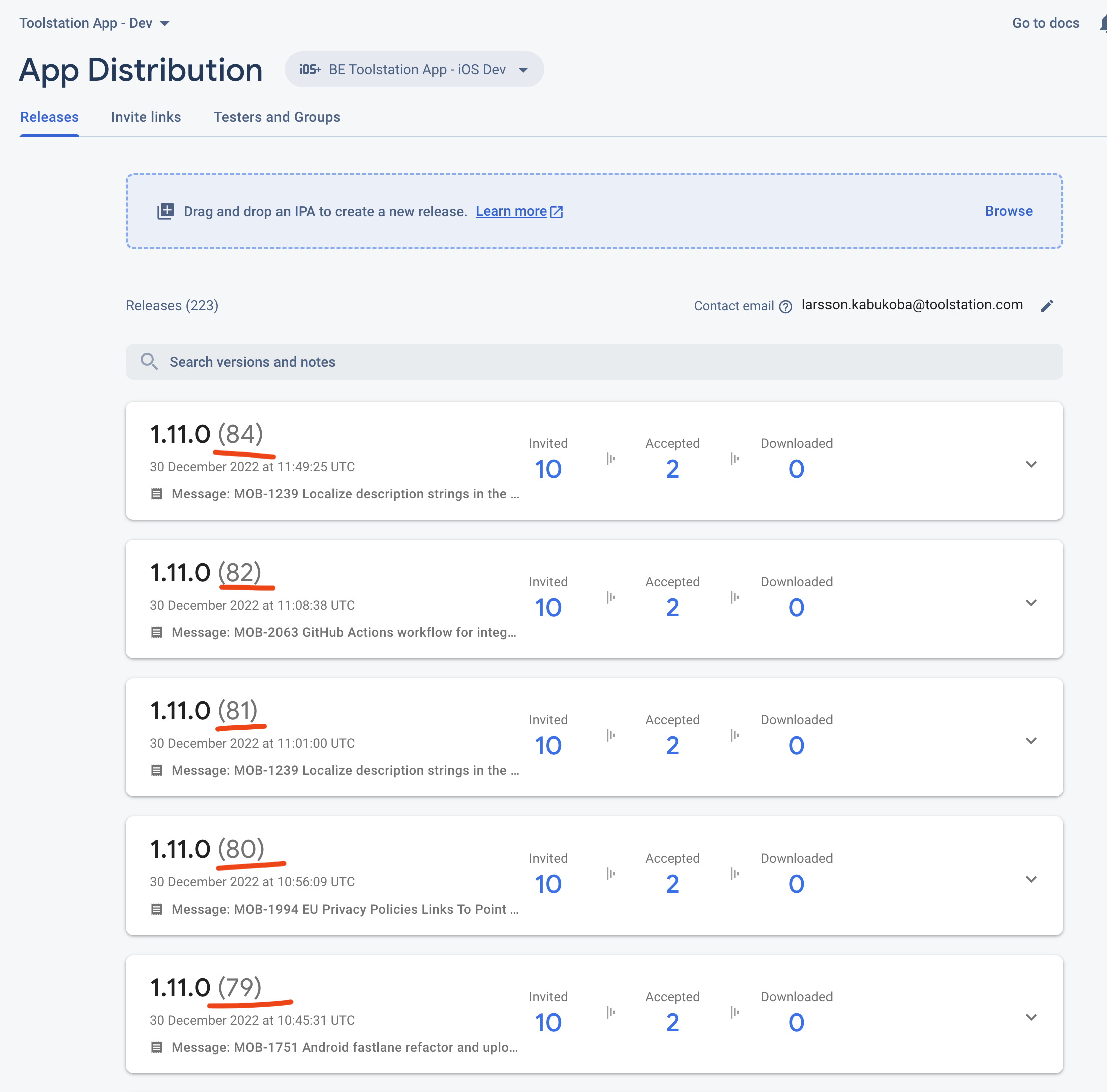
The build number that we see on App Distribution is related to the run number of the PreProd build a workflow from GitHub Actions. It will always be unique every time a new build is started. This also makes it easier to find what commit was used for which build.
How to add new testers and devices?
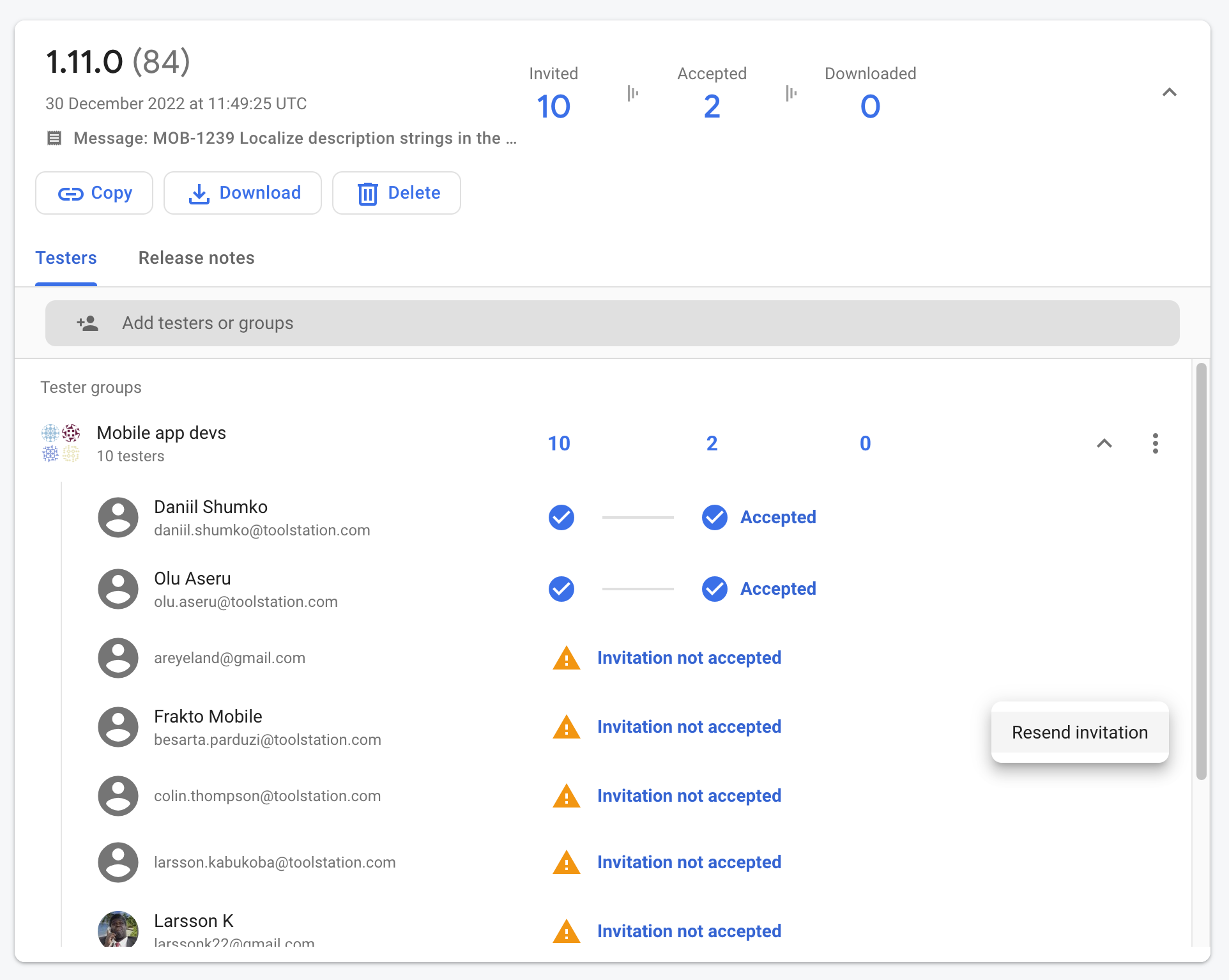
To add a new tester we must first add them to the testers group and they will receive an invitation email about which steps they need to carry to set up their account and device. If the invitation email expires we can resend it by expanding the testers group and using the three dots menu choose Resend invitation
If a new iOS device is registered, an email will be sent to larsson.kabukoba@toolstation.com which will contain the device's ID. For more information please see How to add a new iOS device for testing. Now the iOS app has to be rebuilt to be installable on the new device.