

Build And Release
Set up a new machine for Testing
- There are two ways to do this
- Without using match
- Using match
1. Without using match
- Use this method if you don’t want to share .env file for Fastlane
- We can only have a limited no of certificates in the Apple developer portal. If many developers need certificates, then you need to export a .p12 file from Keychain Access on the Mac that created the Certificate Signing Request so that the Distribution Certificate with the embedded private key can be installed on the machines of the other developers.
Step 1. Generate a .p12 certificate for development
- This certificate already exists (the highest rank developer knows about this), if not you need to create a new one (this needs to be done from the highest rank developer system - In our case Larsson).
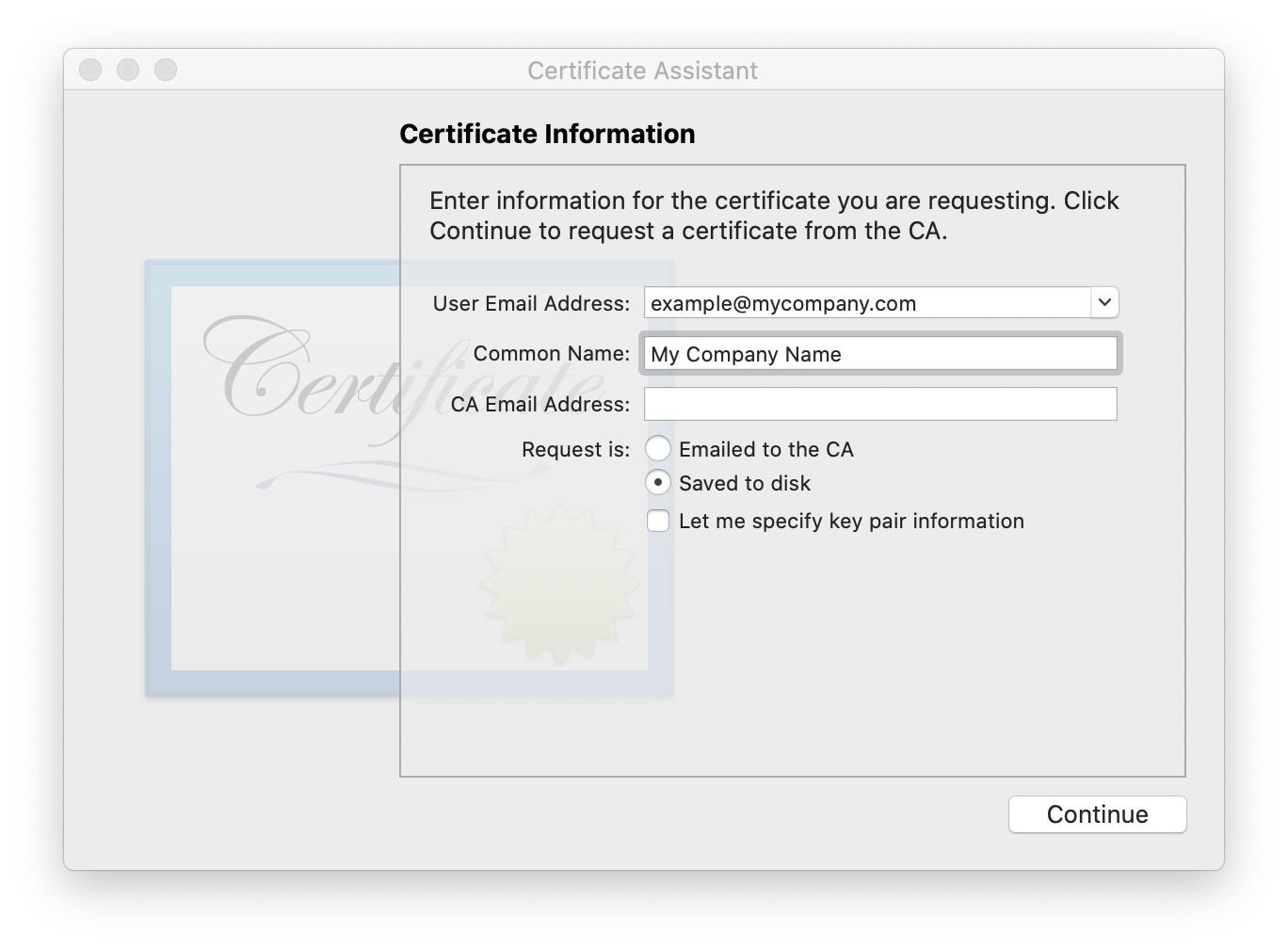
- In the menu bar, navigate to Keychain Access > Certificate Assistant > Request a Certificate From a Certificate Authority.
- Fill in the first two fields User Email Address and Common Name. Leave the CA Email Address field blank and select the Saved to Disk option below.
- Press continue and then save the generated certSigningRequest file on your computer. You can now use this CSR file for the next step.
- Login to the Apple Developer Portal at https://developer.apple.com
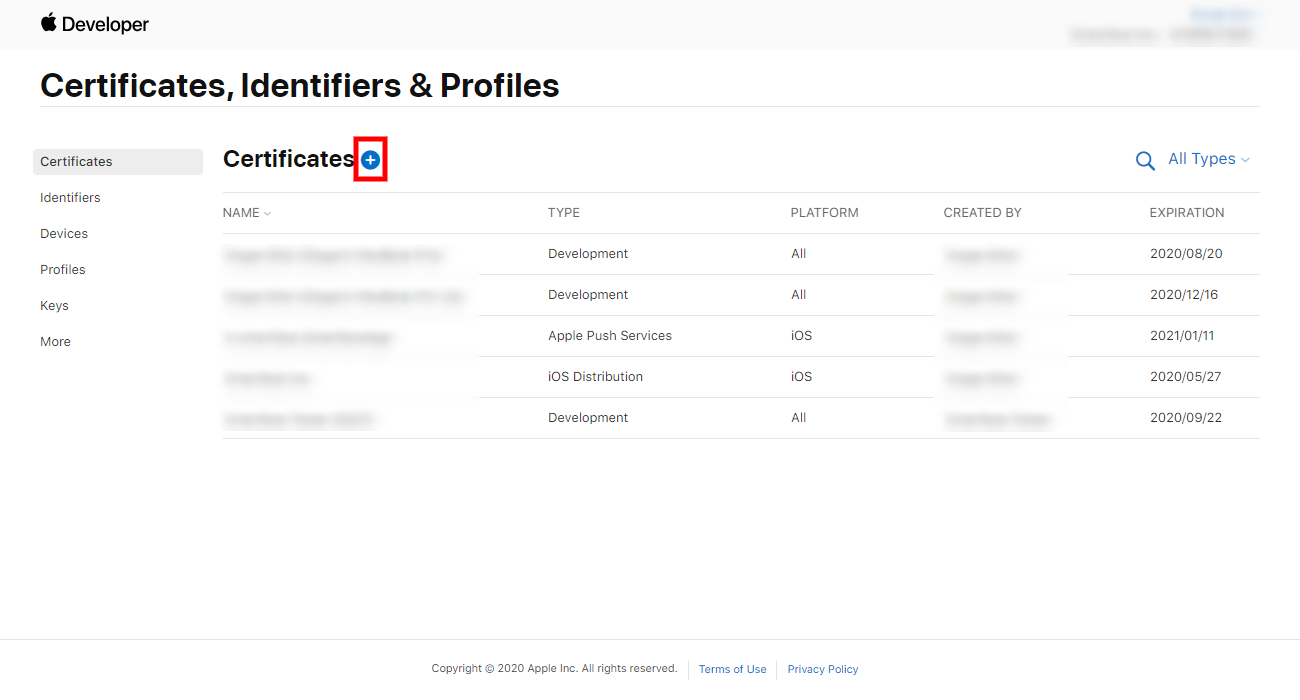
- Select Certificates, IDs & Profiles -> Certificates from the left menu
- Press the Plus (+) button next to the Certificates heading.
- You can select one of the following certificate types that are relevant for iOS apps, depending on your use case:
- Apple Development (We will select this one)
- Apple Distribution (only for the Developer Program)
- iOS App Development
- iOS Distribution (only for the Developer Program)
- In-House and Ad Hoc (only for the Enterprise Program)
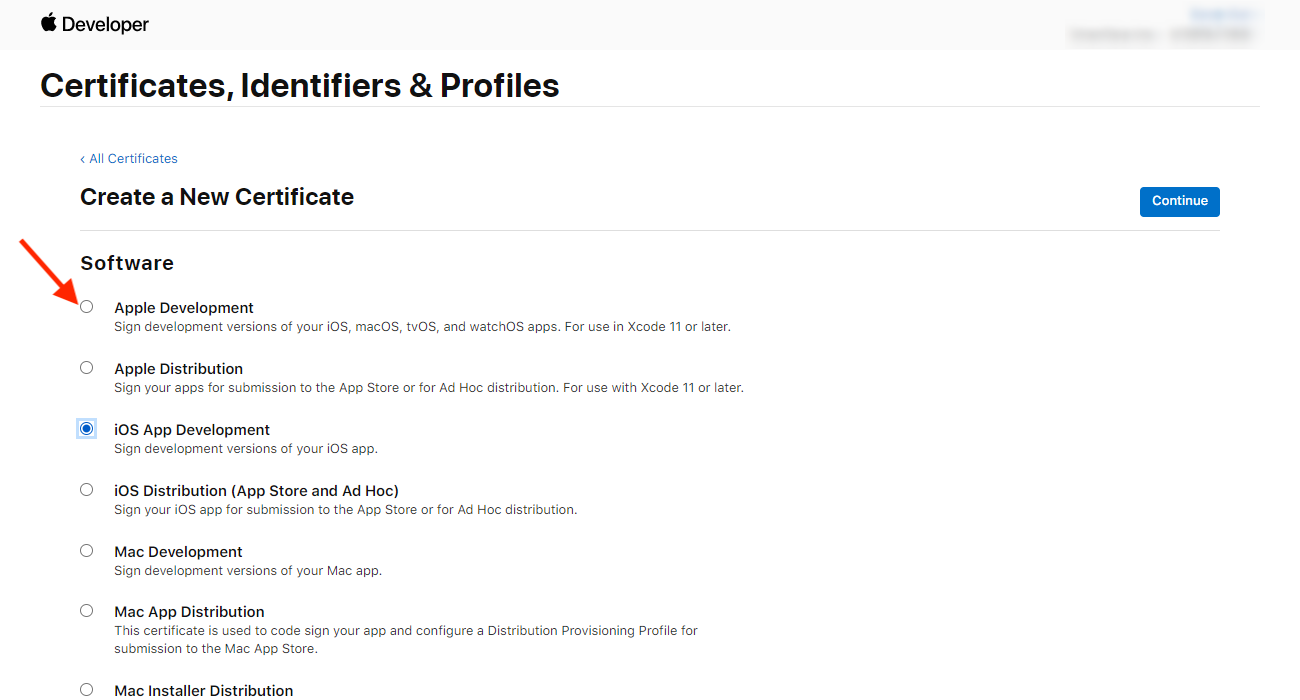
- Press continue after selecting a certificate type. If you are unsure which certificate type to select, you can select Apple Development for running your app on your registered devices for development purposes.
- In the next screen, upload your CSR file generated in the previous step and press continue.
- Your certificate is now generated and ready for download. Just press the download button on the top right.
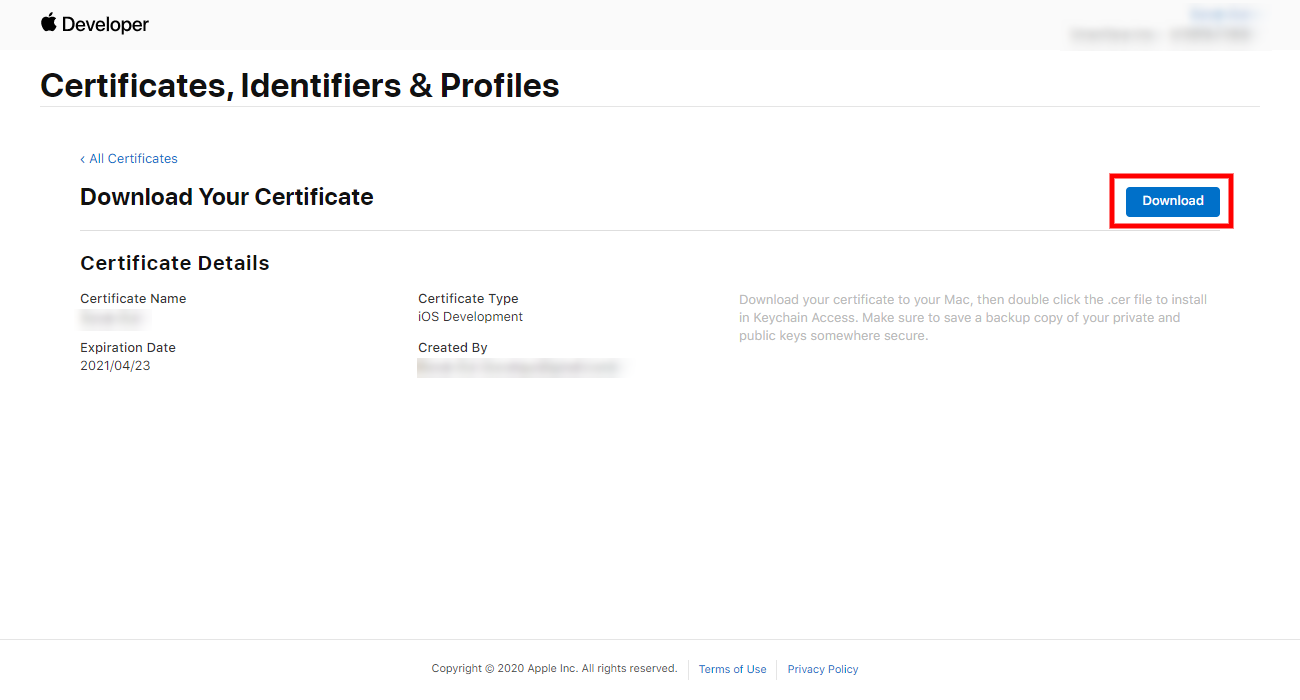
- You can install the created iOS certificate locally as follows:
- On the same Mac where the uploaded CSR comes from, just double-click on the file to install it. You can now use this certificate for code signing within that Mac.
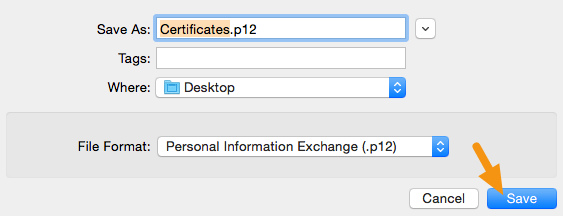
- Once done, we can now export .p12 certificate from the keychain for future use.
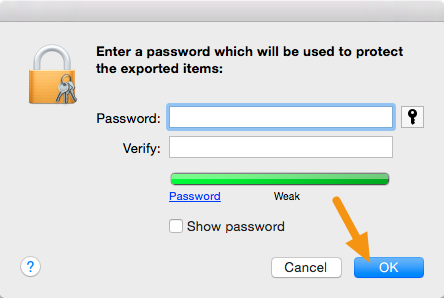
- find the certificate you installed in the keychain, right-click on it, and export it. When Prompted from password enter the password so if any one wants to install this certificate then password is required.
Step 2. Installing the certificate
- Once You get the certificate, you can just simply install it (with password).
Step 3. Checking Permissions
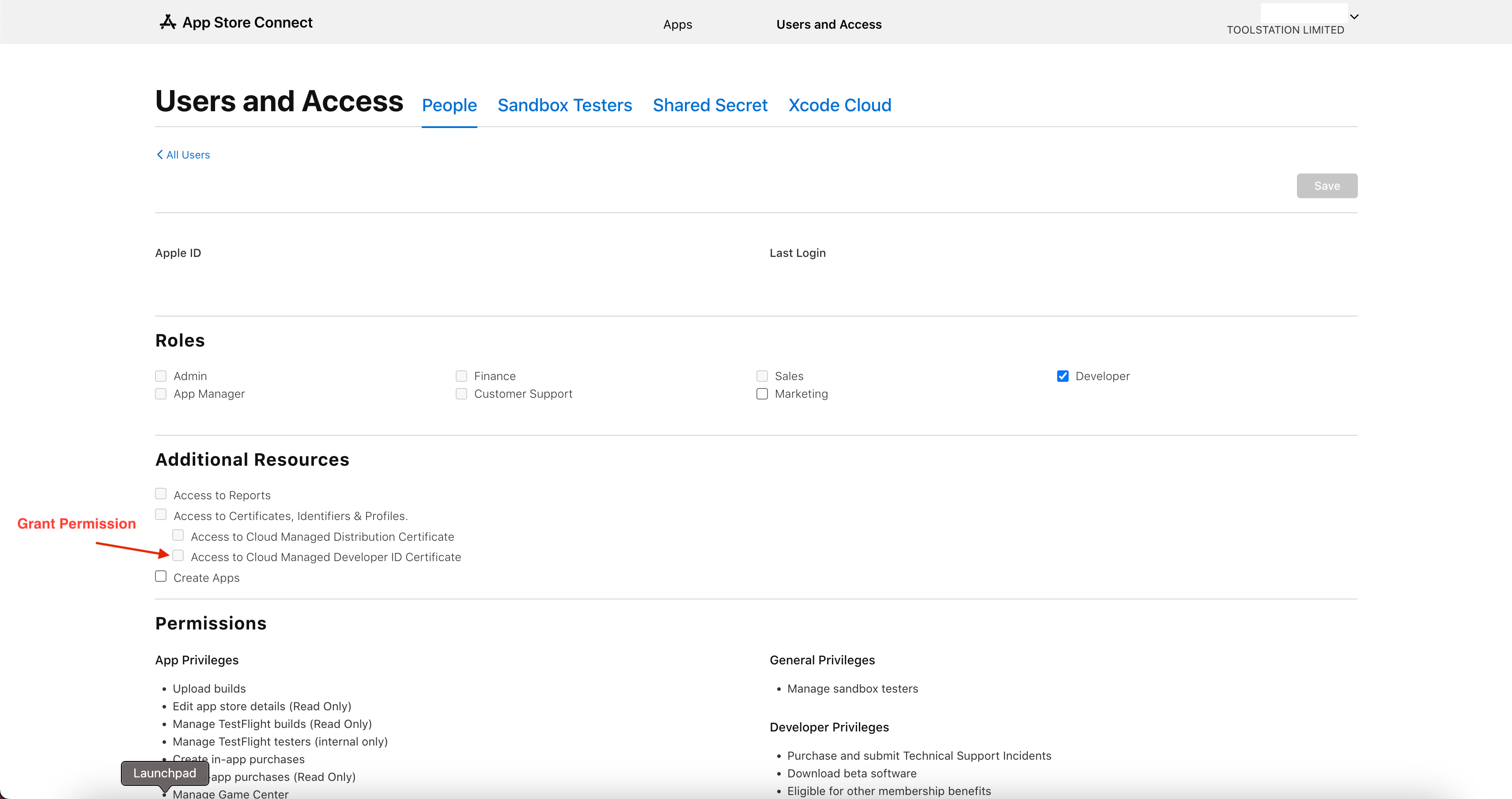
- App Store User Account must have certificate privileges as shown in the screenshot. A ‘Developer’ role with the added privilege will suffice. https://appstoreconnect.apple.com/access/users
Step 4. Checking XCode
- Once the above is complete, the developer must ensure that they are logged into XCode with the current account.
- The device they wish to test on must be added to the device pool in App Store Connect, if it has not, then the UDID must be added then profile provisioning must be re-run via Fastlanes (see CI/CD documentation in repo).
- They will then need to check their build settings for the project. Add their user to the team section. This may take a moment as XCode verifies. XCode may need to be restarted if this fails.
2. Using match
Please make sure you have read access to the mobile_app_match repo.
Step 1. Xcode setup
- Open Xcode and app your Apple ID account by going to the menu bar Xcode -> Accounts -> + -> Apple ID -> Continue and log in with your credentials.
Step 2. Local Setup
- Make sure you have read access to the mobile_app_match repo
- Make sure you have all the required tools installed on your machine. See the readme file on the mobile_app_match repo
Step 3. Env file
- Make sure you have access to the .env file that should be located in the ios/fastlane folder
- This file contains sensitive information and should only be given to a very limited number of people
- For fastlane match to work the .env file must include the following entries:
- APPLE_ISSUER_ID - this can be found on App Store Connect
- APPLE_KEY_CONTENT - this is the private key of the API key that can be generated on the App Store Connect
- APPLE_KEY_ID - ID of the key generated on the App Store Connect
- FASTLANE_APPLE_ID - Apple ID email address with at least App Manager permissions on the Apple Developer account
- FASTLANE_APPLE_APPLICATION_SPECIFIC_PASSWORD - Application Specific password for the Apple ID, this can be generated by logging into the Apple ID account
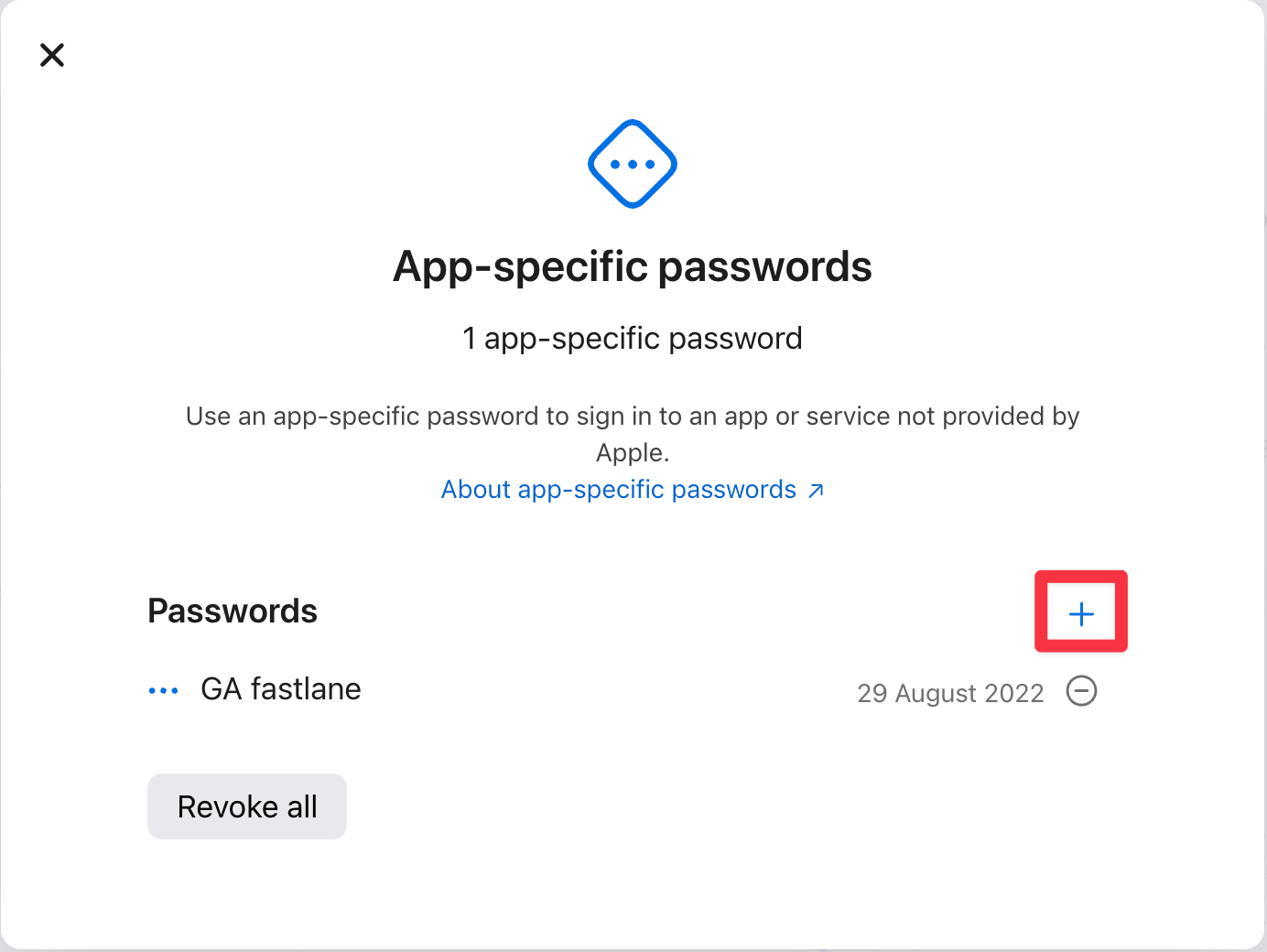
- Log in to your Apple ID account and click on the App-specific passwords section.
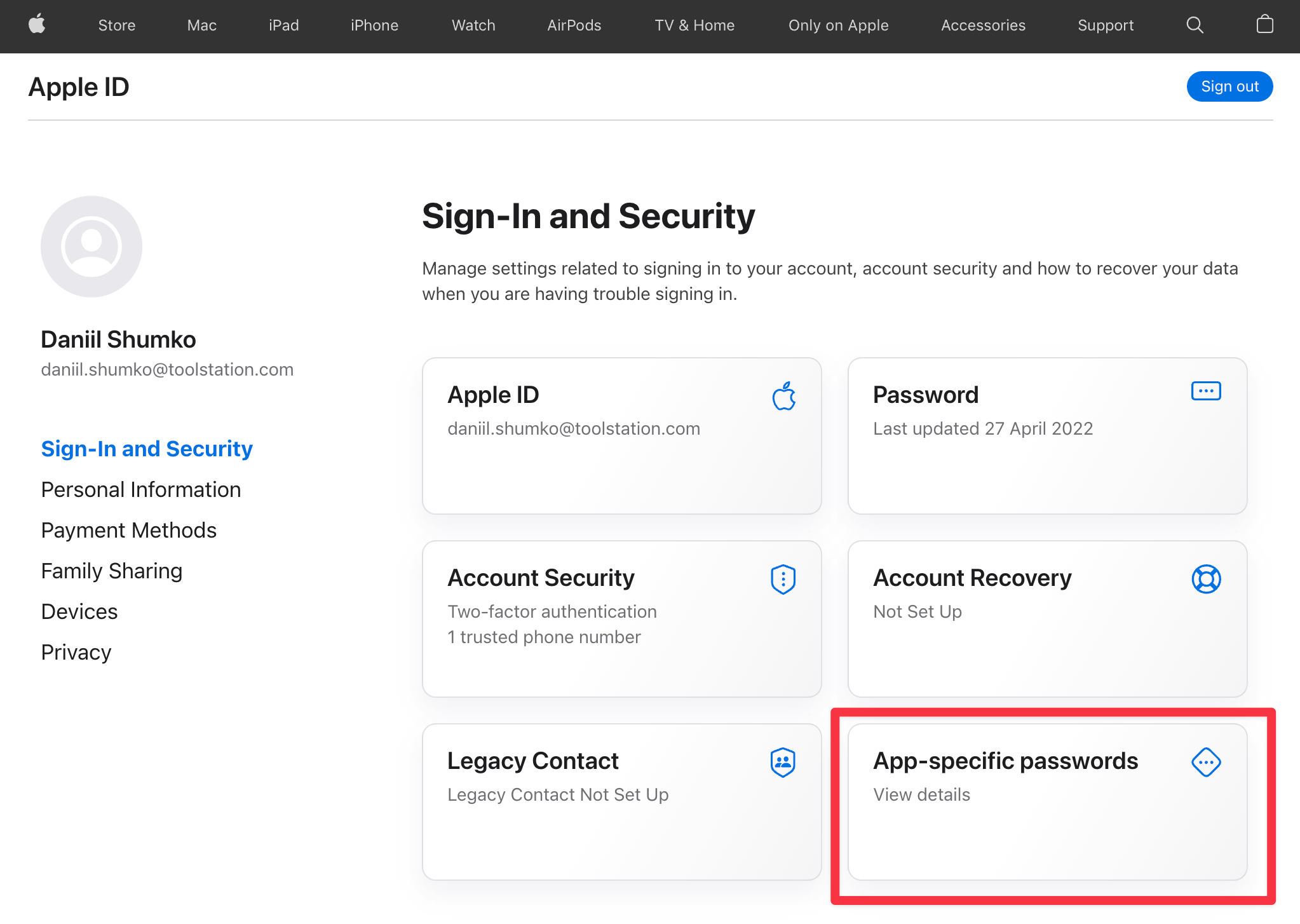
- Click on the little + button to generate a new password
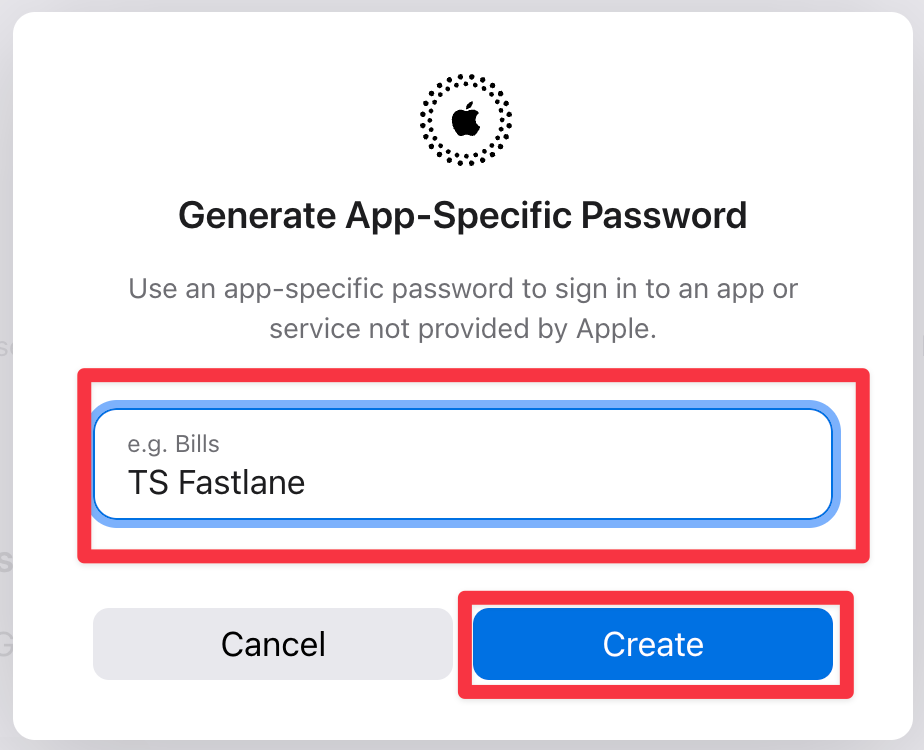
- Enter any name you want for this password and click Create
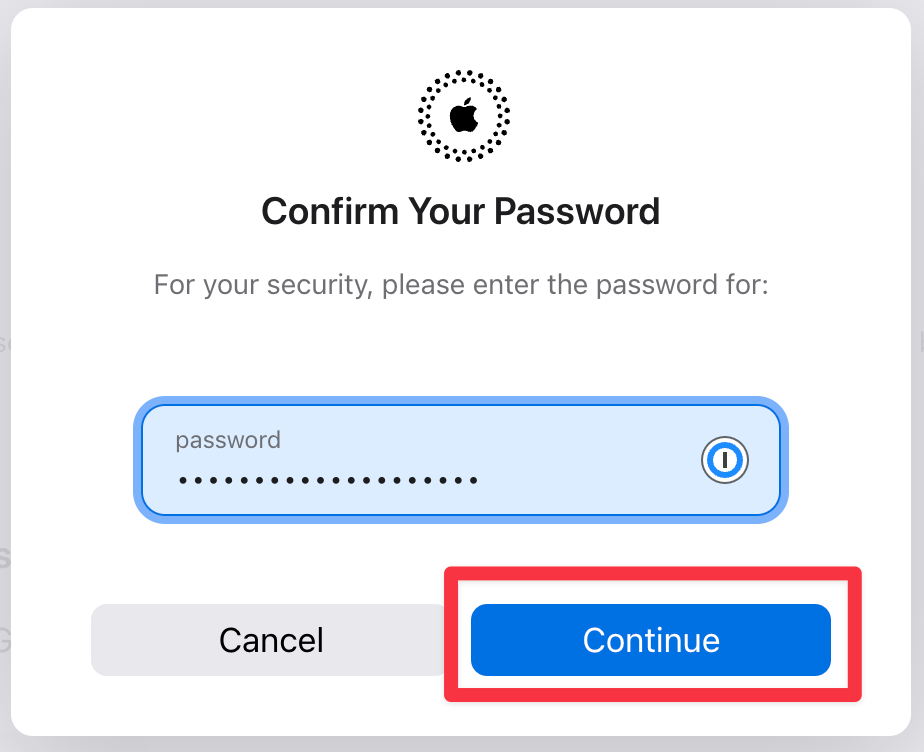
- Verify your accounts password and click Continue
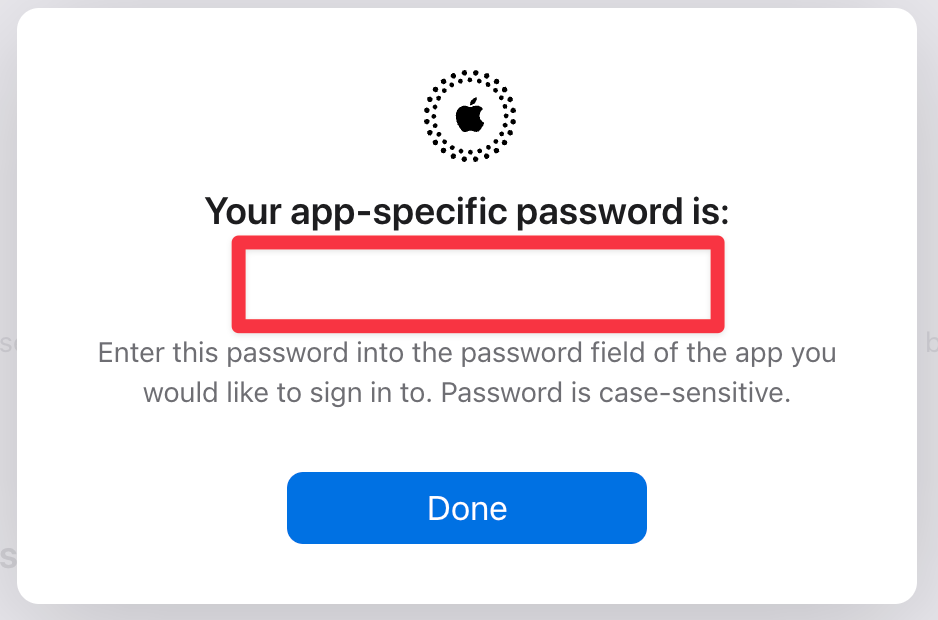
- Copy the app-specific password that is displayed and store it somewhere safe. This password will only be visible once and you won't be able to retreview it again.
- MATCH_PASSWORD - This is the password with which the certificates and provisioning profiles are encrypted with. This is a secret password and must be kept safe. If it is lost or compromised then all the certificates and provisioning profiles will need to be regenerated.
- GIT_AUTHORIZATION - a basic authorization header to access the git repo (e.g.: access via HTTPS, GitHub Actions, etc), usually a string in Base64. For example xyzuser-ts:ghp_aaAbC0aaa00aa0aAb1BabcdA00ABCDABCDABabc git_user_id:personal_access_token. This can be generated by logging into GitHub and navigating to the Personal Access token page.
- When the .env file is ready please proceed to the next step.
Step 4. Completing setup using fastlane
In the ios/ folder run the following commands
fastlane match development --readonly
fastlane match adhoc --readonly
(optional) and if you want to set up your machine to build AppStore IPA's run the following command:
fastlane match appstore --readonly
Now your machine will be ready to build the iOS apps. You will also be required to log into