

Analytics And Logging
Facebook App Events
App Events are used for marketing. For the app the main responsibility of the FB App Events SDK is to track events.
App Events are used for marketing. For the app the main responsibility of the FB App Events SDK is to track events.
Dashboards
- There 2 dashboards
- Meta for developers where you can create apps - enable services, find APP ID, etc
- Events manager where can test the integration - see received events, etc
Creating apps
- Go to Meta for developers dashboard
- On the top right, select the Toolstation business account (not your personal account)
- Click on “Create app” - You will be navigated to a new page
- You will be prompted with “Which use case do you want to add to your app?”
- Select “Other” and click on “Next”
- Then you will be prompted with “Select an app type”
- Select “Business”
- Last step is to provide the following
- App name
- Contact email
- Business account: Select the Toolstation Business account
- After that you will be navigated to the app dashboard
Enabling “App Events” product
- Go to the navigation bar on left and click on “Dashboard”
- Then scroll on the bottom and find a section called “Add products to your app”
- Find “App Events” and click on “Set up” button - After that you will landed to set up the app for Android & iOS
- Android setup
- You can go through the steps to have a more detailed understanding
- Set up the credentials directly on the app (as the basic setup is done)
- For each flavour the following details need to be filled (see UK prod flavor)
- App ID
- Client token
- (Optional) Auto initialisation of the SDK
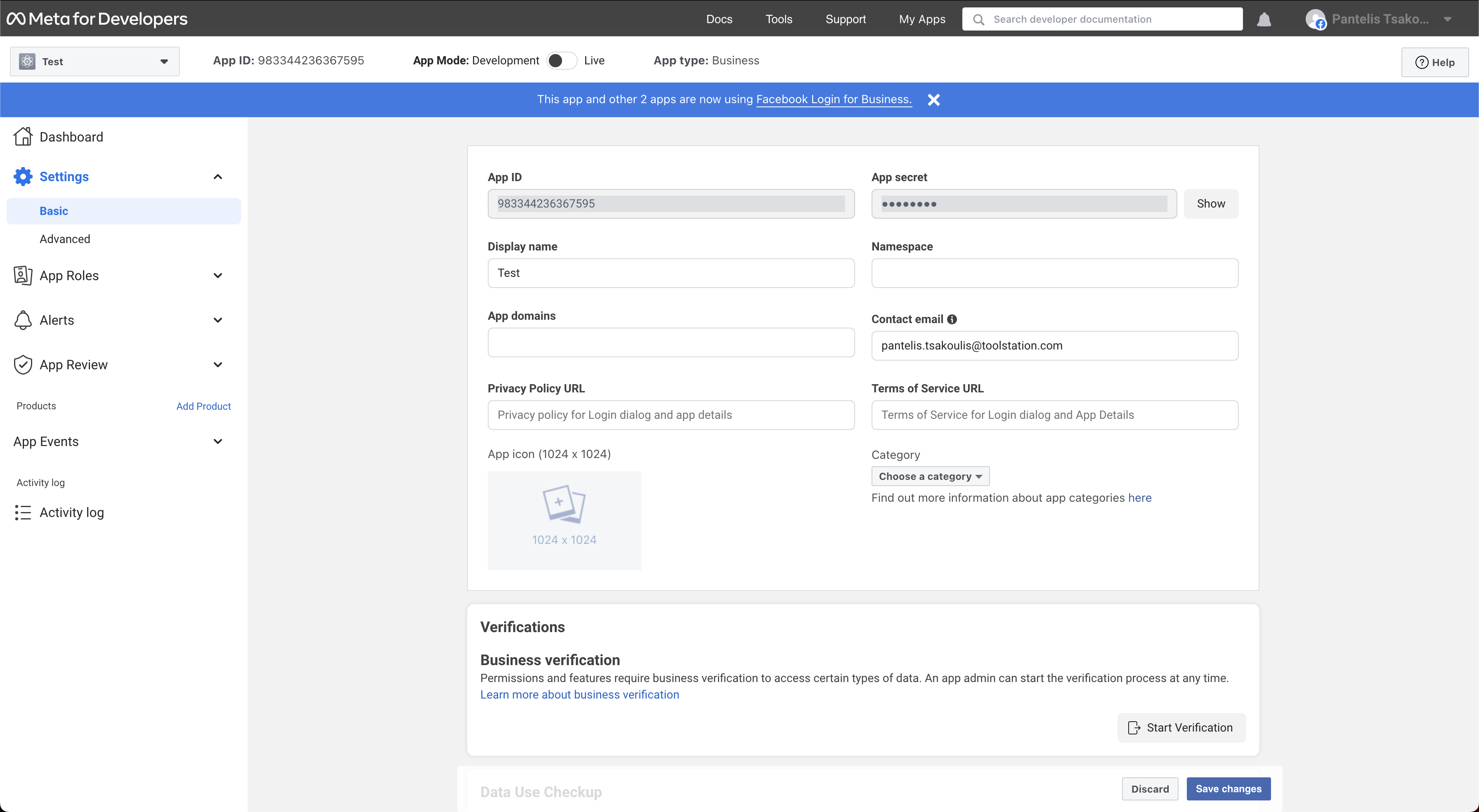
- App ID and Client token can be found on the navigation bar, “Settings” > “Basic” (android and iOS share the same details)
- iOS setup
- You can go through the steps to have a more detailed understanding
- Set up the credentials directly on the app (as the basic setup is done)
- Open the project on xcode
- Click on the Runner folder
- Click on the “Build Settings” tab
- Go to filter and select type “Name” and then type “FB”
- After that you will be prompted with a list of “User-defined” options (For all these values you need to fill in the details if missing or to update them to match the needs of each app)
- FBAdvertiserIDCollectionEnabled : By default false, as we need to prompt a user with a permission request to allow tracking on iOS 14+. Once that permission is granted the app can enable the collection on the Flutter side
- FBAppID
- FBAutoInitEnabled
- FBAutoLogAppEventsEnabled
- FBClientToken
- FBDisplayName
- App ID and Client token can be found on the navigation bar, “Settings” > “Basic” (android and iOS share the same details)
Add platforms configs
- For each platform (android & iOS & web) you need to add some details about the apps
Android
- Go to the navigation bar on the left and click on “Basic” > “Settings”
- Scroll on the very bottom and find the option “Add platform”
- You will be prompted with a list of different platforms - Select “Android”
- Find the appropriate store, “Google Play”, select it and hit “Next”
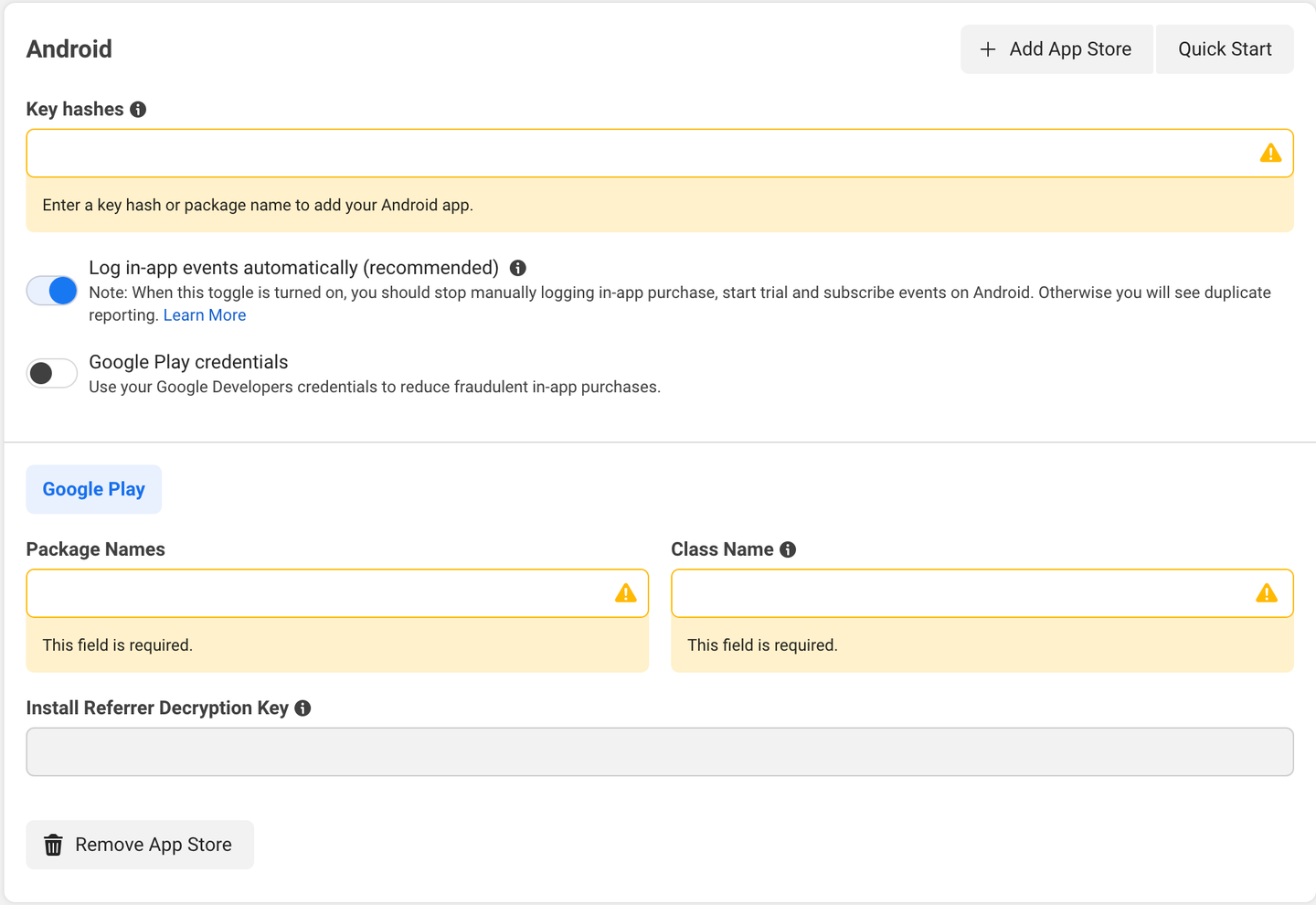
- Then will you be prompted with the following fields to fill in
- Key hashes
- This is the SHA-1 of the signing key but also the SHA-1 that Google signs the app with on the upload of the app.
- Google SHA-1 for UK app
- Command to extract the base64 for a SHA-1 key
- echo "SHA-1 KEY HERE" | xxd -r -p | openssl base64
- Package name
- Examples: com.toolstation.mobile_app, com.toolstation.mobile_app.nl
- Main activity
- This should be the fully qualified name
- Examples: com.toolstation.mobile_app.MainActivity, com.toolstation.mobile_app.nl.MainActivity
- All package names here
- Key hashes
iOS
- Go to the navigation bar on the left and click on “Basic” > “Settings”
- Scroll on the very bottom and find the option “Add platform”
- You will be prompted with a list of different platforms - Select “iOS”
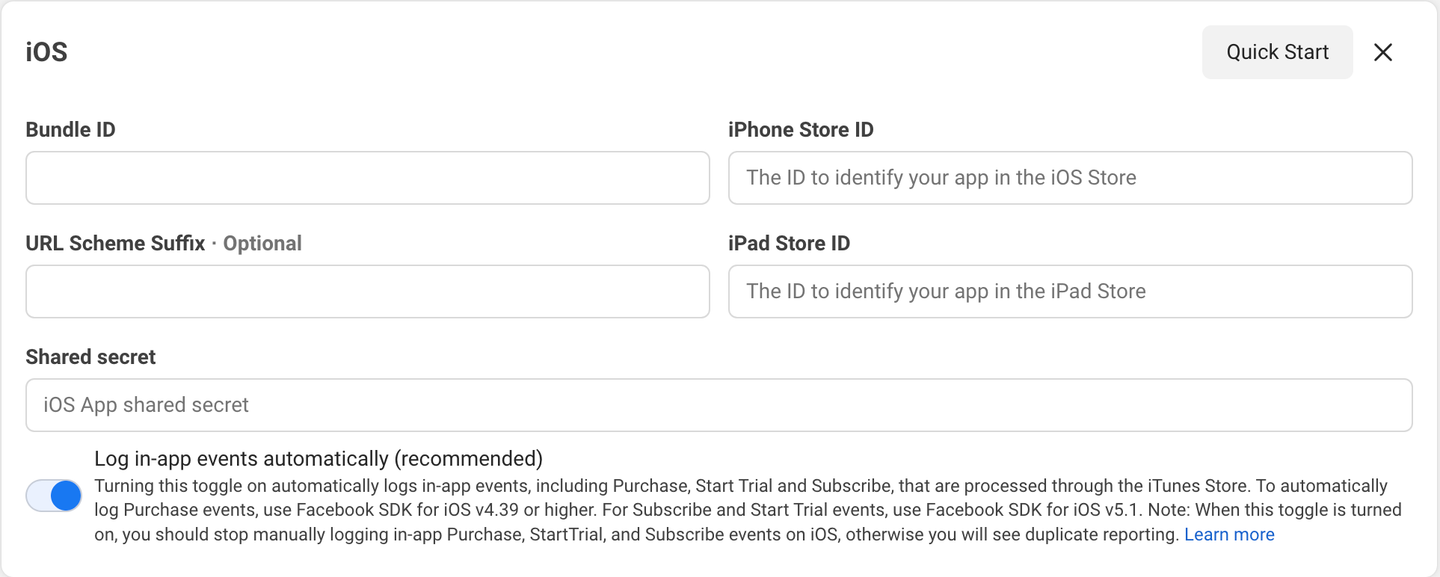
- Then will you be prompted with the following fields to fill in
- Bundle ID
- Examples: com.toolstation.mobile-app, com.toolstation.mobile-app.nl
- All bundle ids here
- iOS Store ID (and iPad store ID)
- This can be found in appstoreconnect.apple.com, after selecting an app
- Go to “General” > “App Information”
- Find “Apple ID”
- This can be found in appstoreconnect.apple.com, after selecting an app
- Bundle ID
Website
- Go to the navigation bar on the left and click on “Basic” > “Settings”
- Scroll on the very bottom and find the option “Add platform”
- You will be prompted with a list of different platforms - Select “Website”
- Enter the website url

Test Facebook App Events integration
To test the integration with the “App Events” you will need
- Visit the Facebook Events Manager
- Go the navigation bar on the left, click on your account and select the business account
- Go the navigation bar on the left, click on the “Data Sources” option
- Then select one of the apps you have created on the previous steps
- Then select the tab “Test events”
- For each platform you will need do the following
- Android
- Install the facebook app on an emulator or a real device
- Login with the same email you are invited with
- Keep the app alive (don’t swipe it off)
- iOS
- Install the facebook app on an a real device
- Login with the same email you are invited with
- Keep the app alive (don’t swipe it off)
- Android
- Note: you can also check the native logs for each platform for any additional setup errors