

Notification
Bloomreach
Engagement is used for marketing. For the app the main responsibility of BR Engagement is to handle push notifications and track some basic events.
Engagement is used for marketing. For the app the main responsibility of BR Engagement is to handle push notifications and track some basic events.
The app uses the official SDK from the Bloomreach team - exponea.
Note: Currently only the UK & EU apps use the Engagement integration.
Engagement Dashboard
Link: https://app.uk.exponea.com/
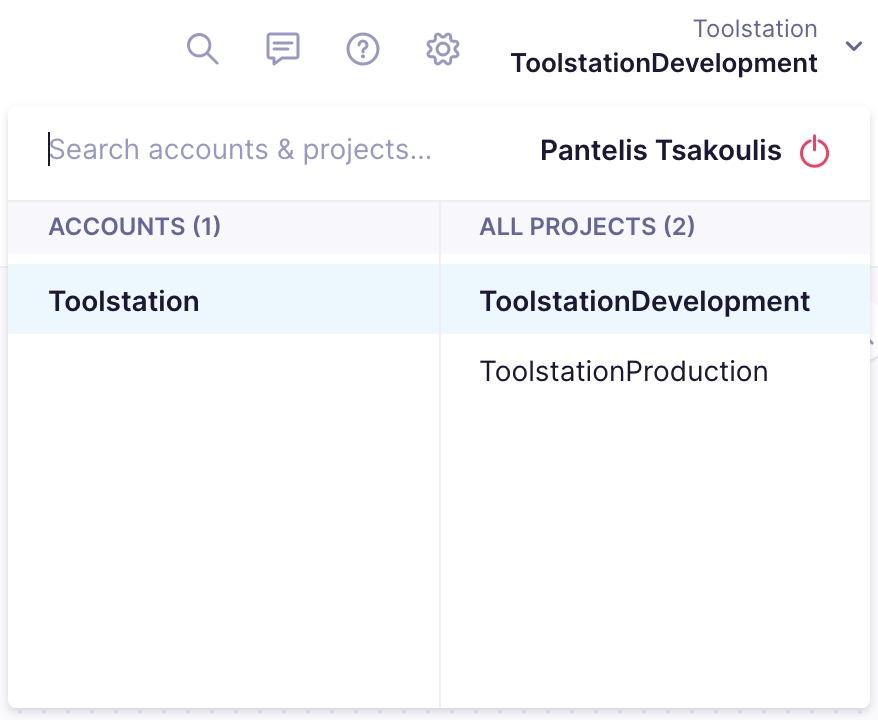
- From the dashboard you can switch between development and production environments.
Android
- For the Android, Firebase Messaging is used to deliver push notifications
- Setup Firebase Messaging on Engagement
- Go to the navigation bar on left and expand it
- Click on “Data & Assets”
- Then on the bottom, tap on the option “Integrations” - After that you will be landed into a new page
- Click on the button “Add new integration” and then search for “Firebase Cloud Messaging”
- Tap on that option and then you will be prompted with adding the “API Key”
- Hit “Save integration”
iOS
For the iOS, APNs (Apple Push Notification service) is used to deliver push notifications
- Setup APNs on Engagement
- Go to the navigation bar on left and expand it
- Click on “Data & Assets”
- Then on the bottom, tap on the option “Integrations” - After that you will landed into a new page
- Click on the button “Add new integration” and then search for “Apple Push Notification Service”
- Tap on that option and then you will prompted with adding the following
- API
- Development (for apps signed with development certificate - local builds, firebase app distribution)
- Production (for apps signed with production certificate - testflight, appstore)
- Note: You will need to add both configs depending on the source of the installation (see the UK project)
- Team ID (can be found on https://developer.apple.com/account#MembershipDetailsCard)
- Key ID
- Available on the .p8 certificate or
- https://developer.apple.com/account/resources/authkeys/list (Firebase Emarsys APN key)
- Note: This key can be only downloaded once - contact someone that has access for that files - current person@Larsson Kabukoba
- ES256 Private Key
- Content of the .p8 certificate
- Application Bundle ID -Available bundle IDs can be found on the app’s README
- API
- Hit “Save integration”
Enabling push notifications for the project
- Go to the settings of the project
- On left of the screen, find the “CAMPAIGNS” section and click on the “Channels” option (that will expand a list of different options)
- Select “Push notifications”
- On the “Android” section
- Below "Firebase Cloud Messaging integration” click on the dropdown and the select the integration you have created
- On the “iOS” section
- Below "Apple Push Notification Service integration” click on the dropdown and the select the integration you have create
- Note: When doing a local build (during development or Firebase app distribution) and you want to test push notifications the integration of the APNs needs to be the “development API” as described on the “iOS setup” section. If the build source is testflight or appstore then the integration needs to be switched to “product API”.
- Setting up the API keys for the app (for security reasons no videos will be attached)
- Go to the settings of the project
- On left of the screen, find the “PROJECT” section and click on the “Access Management” option (that will expand a list of different options) and then on “API” option
- The app needs 3 configuration fields
- Api Base URL
- Project Token
- Auth token
- On the “API section” click on the dropdown and select “new group”
- Select “Public access” and give the name of the group
- On the code you need to create the config for this class “BloomreachExponeaServiceConfig”
- lib/config/config_prod.dart
- lib/config/config_pre_prod.dart
Test push notifications
- To test push notifications you can use a test scenario that targets a single user (using your customer id)
- Go to navigation bar on left and expand it
- Click on “Campaigns”
- Then click the option “Scenarios” - After that you will be landed on a new page
- Click on the button “Create new” - After that you will be landed on a new page
- Click on the tab “Design” (if not already selected)
- On the section “Actions” tap on the one named “Mobile push”
- This will place a “node” on the “canvas”
- Double click on the node and will you be presented with an editor
- On that editor you can edit different fields based on what you want to test
- After updating the fields of your choice, the most important field is the “Preview for”
- Click on the textfield and type your customer id or email
- Note: If nothing appears after searching, try log in once
- Select the suggestion
- Find the yellow button “Test push notification”
- That will prompt you with a selection of the platforms you want to target
- After selecting the platform(s) tap on “Send test push notification”
- Click on the textfield and type your customer id or email
Implementation details
- Flutter
- Implementation file: bloomreach_exponea_service.dart
- Engagement functionality is exposed through a proxy class called “BloomreachExponeaService”
- Android (native)
- To maintain compatibility between Engagement and Emarsys we need to provide an implementation of the “FirebaseMessagingService” (AppFirebaseMessagingService.kt)
- That allows us to decide which service (Engagement or Emarsys) will consume the push notification tokens and push notification messages.
- The "USES_EMARSYS" flag is used in the app level build.gradle file to enable or disable service (Engagement or Emarsys) specific to each flavor.
- Note: Every time the app starts, we force an update of the push token to ensure that Engagement has the latest push token (MainActivity.kt)
- iOS (native)
- The same as described for the Android integration is done for iOS (AppDelegate.swift)
Notes
The functionality is not featured flagged as we don’t have the capability to do so on the native side of the app
VoxWise contact: Dávid Uharček