

Fast Track Delivery
Overview
The Fast Track Delivery feature in the app enables customers to receive selected products within 30 minutes, in partnership with TradeKart. It is designed to offer a quick and convenient delivery option with clear eligibility and checkout flows.
1. Flow Chart
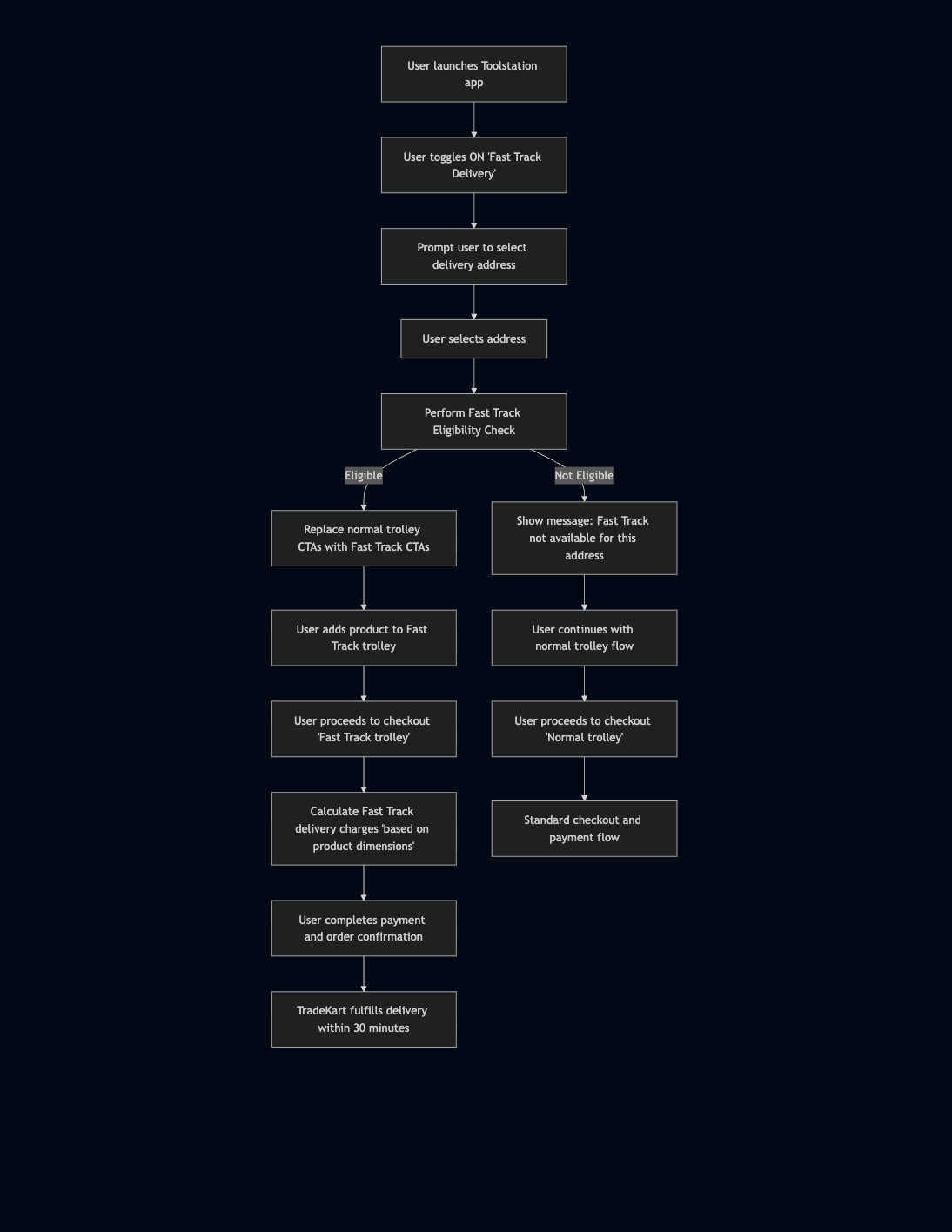
2. Mermaid Code
flowchart TD
        A[User launches Toolstation app] --> B[User toggles ON 'Fast Track Delivery']
        B --> C[Prompt user to select delivery address]
        C --> D[User selects address]
        D --> E[Perform Fast Track Eligibility Check]
        E -->|Eligible| F[Replace normal trolley CTAs with Fast Track CTAs]
        E -->|Not Eligible| G[Show message: Fast Track not available for this address]
        F --> H[User adds product to Fast Track trolley]
        G --> H2[User continues with normal trolley flow]
        H --> I[User proceeds to checkout 'Fast Track trolley']
        H2 --> I2[User proceeds to checkout 'Normal trolley']
        I --> J[Calculate Fast Track delivery charges based on product dimensions]
        J --> K[User completes payment and order confirmation]
        K --> L[FastTrack fulfills delivery within 30 minutes]
        I2 --> M[Standard checkout and payment flow]
3. Key Highlights
A. Region Availability
- Fast Track Delivery is currently live in the UK region, controlled by a feature flag.
- It can be enabled for any region, as long as backend support is available.
B. Service Hours
- The feature is live only during specific operational hours each day.
C. Feature Activation
- Users can toggle on Fast Track Delivery from the app interface.
D. Address Selection
- Once toggled on, the app prompts the user to select a delivery address.
E. Eligibility Check
- After selecting an address, the system performs a Fast Track Eligibility Check to verify whether the selected location supports Fast Track delivery.
F. Dynamic UI Update
- If the address is eligible, normal trolley CTAs are replaced with Fast Track CTAs, allowing users to add products to a Fast Track trolley.
G. Dual Trolley System
The app manages two separate trolleys:
- Normal Trolley – for standard delivery or collection orders
- Fast Track Trolley – for products eligible for 30-minute delivery
H. Checkout and Payment Flow
- Both trolleys have independent checkout and payment journeys.
I. Fast Track Charges
- Fast Track orders include an additional delivery fee, which varies depending on the dimensions and type of products.
Address Lookup
The Address Lookup functionality in
Fast Trackenables users to search, validate, and select delivery addresses for Fast Track Delivery eligibility.
This is a critical step in the Fast Track activation flow, as accurate geolocation and eligibility checks depend on correctly resolving user-entered address data.
1. Core Responsibilities
The Fast Track manages the following aspects of address lookup:
- Listening to user input (typed query or manual entry).
- Debouncing requests to reduce API load.
- Fetching suggestions (locality, postcode, or full address).
- Handling reverse geocoding and location-based lookup.
- Submitting the selected or manually entered address for eligibility validation.
2. Address Lookup Methods
A. Locality Search
Triggered when user searches by town, city, or partial postcode.
      final localities = await _geoRepository.suggestLocalities(
        query,
        enableAllTypes: true,
        postcodeOnly: postcodeOnly,
      );

      final List<AddressPredictionResult> addressPredictionResults = localities.map(
        (locality) => AddressPredictionResult(
          publicId: locality.publicId,
          description: locality.description,
          type: locality.type,
        ),
      ).toList();
B. Postcode-Based Lookup
Used when user enters a complete postcode or taps on a suggestion.
  final addresses = (await _geoRepository.getLocalityById(query))
          .addresses
          ?.list ?? <LocalityAddressSummary>[];

      final results = addresses.map(
        (address) => AddressPredictionResult(
          publicId: address.publicId,
          description: address.description,
          type: WoosmapAddressType.address,
        ),
      ).toList();
C. Query-Based Lookup
Triggered for general address searches (street names, business names, etc.).
      final addressPredictionResults = await _geoRepository.getPossibleAddresses(
        text: query,
        enableAllTypes: true,
      );

      _state.add(currentState.copyWith(
        isLoadingSuggestions: false,
        addressPredictionResults: addressPredictionResults,
      ));
3. Events Emitted During Lookup
| Event | Description |
|---|---|
FastTrackAddressTextUpdatedEvent | Occurs when the address input text changes. |
FastTrackErrorEvent | Occurs when an API error or geocoding issue happens. |
FastTrackAddressEligibilityCheckedEvent | Occurs when the system completes the address eligibility check. |
FastTrackGeoLocationUpdatedEvent | Occurs when the user’s current GPS location is updated. |
Fast Track Stock Toggle
The Fast Track Stock Toggle is the central control that determines whether the Fast Track mode is active across the app. When turned on, it replaces standard Collection and Delivery CTAs with the Fast Track CTA, allowing users to add items eligible for instant 30-minute delivery through FastTrack.
1. The Toggle State:
- Is stored in the FastTrackRepository.
- Is global across all screens.
- Is session-based, resetting when the app is reopened.
2. Toggle Declaration and Stream
final BehaviorSubject<bool> _fastTrackDeliveryEnabled = BehaviorSubject.seeded(false);
ValueStream<bool> get fastTrackDeliveryStream => _fastTrackDeliveryEnabled.stream;
set fastTrackDelivery(bool value) => _fastTrackDeliveryEnabled.value = value;
bool get fastTrackDelivery => _fastTrackDeliveryEnabled.value;
3. Explanation:
BehaviorSubject.seeded(false)initializes the toggle to off by default.fastTrackDeliveryStreamexposes a reactive stream that UI components can subscribe to for live updates.- The toggle is a
ValueStream, meaning you can both read its current value (fastTrackDelivery) and listen to changes. - Setting
fastTrackDelivery = truetriggers Fast Track mode globally.
4. Global Availability
Once enabled, the toggle affects every page in the app by:
- Hiding the standard “Add to Trolley” buttons for Collection and Delivery.
- Showing “Fast Track Add to Trolley” instead.
- Making Fast Track–only products available for checkout.
The toggle is checked in relevant Bloc and widget layers (for example, the FastTrackBloc) to decide UI and behavior dynamically.
5. Activation Logic
You can access and enable the toggle through several entry points, including:
- Clicking on the Fast Track ribbon on the PLP (Product Listing Page).
- Clicking on the Fast Track banner on the homepage.
- Attempting to add a Fast Track product to trolley while the toggle is off — which first triggers address lookup and eligibility validation.
- If someone adds products to fast track trolley and closes app, they can activate it from trolley as well.
After successful address verification and confirming active service hours, the toggle is turned on:
setShowFasttrackDelivery = isEligible;
_state.add(currentState.copyWith(
  isLoading: false,
  showFasttrackDelivery: isEligible,
));
Here, setShowFasttrackDelivery sets it's value stored in FastTrackRepository:
set setShowFasttrackDelivery(bool value) => _fasttrackRepository.fastTrackDelivery = value;
This ensures the Fast Track mode becomes active app-wide once eligibility conditions are met.
6. Persistence Behavior
- The toggle state is stored only in memory, not persisted across app sessions.
- When the app is reopened, _fastTrackDeliveryEnabled is reset to false.
- The FastTrackRepository instance holds this state throughout the session lifecycle.
7. Example Usage in Bloc
In FastTrackBloc, when user toggles Fast Track manually or via UI:
Future<void> checkAndUpdateFastTrackDeliveryVisibility() async {
  if (currentState.isLoading) return;

  if (currentState.showFasttrackDelivery) {
    setShowFasttrackDelivery = !currentState.showFasttrackDelivery;
    _eventSubject.add(const FastTrackStockToggleTurnedOffEvent());
    _state.add(
      currentState.copyWith(
        isLoading: false,
        showFasttrackDelivery: showFasttrackDelivery,
      ),
    );
  } else {
    _state.add(currentState.copyWith(isLoading: false));
    _eventSubject.add(const FastTrackAddressLookupTriggerEvent());
  }
}
8. Key Points:
- If the toggle is already on, it’s turned off and emits
FastTrackStockToggleTurnedOffEvent. - If it’s off, the address lookup process is triggered
(FastTrackAddressLookupTriggerEvent). - Once the address is verified as eligible, the toggle is set globally via:
setShowFasttrackDelivery = isEligible;
9. Reset Behavior
When user logs out or deletes the address:
_fastTrackRepository.fastTrackDelivery = false;
_fastTrackRepository.setFasttrackDeliveryStoreId = null;
_fastTrackRepository.setFastDeliveryAddress(null, updateRecent: false);
This ensures:
- The toggle resets to
false. - Any store binding or address association is cleared.
- App returns to default (non–Fast Track) mode.
10. Summary Table
| Property | Description |
|---|---|
_fastTrackDeliveryEnabled | Reactive holder for the global Fast Track toggle |
fastTrackDeliveryStream | Exposes live stream for UI to subscribe |
fastTrackDelivery | Getter for current toggle state |
fastTrackDelivery = value | Sets toggle state globally |
setShowFasttrackDelivery | Wrapper setter used by BLoC for consistency |
| Reset on App Restart | Yes |
| Activation Sources | Ribbon, Homepage Banner, Fast Track CTA, Pre-filled Trolley |
| Dependencies | Address eligibility, service availability hours |
The Two Trolleys
With the introduction of Fast Track Delivery, the Toolstation UK app now supports a dual-trolley architecture designed to keep Fast Track orders cleanly separated from normal Collection/Delivery orders. This separation ensures that each trolley maintains its own stock rules, availability checks, eligibility requirements, and checkout flow.
1. Overview
The system now maintains:
Normal Trolley:
- For standard Collection and Delivery orders.
- Populated with products that users add through normal fulfilment flows.
Fast Track Trolley
- Dedicated to products that are eligible for Fast Track Delivery.
- Populated only when the Fast Track toggle is ON and the user adds products using the Fast Track CTAs.
This split model ensures:
- Clear distinction between fulfilment types
- Accurate stock handling for each mode
- Independent checkout flows
2. UI Changes
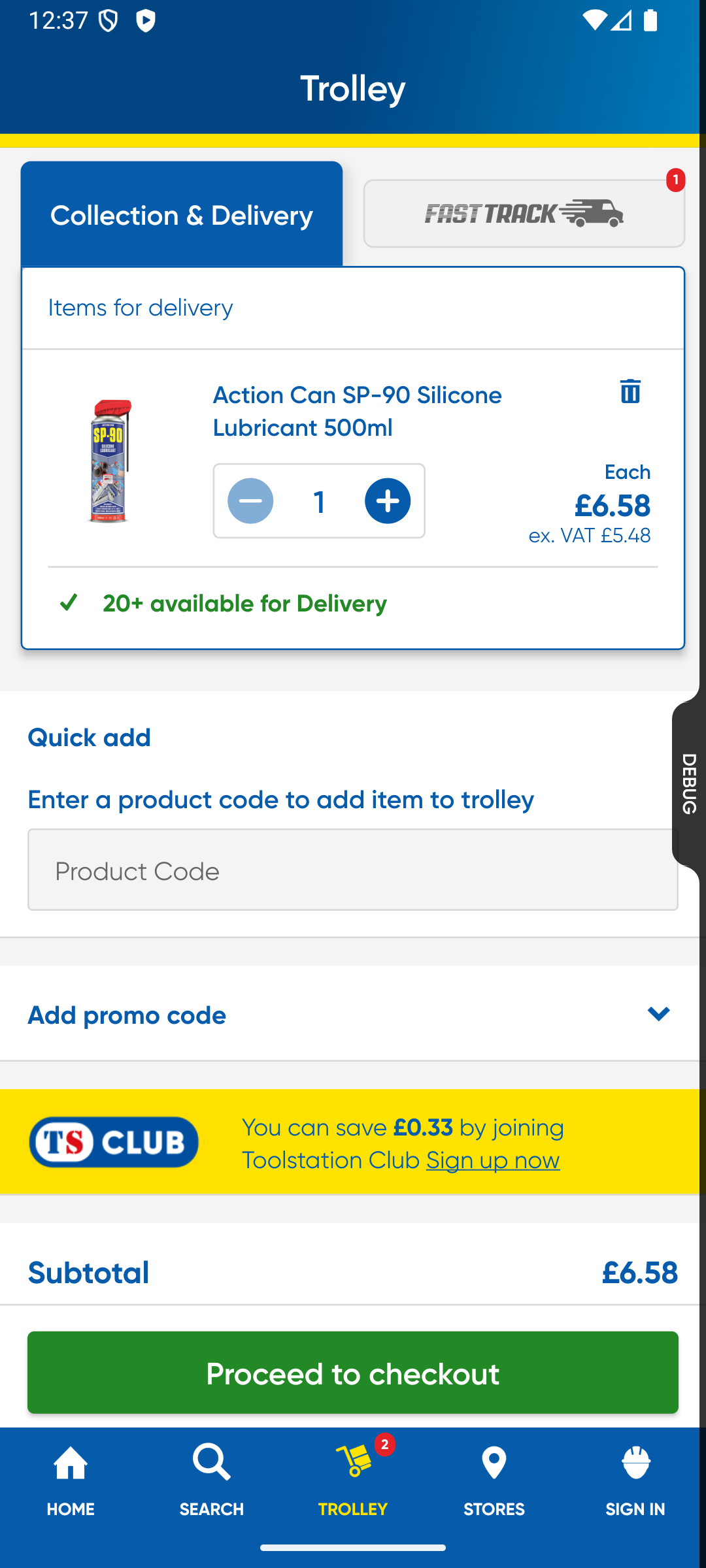
A. Two-Tab Trolley Layout
The trolley screen is now redesigned with a tabbed interface, visually separating:
- Collection & Delivery Trolley
- Fast Track Trolley
Users can switch between these two views using a smooth, bouncy animated tab selector, providing a responsive and modern interaction experience.
B. Trolley Item Card Color Coding
To differentiate items quickly and reduce confusion:
- Normal Collection/Delivery items → Blue border
- Fast Track items → Yellow border
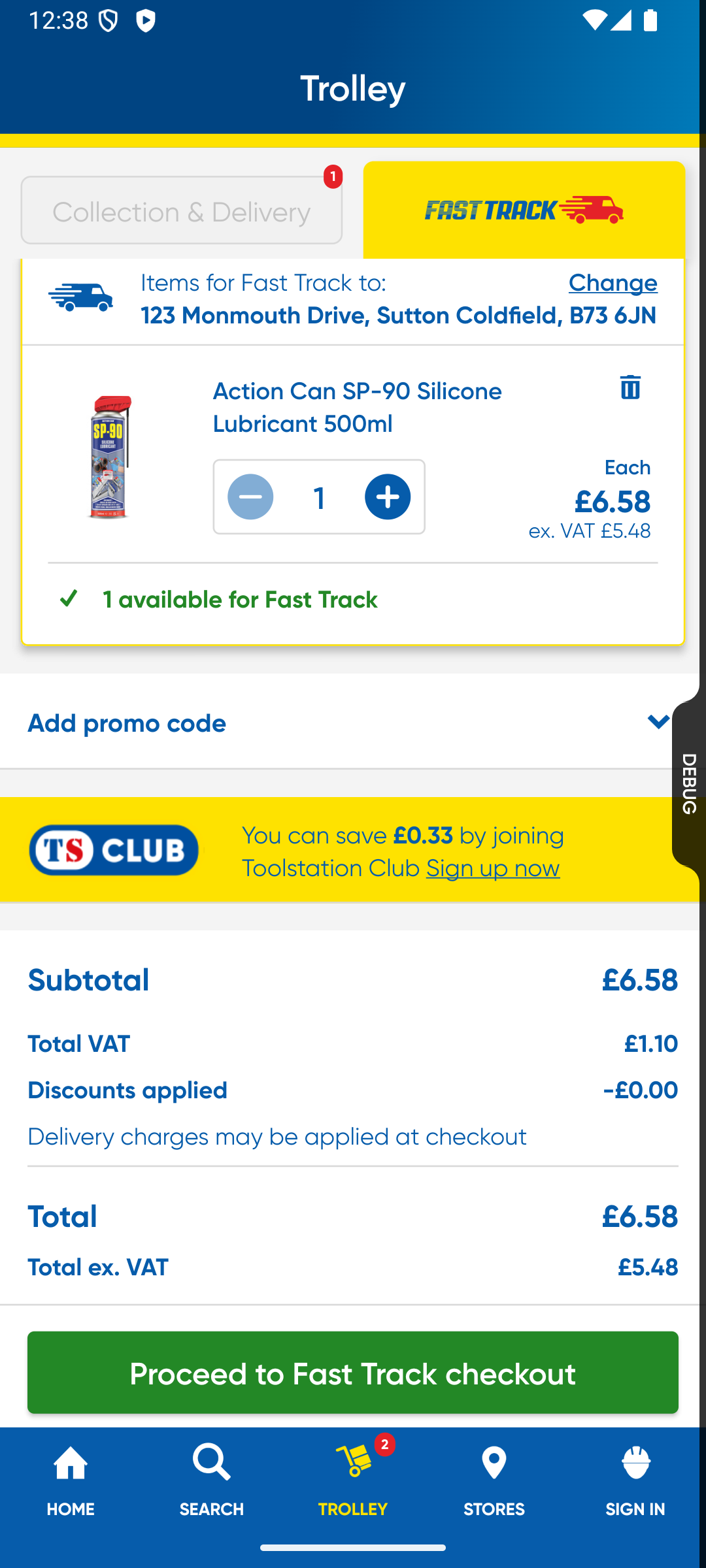
This visual cue ensures users instantly recognize the fulfilment type of each product.
C. Address Requirement for Stock Fetch
Fast Track trolley logic requires a selected delivery address to perform:
- Stock check
- Eligibility verification
- Validation of available quantity
If the user switches to the Fast Track trolley without an address selected, the UI displays a warning banner with a tappable “Add an address” text (InkResponse). Tapping it triggers the address selection flow.
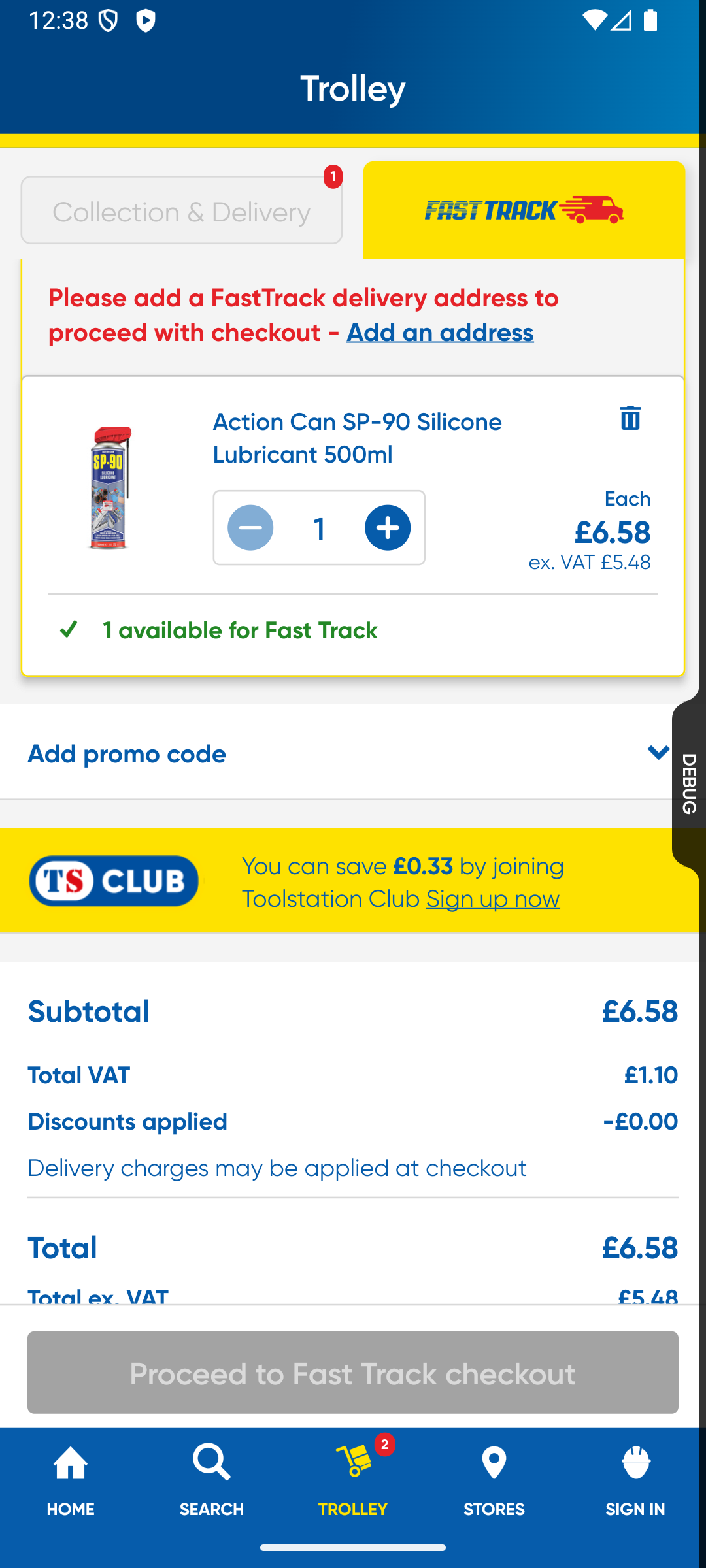
Until an address is selected:
- Stock cannot be fetched
- Product availability cannot be validated
- Quantity checks cannot be performed
D. Stock Fetching & Quantity Validation
Once the address is available:
- The app fetches Fast Track-specific stock for all items in the trolley.
- It verifies whether requested quantities are within available limits.
- UI updates dynamically to reflect shortages or mismatches.
- This ensures the trolley always reflects valid Fast Track order states.
E. Service Hours Check
Fast Track Delivery is available only during its live operating hours.
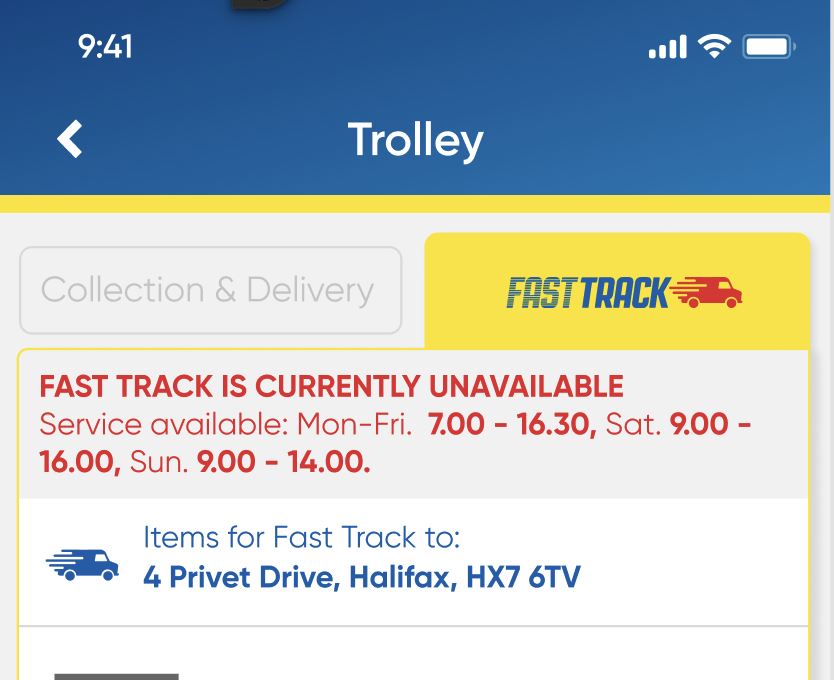
When the trolley is opened:
- The app checks whether the service is currently active.
- If the service is outside operating hours, the trolley displays a warning text informing the user that Fast Track Delivery is not available right now.
- Product cards may also show contextual warnings where needed.
This ensures the user is aware of temporal availability constraints before proceeding to checkout.
Checkout Journey
1. Overview
The Fast Track Checkout allows users to quickly purchase items for rapid delivery (e.g., within a specific time window). It involves specific eligibility checks, address validation, and a streamlined checkout process.
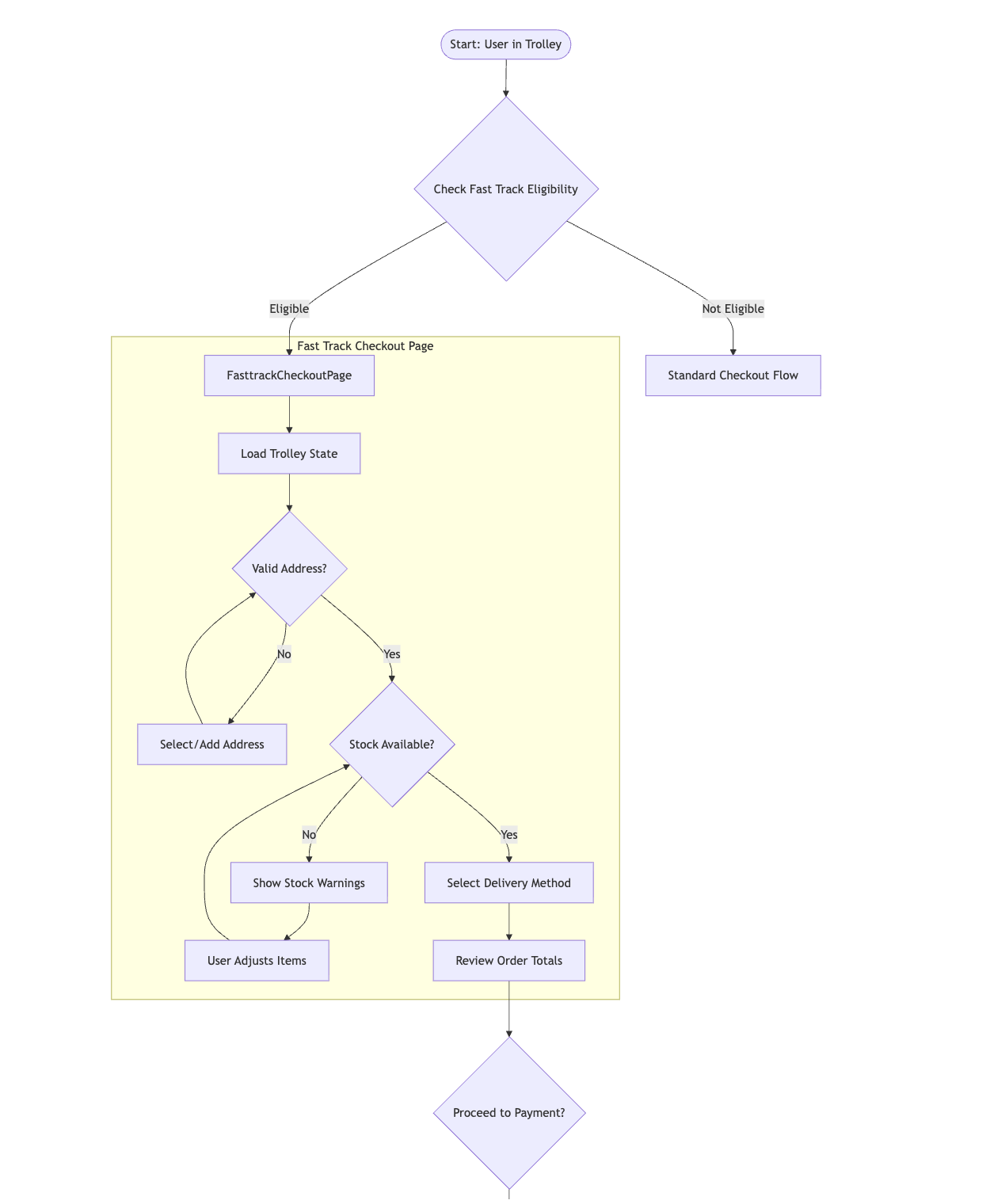
Flowchart Code
flowchart TD
        A[Start: User in Trolley] --> B{Check Fast Track Eligibility}

        B -->|Eligible| C[FastTrackCheckoutPage]
        B -->|Not Eligible| Z[Standard Checkout Flow]

            subgraph FT[Fast Track Checkout Page]
                  C --> D[Load Trolley State]
                  D --> E{Valid Address?}
                  E -->|No| F[Select/Add Address]
                  F-->E
                  E -->|Yes| G{Stock Available?}
                  G -->|No| H[Show Stock Warnings]
                  H --> I[User Adjusts Items]
                  I-->G
                  G -->|Yes| J[Select Delivery Method]
                  J --> K[Review Order Totals]
            end
        K --> L{Proceed to Payment?}
2. Key Components
A. UI Components
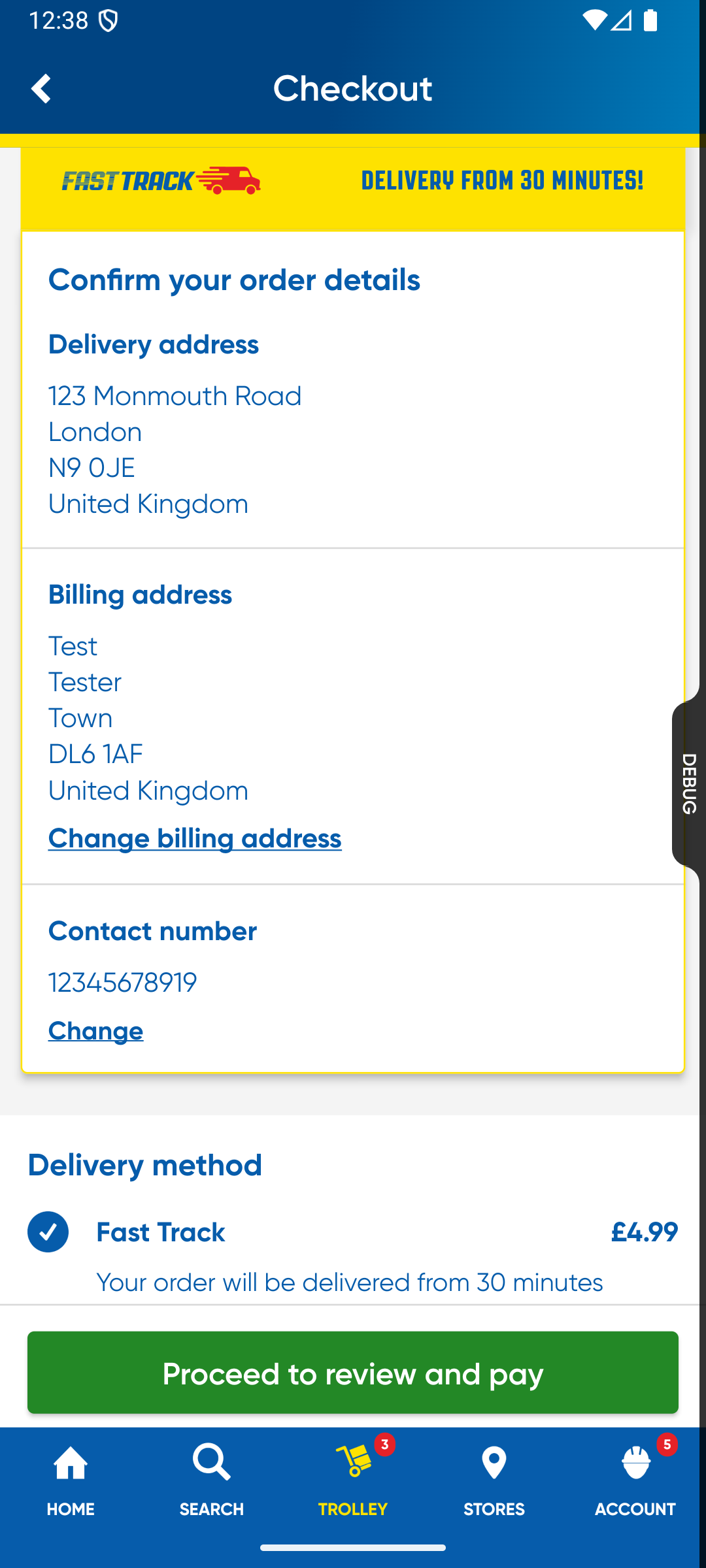
FastTrackCheckoutPage: The main entry point for the checkout process. It handles:- Displaying trolley items.
- Address selection (Delivery and Billing).
- Delivery method selection.
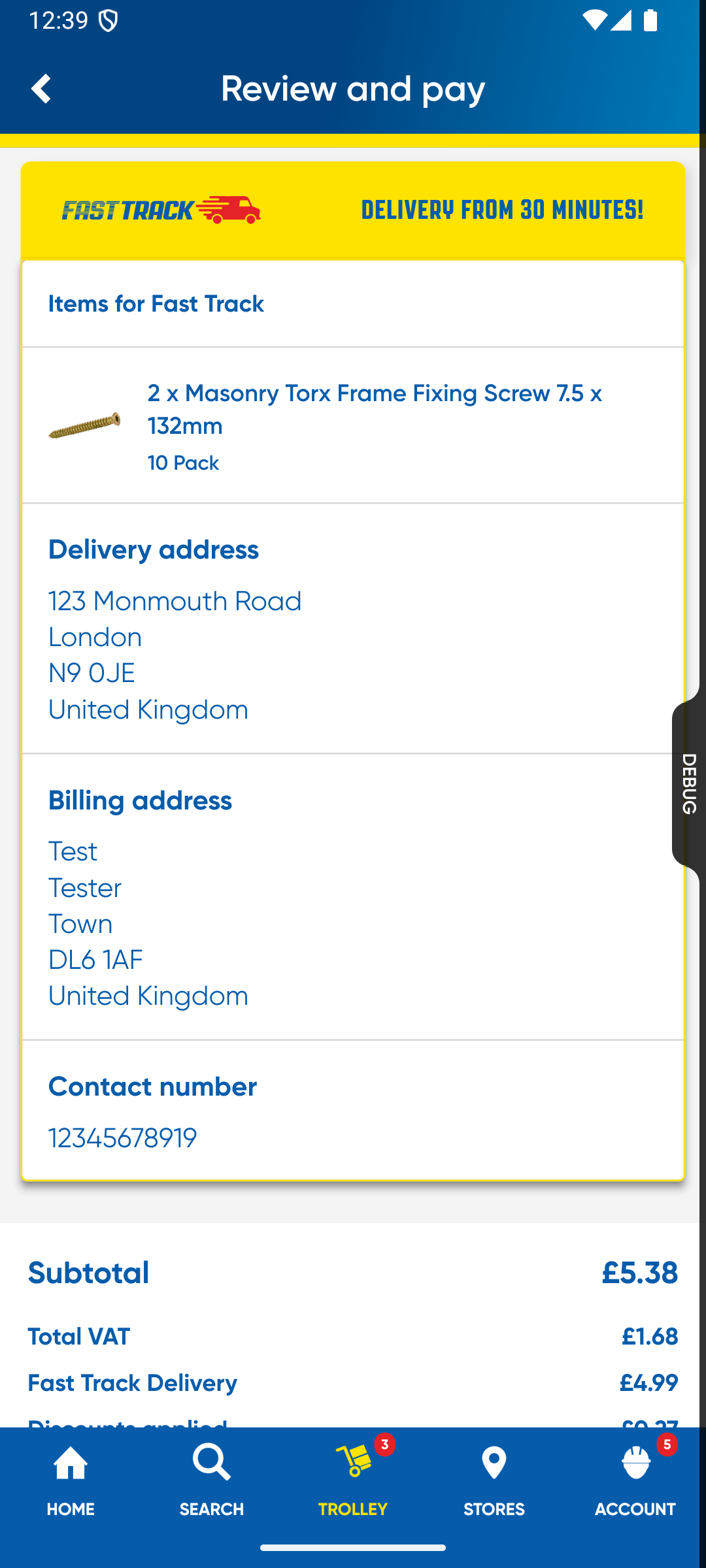
FastTrackPaymentPage: Handles the payment selection and processing. It reusesPaymentPageBody.
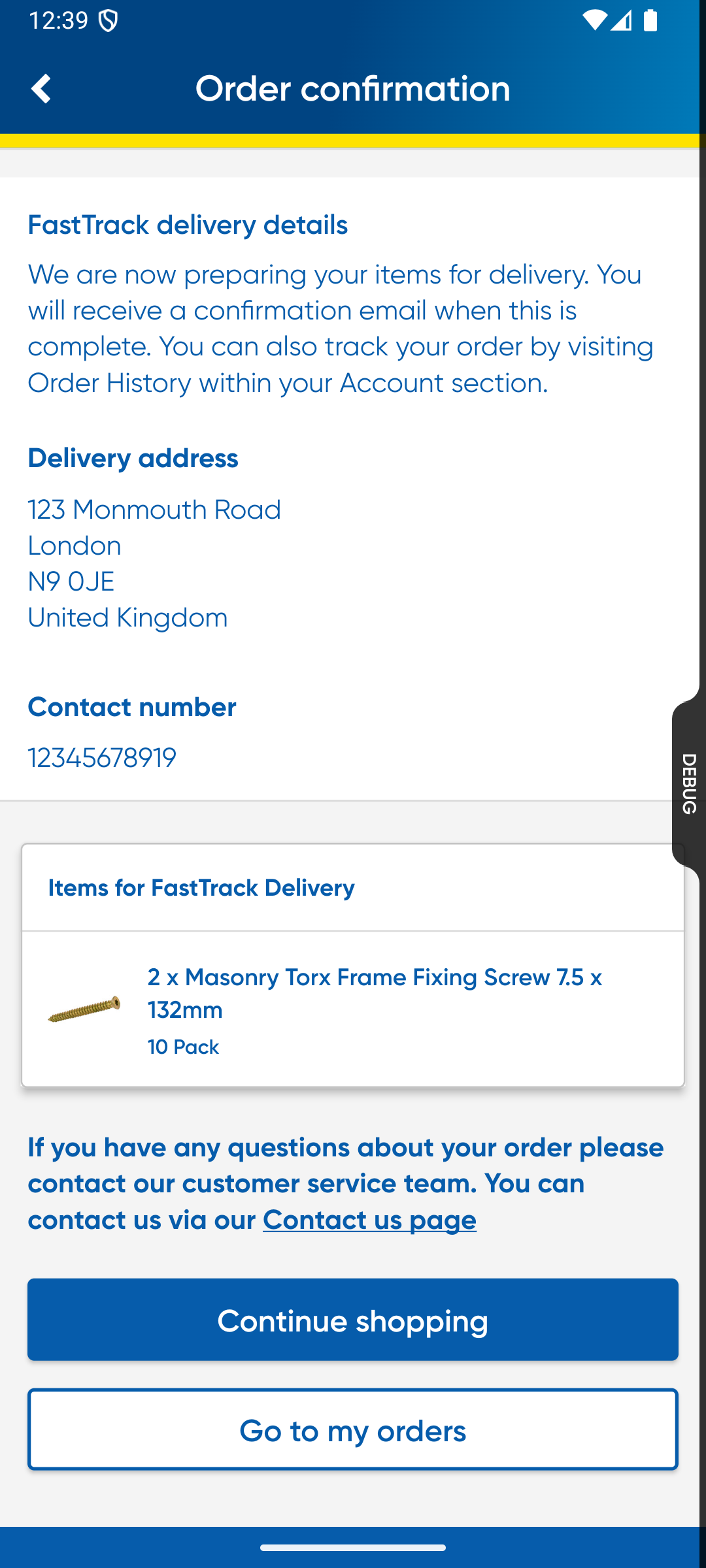
FastTrackConfirmationPage: Displays the order confirmation details after a successful payment.
B. Business Logic
FastTrackTrolleyPageBloc : The central brain for the fast track journey. It manages:
- State: FastTrackTrolleyPageState (Items, Totals, Eligibility, Loading state).
- Eligibility: Checks if the user's address and current time allow for Fast Track.
- Stock: Fetches and manages stock for delivery and collection.
- Promotions: Applies promo codes and handles free gifts.
- Payment: Orchestrates the payment process via
PaymentRepository.
C. Key Repositories
TrolleyRepository: Manages the trolley data (lines, totals).FastTrackRepository: Handles Fast Track specific logic (eligibility, store IDs).AddressRepository: Manages customer addresses.PaymentRepository: Handles the actual payment transaction.
3. User Journey & Data Flow
A. Checkout Initialization (FastTrackCheckoutPage)
- Trigger: User enters the Fast Track trolley/checkout.
- Initialization:
- FastTrackTrolleyPageBloc initializes and listens to trolley streams.
- It fetches the
FastTrackDeliveryStoreIdandFastDeliveryAddress. - Stock & Totals: The bloc fetches stock availability and calculates trolley totals.
- Eligibility Check: checkEligibility() is called.
- Checks if
FastDeliveryAddressis set. - Calls
_fastTrackRepository.checkAddressEligibility. - Updates state with
isEligibleandoutsideFastTrackHours.
- Checks if
B. Address & Method Selection
- Address Change:
- User can change Delivery or Billing address.
FastTrackAddressesChangedEventtriggers an update in the Bloc.- updateDeliveryMethods is called to fetch available delivery options for the new address.
- Delivery Method:
- User selects a delivery method (e.g., specific vehicle type).
- selectDeliveryMethod in Bloc updates the trolley lines with the new method and recalculates totals.
C. Proceed to Payment
- Trigger: User clicks "Proceed to Review/Pay".
- Validation:
- Checks if
deliveryItemsexist. - Checks if
isValidDeliveryAddress(Country match). - Re-runs checkEligibility().
- Checks if
- Navigation: Navigates to FastTrackPaymentPage.
D. Payment Processing (FastTrackPaymentPage)
- UI: Displays payment options (Card, Apple Pay, Google Pay, Trade Account, etc.).
- Action: User initiates payment.
- Logic (tryPayment in Bloc):
- Re-check Eligibility: Ensures user is still eligible.
- Final Update: Updates delivery methods one last time to ensure accuracy.
- Start Payment: Calls
_paymentRepository.startPaymentwith:trolleyType: TrolleyType.fastTrackfastTrackVehicleTypefastTrackCollectionBranch- Trolley totals and items.
E. Confirmation (FastTrackConfirmationPage)
- Trigger: Payment success callback navigates to this page.
- Display:
- Order ID and Totals.
- Delivery details (Address, Method).
- Collection details (if applicable).
- Next steps.
4. Key Logic Details
A. Eligibility Check (checkEligibility)
- Located in
FastTrackTrolleyPageBloc
Future<void> checkEligibility() async {
   if (_fasttrackRepository.fastDeliveryAddress != null) {
        final result = await _fasttrackRepository.checkAddressEligibility(
          _fasttrackRepository.fastDeliveryAddress!,
        );
   }
}
B. Stock Resolution
The Bloc resolves stock for three potential channels:
- Delivery: From the default branch.
- Collection: From the selected collection branch.
- Fast Track: From the
fastTrackDeliveryStoreId.
C. Payment Preparation
Before payment, the Bloc ensures the trolley is updated with the latest delivery methods and that the user is still eligible. This prevents race conditions where eligibility might expire (e.g., store closing time) between checkout and payment.
Order History & Tracking
1. Homepage Order Tracking
A. Overview
When a user has an active Fast Track order, a tracking status card appears on the Homepage, providing real-time ETA and quick access to order details.
B. Components
HomePage:- Listens to
backend.fastTrackRepository.streamActiveOrdersForTracking. - If
hasFastTrackis true and there are active orders, it renders the FastTrackTrackerStatus widget. - If no active orders but
hasShowFastTrackBannerFeature Flag is true, it shows aFastTrackHomeBanner.
- Listens to
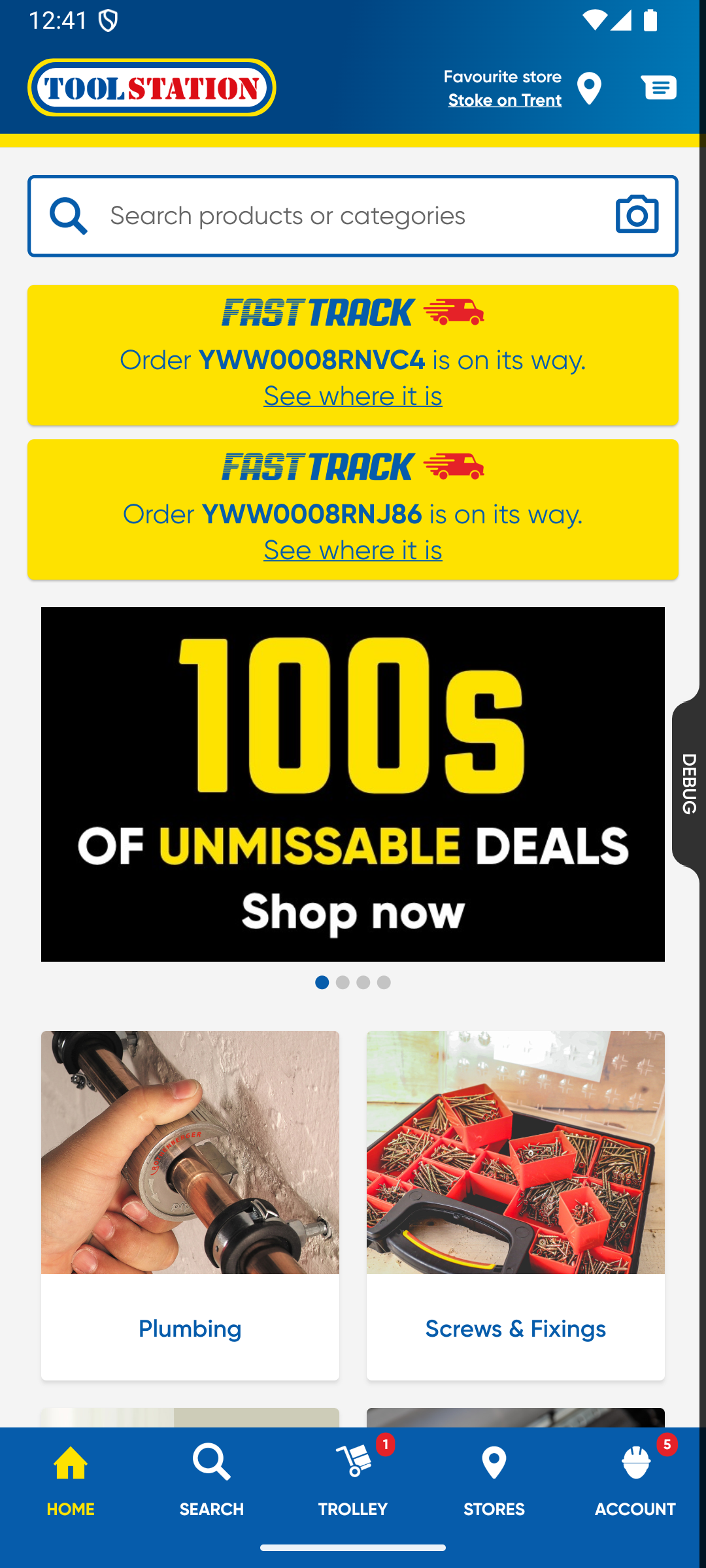
FastTrackTrackerStatus:- UI: Displays a yellow card with the FastTrack logo and ETA.
- Logic:
- Calculates ETA in minutes from
order.fastTrack?.currentEta. - Displays "Order X is on its way" or "Your order is X minutes away".
- Calculates ETA in minutes from
- Navigation: Tapping the card navigates to OrderHistoryDetailPage.
C. Data Flow
FastTrackRepositorypolls/streams active orders.HomePagereceives the list of active orders.FastTrackTrackerStatusis built for each active order (though typically one).- User taps -> Navigates to Order Detail.
D. Order Updates via Push Notifications
- Notification arrives in
MainPageBloc. - It gets checked if the
order_typeisfasttrackandorder_statusis notnull. - Once it passes the check,
MainPageBloccallsFastTrackRepository.refreshActiveOrdersForTracking. FastTrackRepositoryfetches new data and emits it viastreamActiveOrdersForTracking.- HomePage receives the new data via
StreamBuilderand updates the UI.
2. Order History
A. Overview
Fast Track orders are listed alongside regular orders but contain specific status information and tracking capabilities.
B. Components
- OrderHistoryPage:
- Displays the list of orders using ModernOrderHistoryCard (or OrderHistoryItemV2).
- ModernOrderHistoryCard :
- Displays basic order info.
- Expands to show OrderDetailsMainContent.
- OrderDetailsMainContent :
- Displays the "Track Order" button if tracking data is available.
- Uses
OrderHistoryDetailPageBlocto handle tracking logic.
- OrderHistoryDetailPage :
- Status: Displays Fast Track specific status (
order.fastTrack!.status) if available, otherwise falls back to standard status. - Tracking Button: "Track Order" button with FastTrack logo.
- Map: Displays a
BoxedWebViewwith thetrackingMapUrlifhasShowFastTrackOrderTrackingMapis true.
- Status: Displays Fast Track specific status (
C. Key Logic
- Status Display:
value: order.fastTrack != null ? order.fastTrack!.status.translate(translations) : order.translatedStatus(translations), - Tracking Map:
- Embedded directly in the details page using
BoxedWebView. - URL comes from
order.fastTrack?.trackingMapUrl.
- Embedded directly in the details page using
- Re-order: "Add to Trolley Again" functionality is supported for Fast Track items.
3. Integration Points
A. Repositories
FastTrackRepository: Manages active orders for tracking on the homepage.OrderRepository: Fetches order history and details, including the nestedFastTrackOrderobject which contains status, ETA, and tracking URL.
B. Feature Flags
hasFastTrack: Global enable/disable.hasShowFastTrackBanner: Controls the promotional banner on Home.hasShowFastTrackOrderTrackingMap: Controls the visibility of the embedded map in Order Details.