

Qa Testing
Order Status and Payment Reversal
Extranet
Order Status and Completion
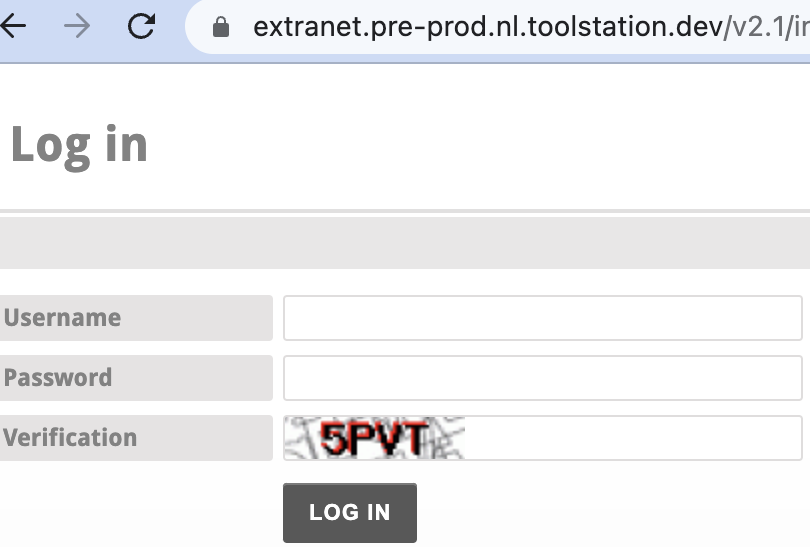
Step 1. Log in to the Extranet
- To get started, open your web browser and navigate to the Extranet login page. Enter your credentials (username and password) to access your account.(URLs and credentials are shared within the team for each region; refer to Point 3 in the Test Data).
Step 2. Access the Orders Section
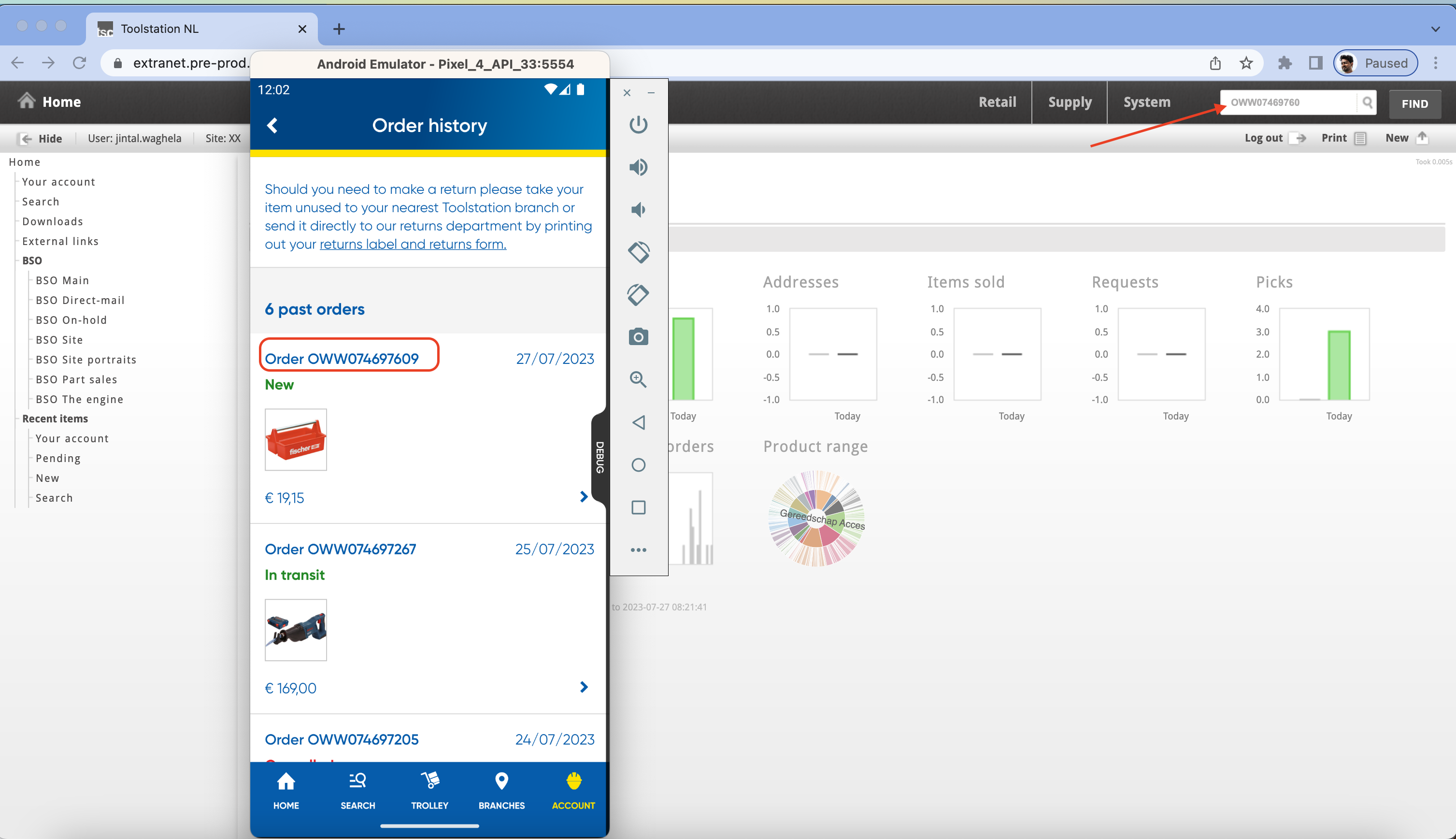
- Once you're logged in, search for the order with the order ID and exclude the last digit when searching.This will take you to the section where you can view and manage all your orders.
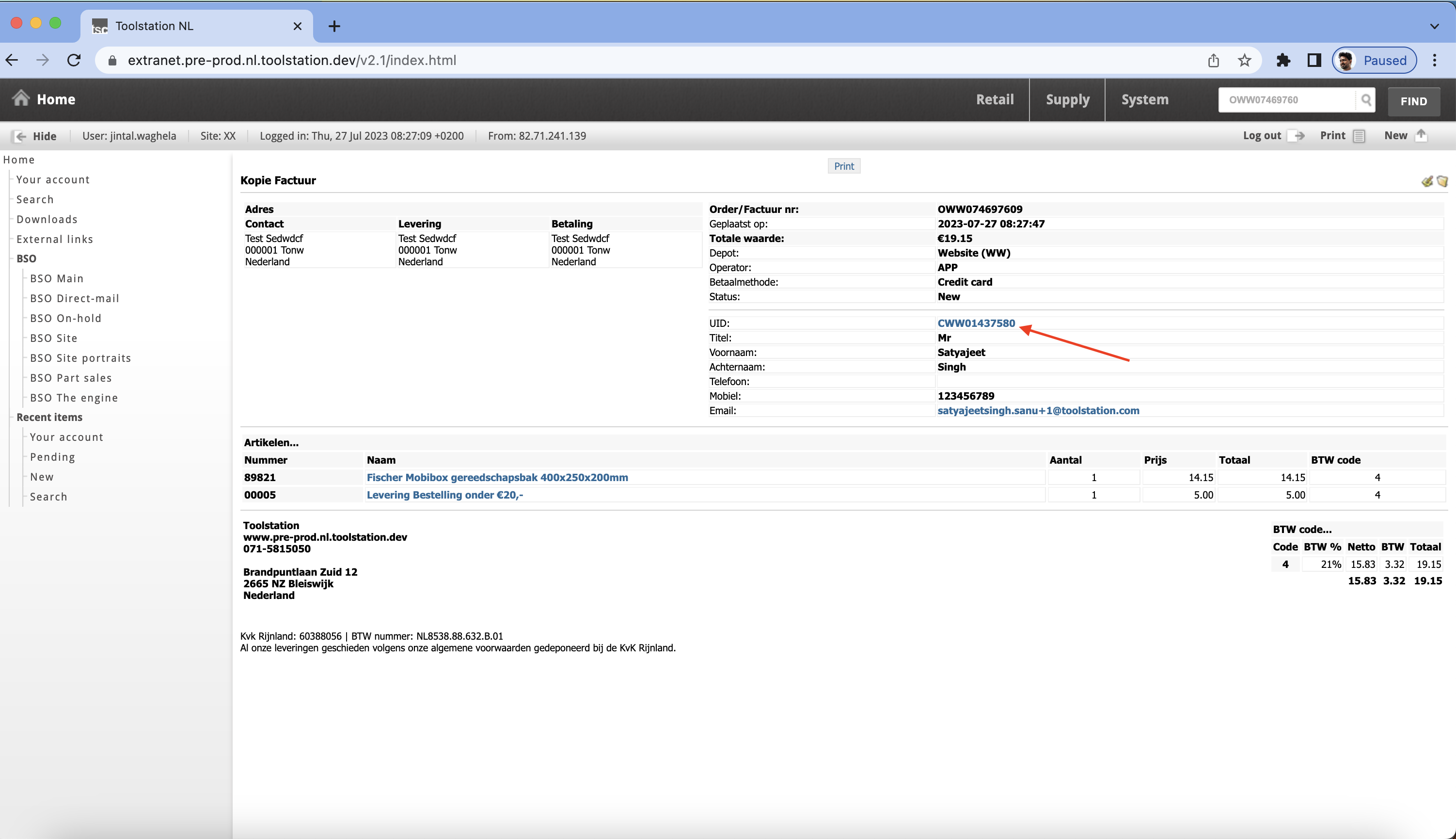
Step 3. Click on the UID in the order details page.
Step 4. A popup will appear; then, click on the "Orders" section.
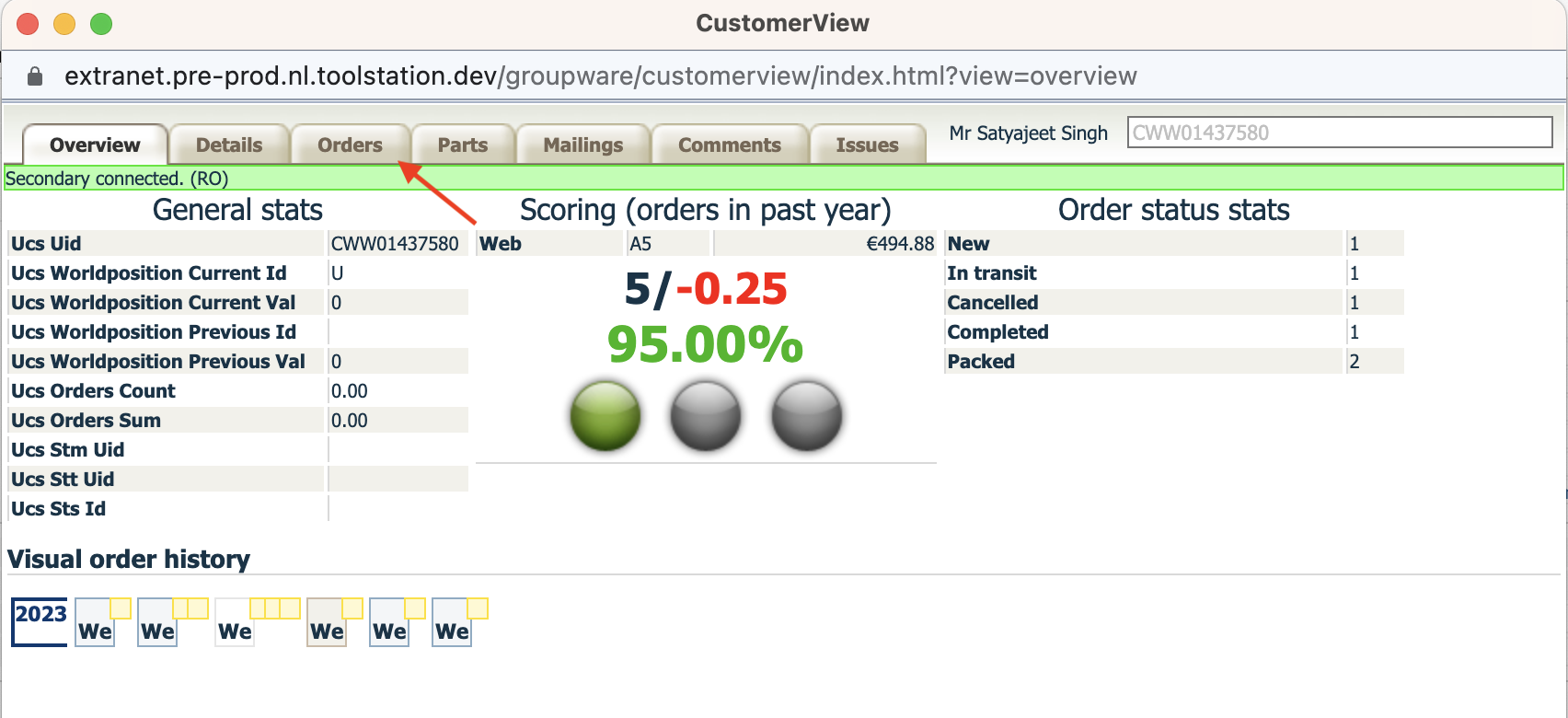
Step 5. Verify the order ID and click on the order value.
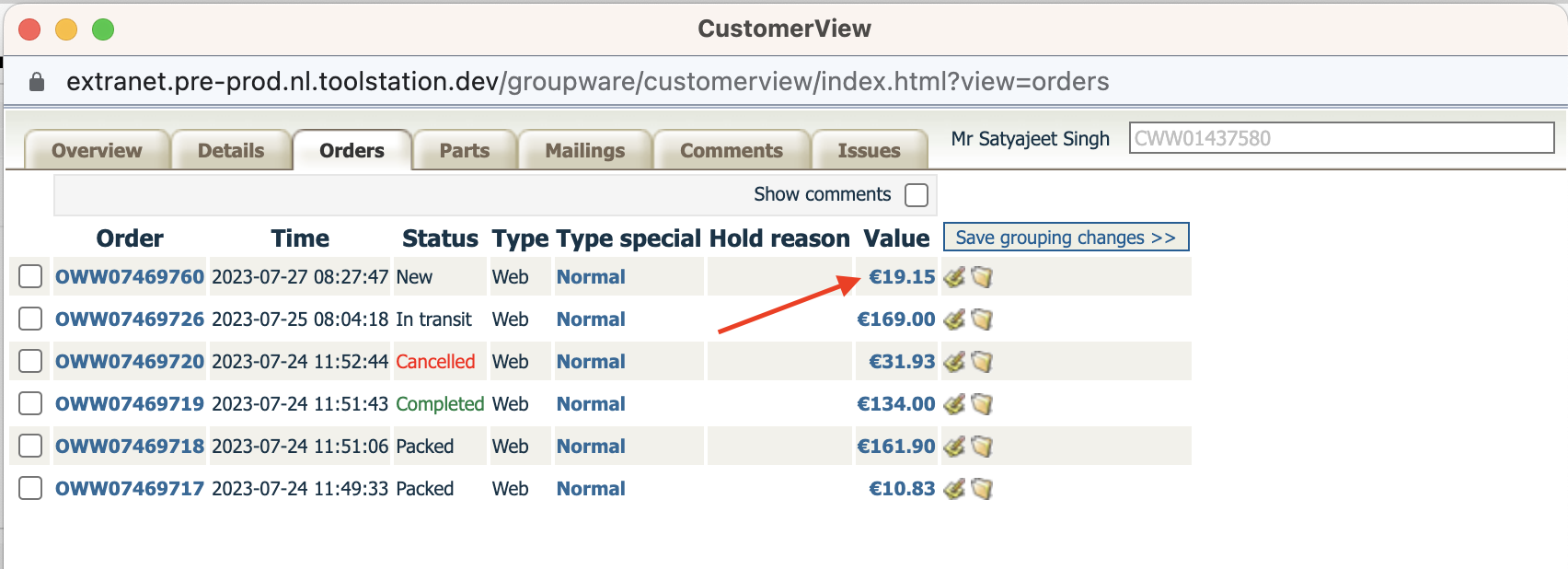
Step 6. A new window will appear with the status set as "New.
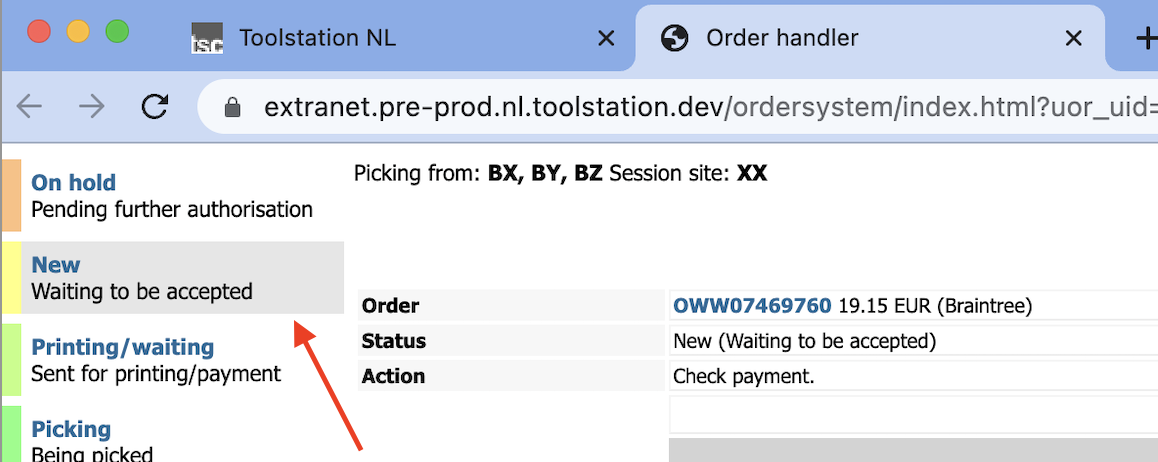
Step 7. Change the order status to "Printing/waiting" by clicking on the continue button.
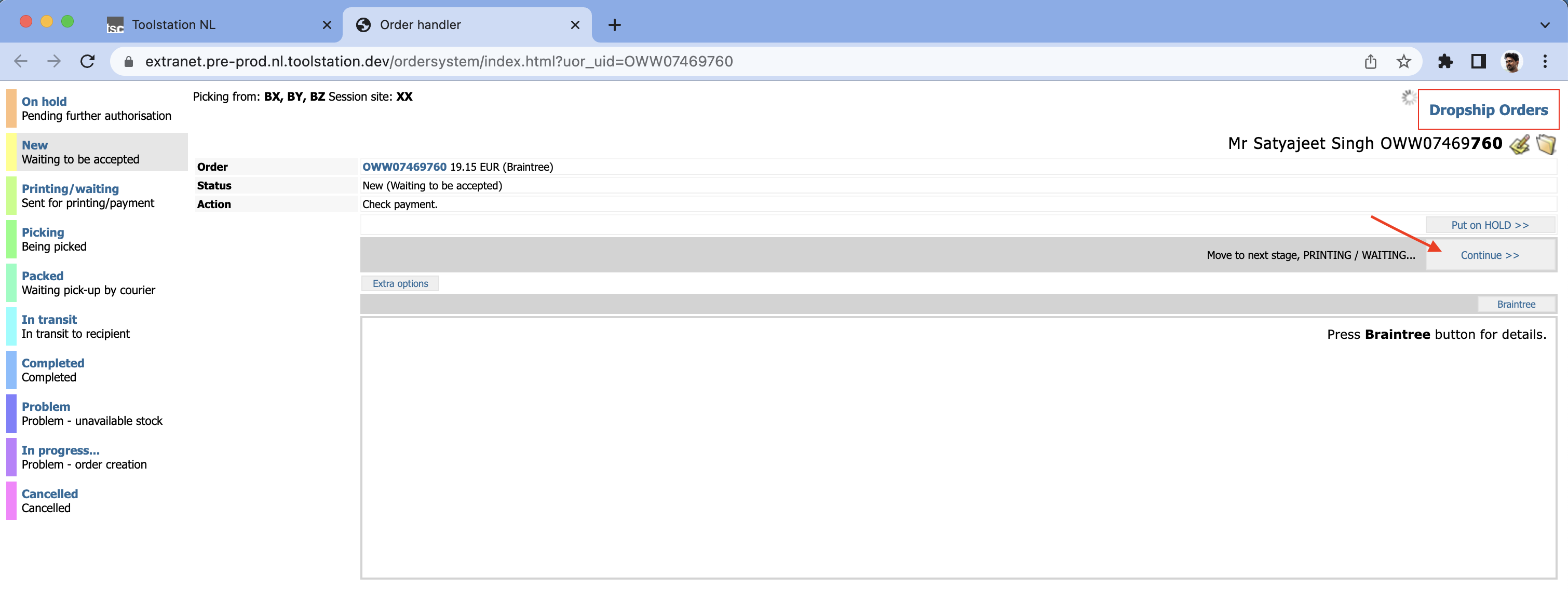
Step 8. Continue clicking the "Continue" button until you reach the "Packed" phase, which you can find on the left side.
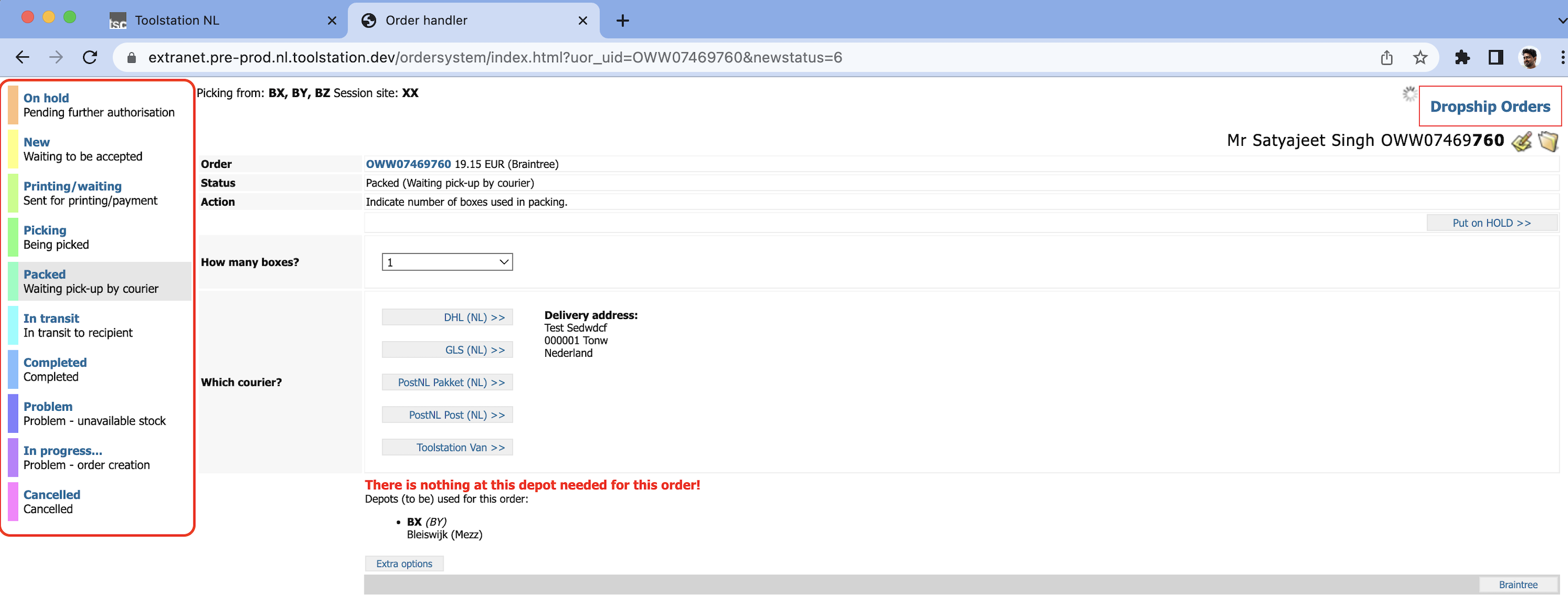
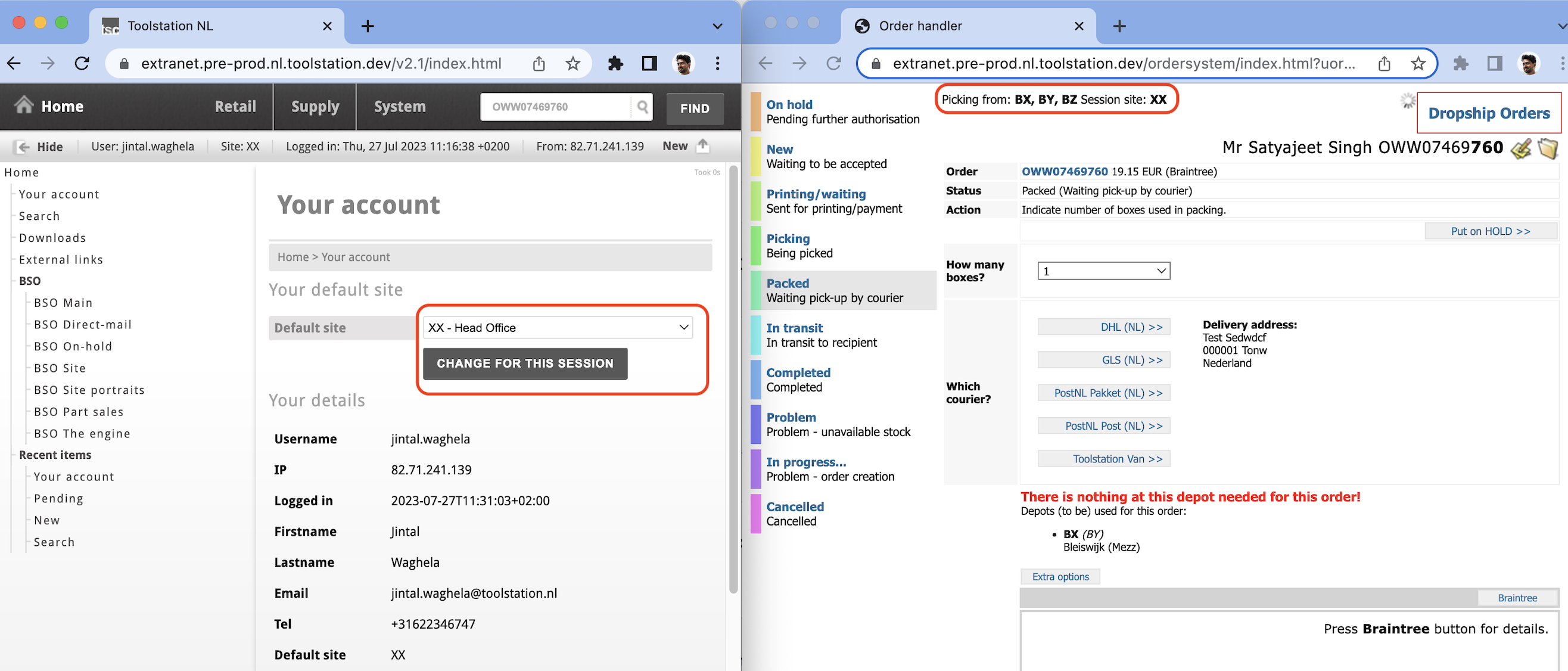
Step 9. Change the default session site to the picking session site in order to complete the order.
- Go to your account and change the session.
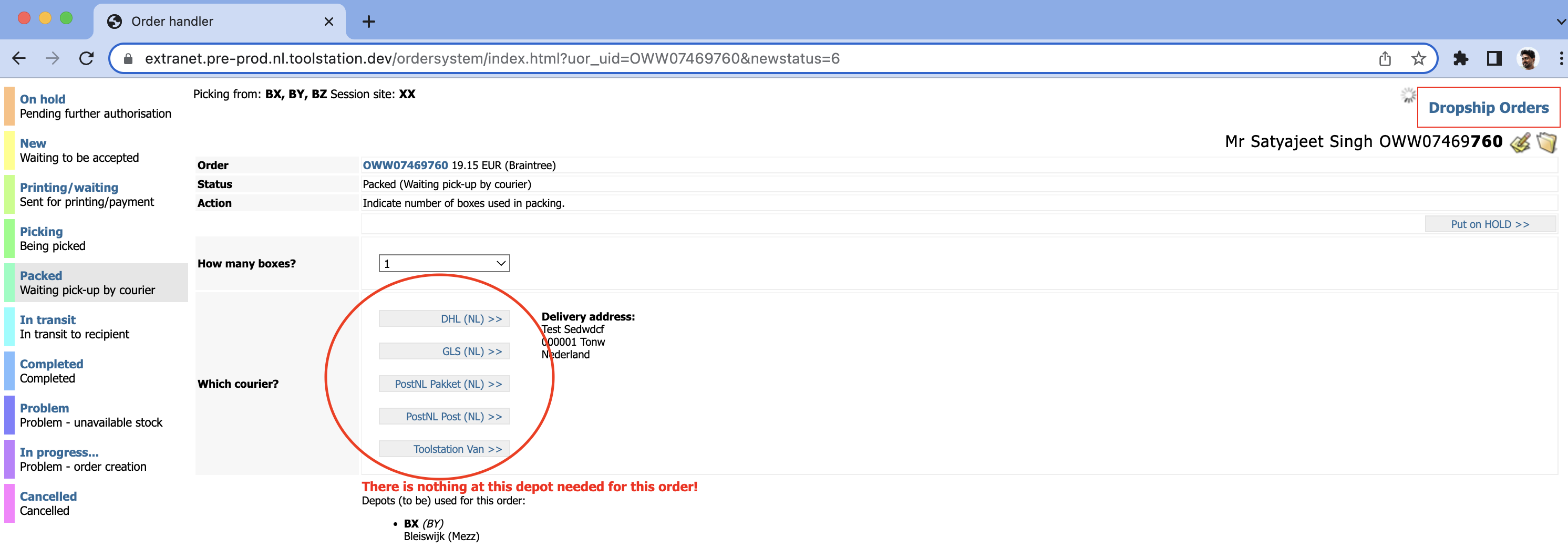
Step 10. Choose one of the courier services by clicking on it.
Step 11. Now, click the "Continue" button to complete the order.
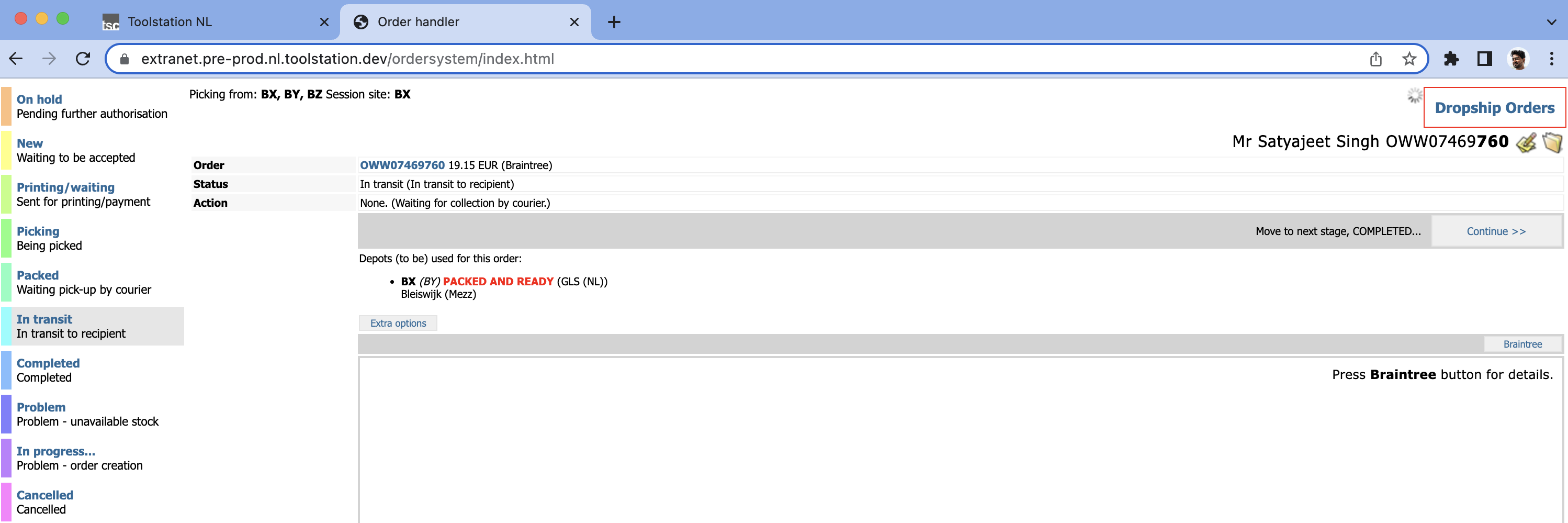
Step 12. Review and confirm the changes.
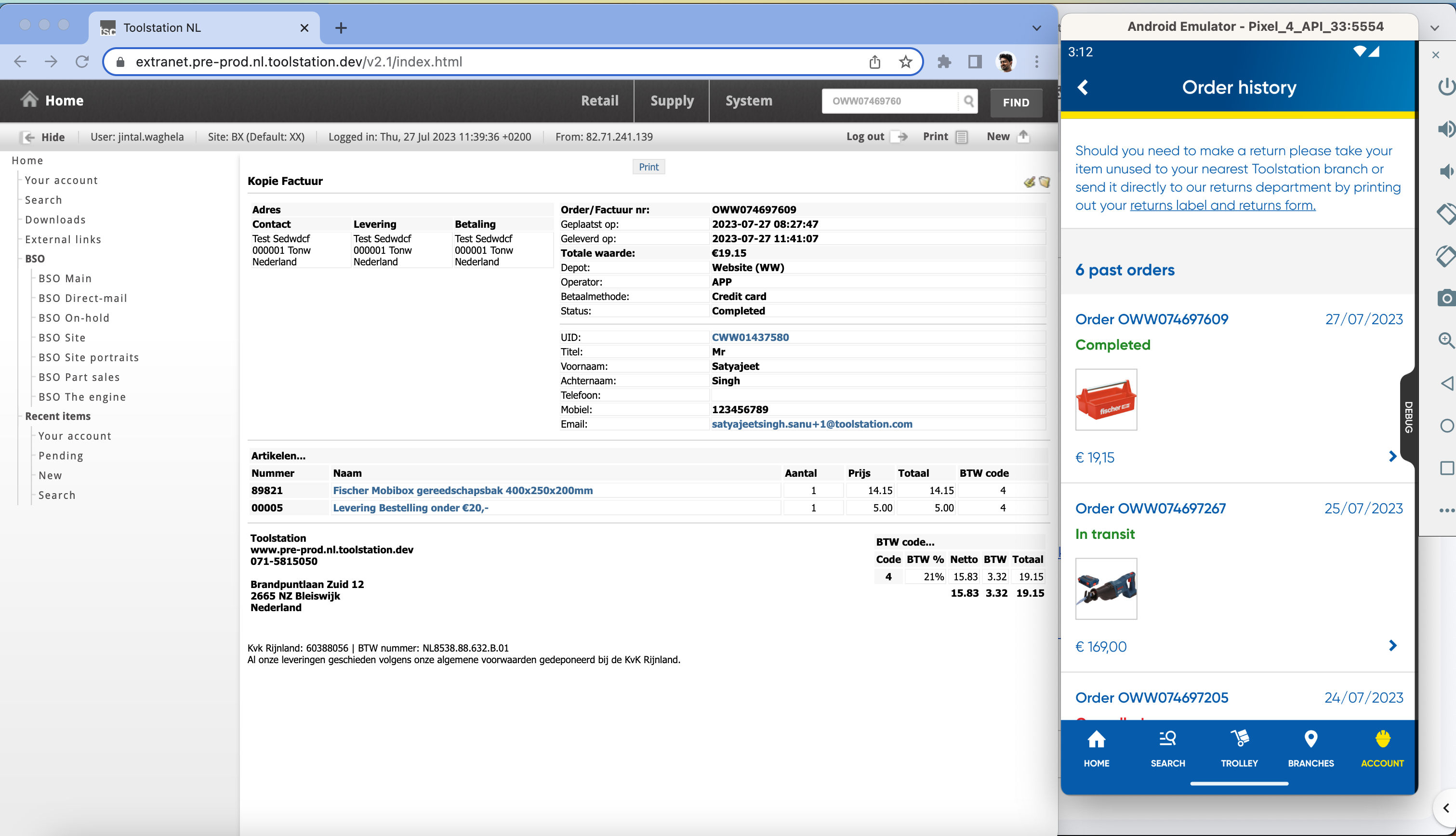
- The order is now completed, and we can verify this in the order details page and on the app as well.
Order Cancellation Process
To cancel an order, follow these steps:
Begin with steps 1 to 6 mentioned above
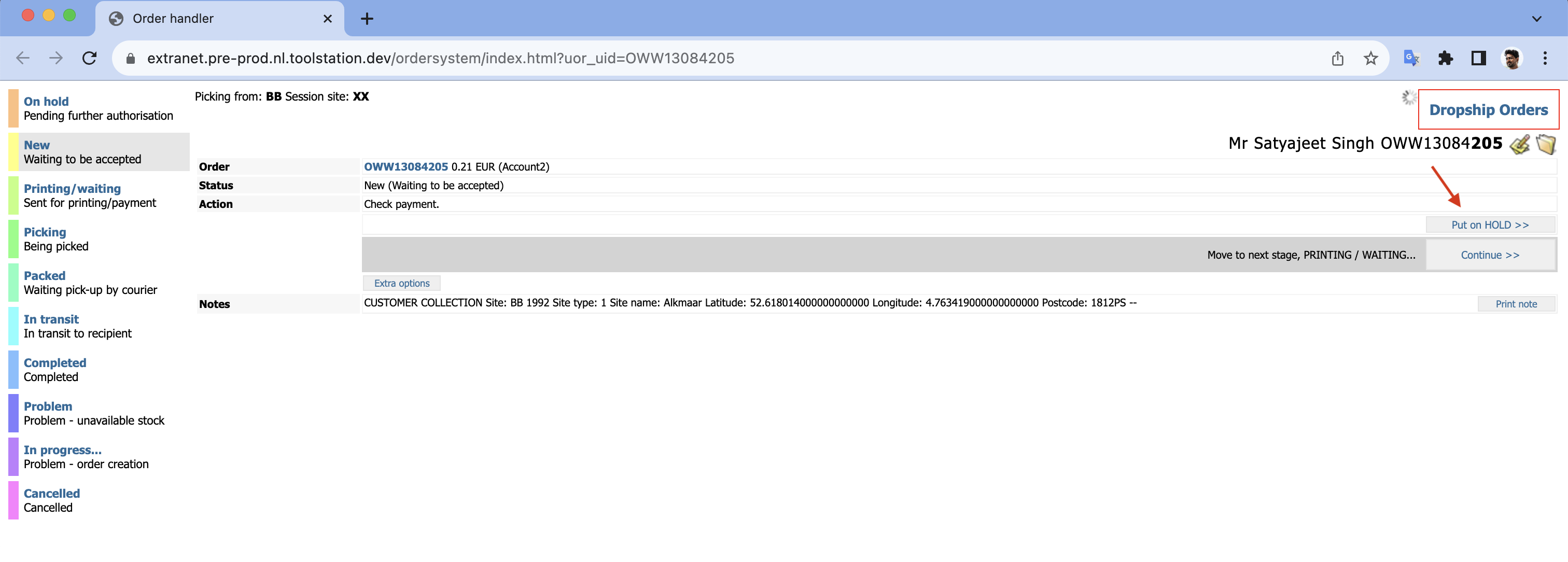
Step 7. Click on the "Put on HOLD" button on the order handler page.
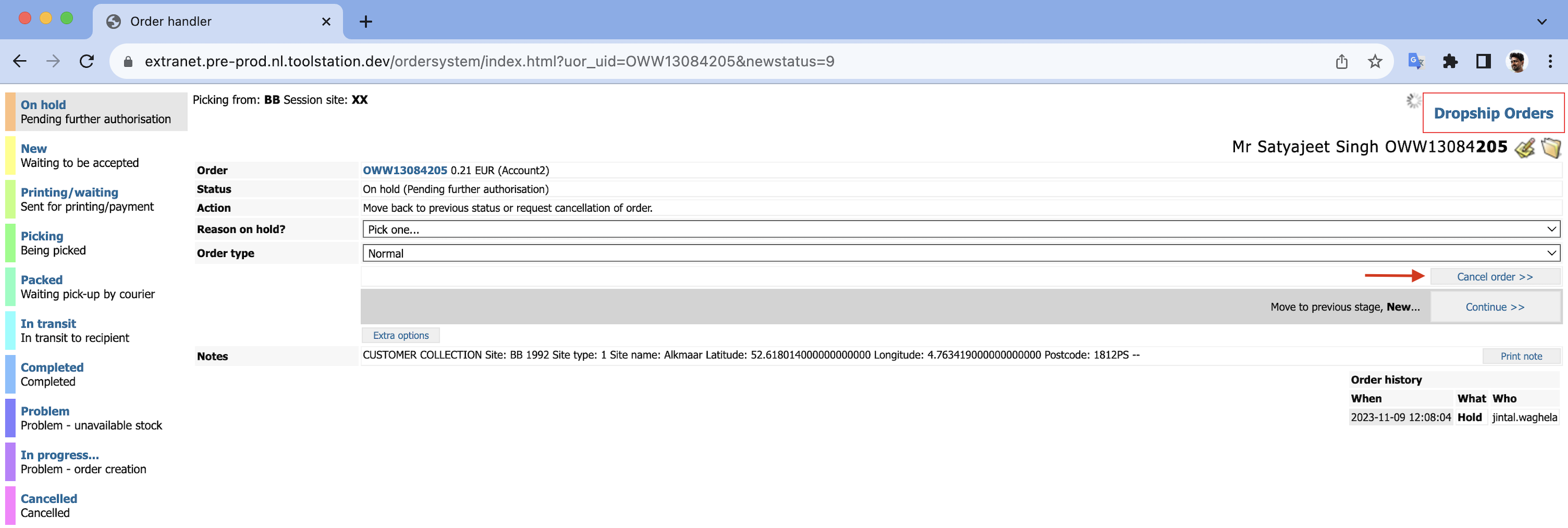
Step 8. After confirming, click on the "Cancel order" button.
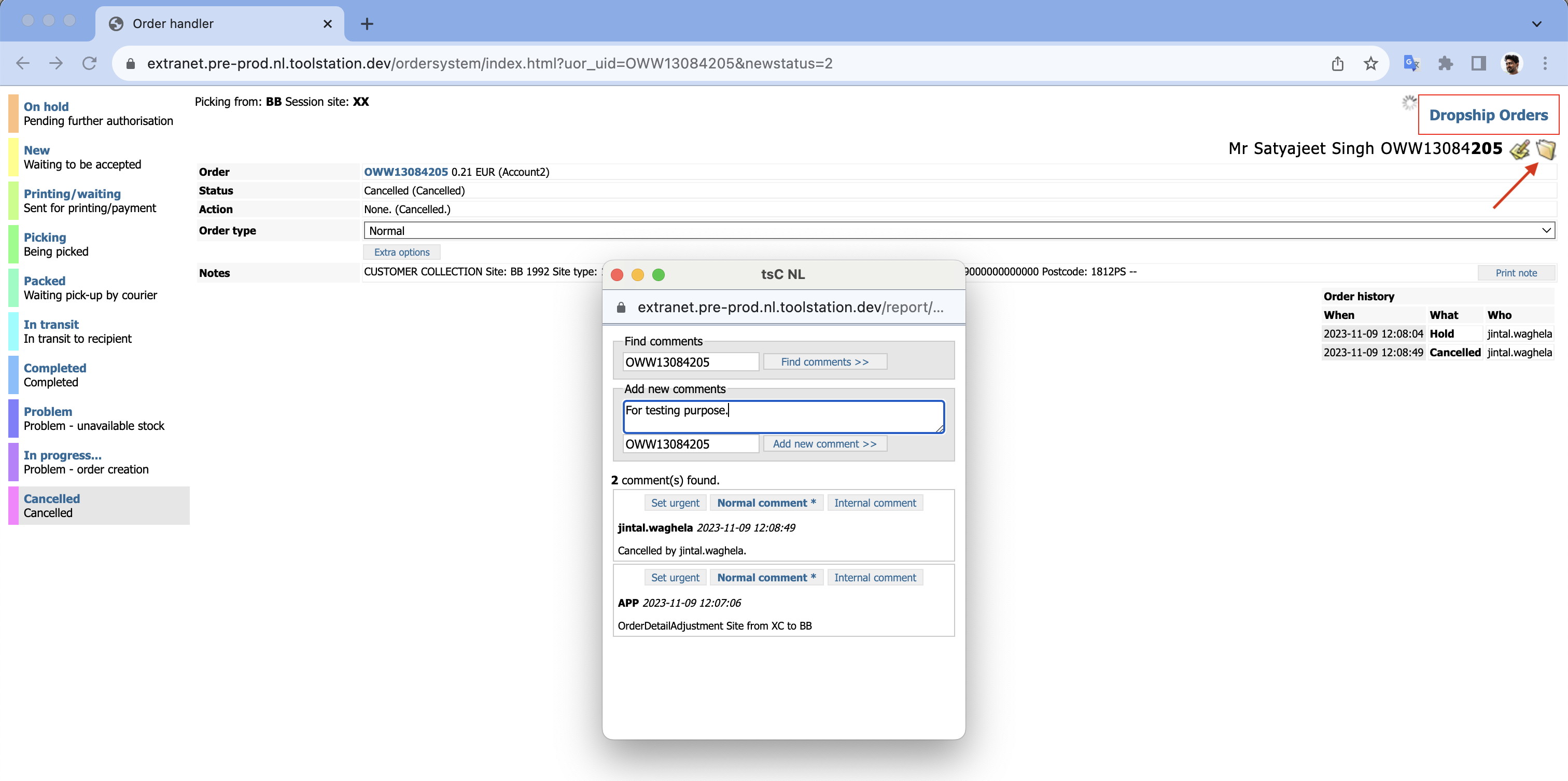
Step 9. Include a comment indicating that it is for testing purposes.
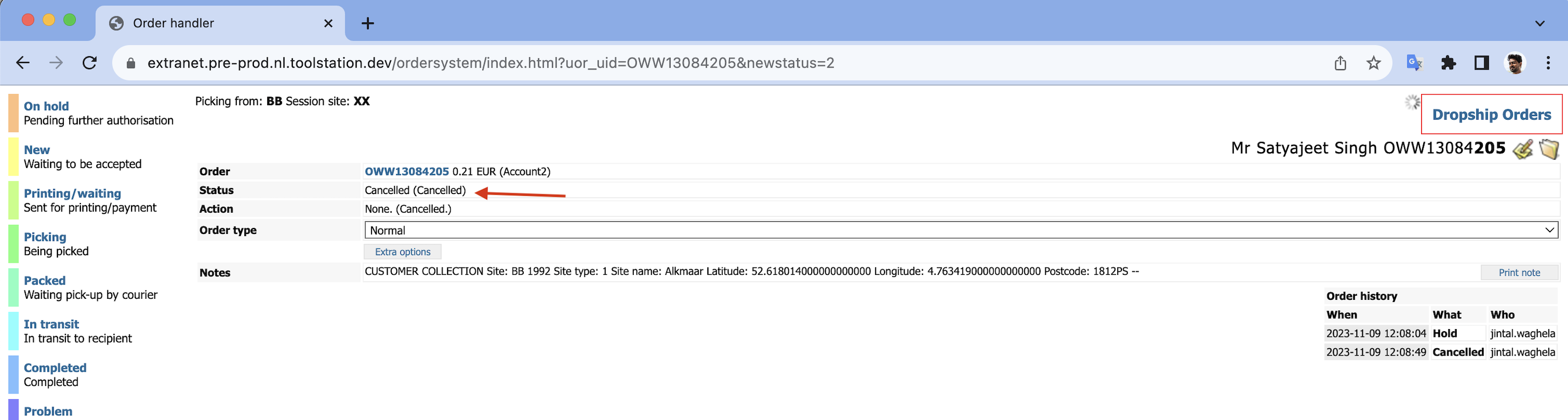
Step 10. Observe the updated status of the order.
Braintree
Refund Process using Braintree
Follow these steps to initiate a refund using Braintree:
Step 1. Click on the Braintree button in the order handler.

Step 2. Click on the "Cancel Transaction" button.
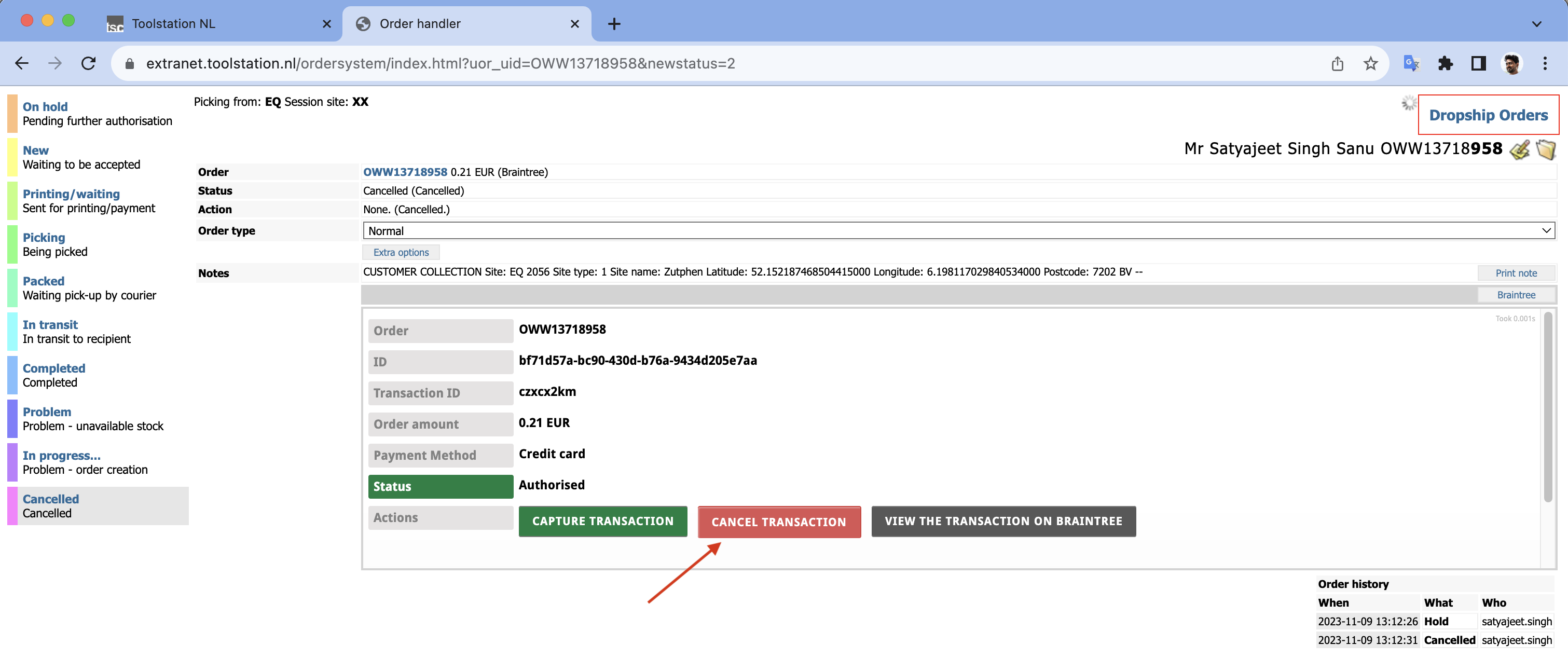
Step 3. The transaction will be voided. To check the transaction status, click on "VIEW THE TRANSACTION ON BRAINTREE."
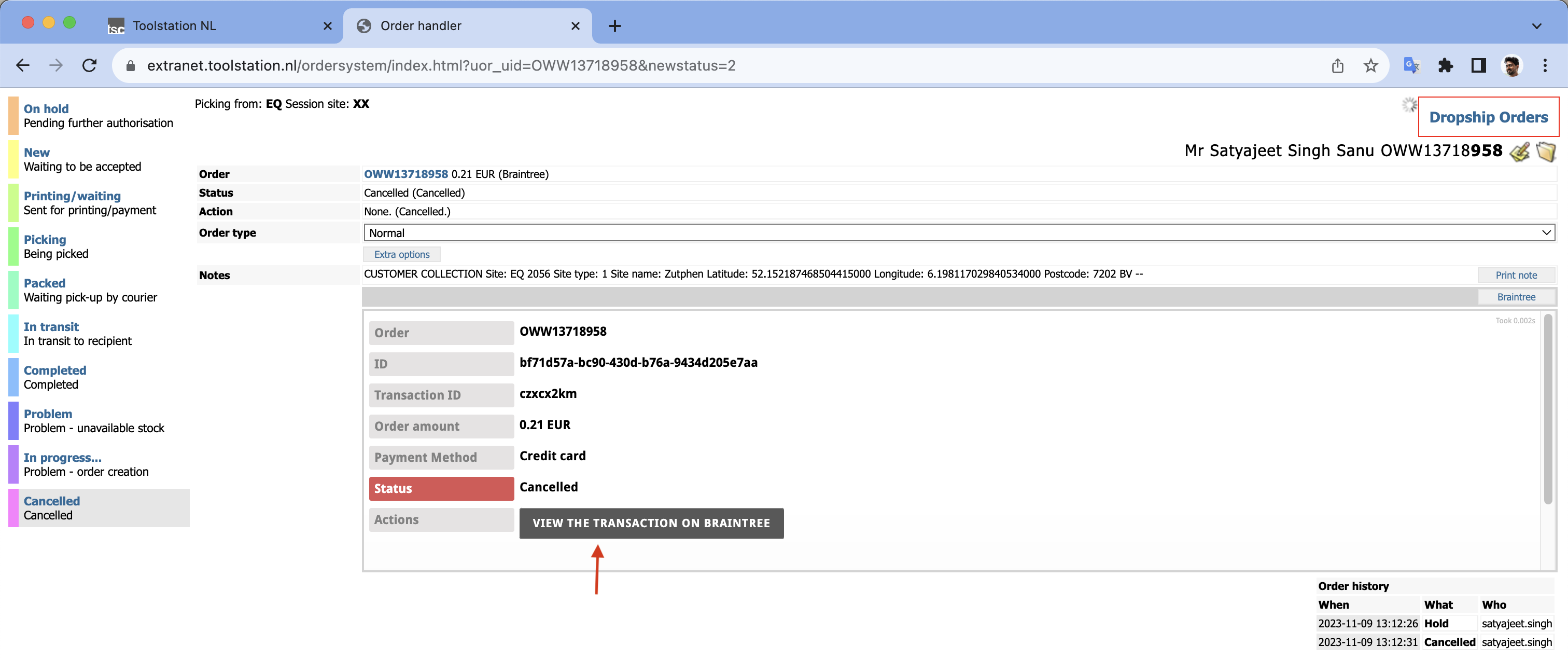
Step 4. Observe the transaction status.
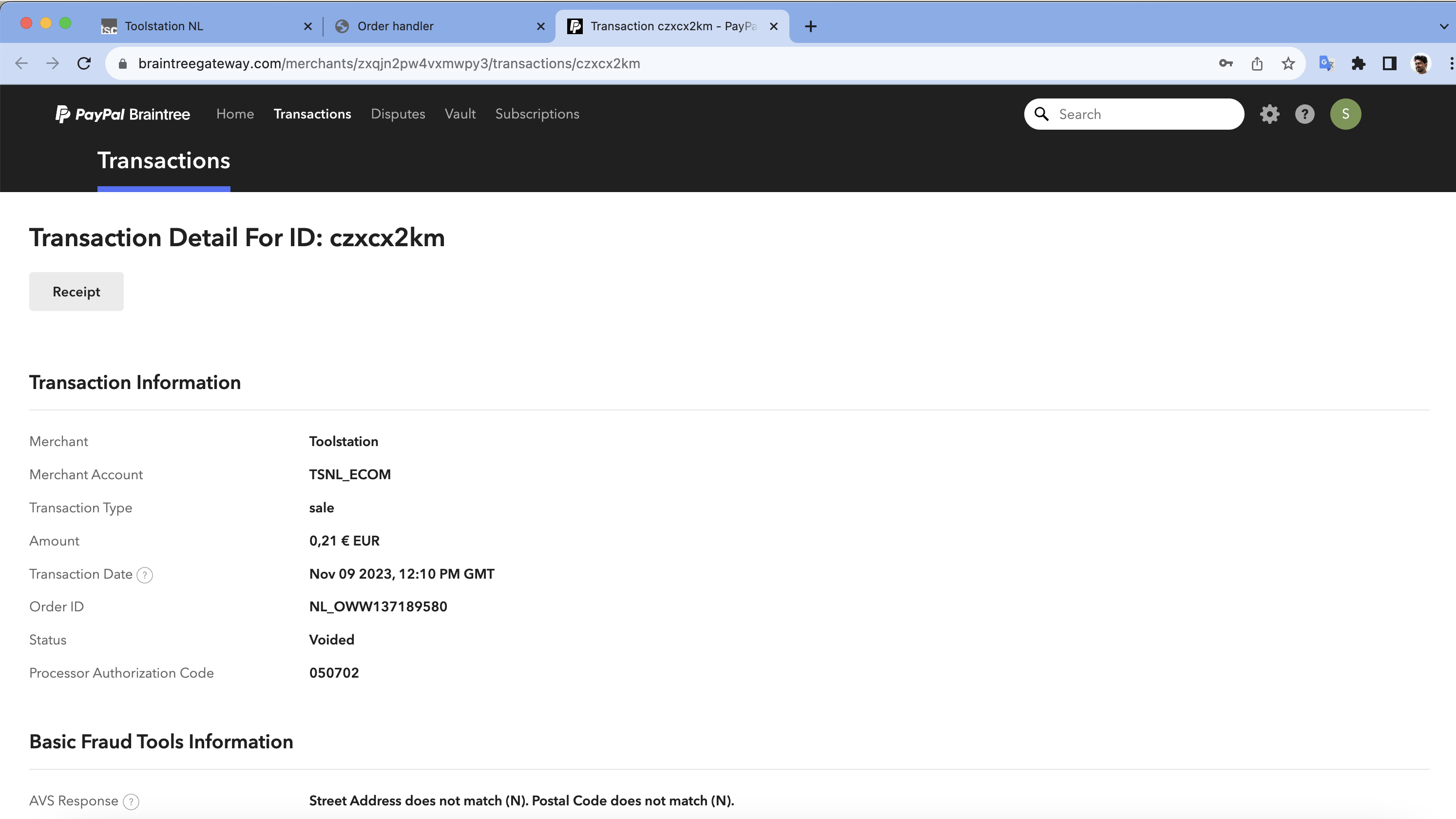
That's it! You've successfully completed the refund process using Braintree.